
Accepting a placement
Accept a placement your university arranged and choose what to share.
What this page is for
When your university arranges a placement for you and the company accepts it, the company sends you a link. The link opens this page, where you choose a password (or use the one you already have) and decide whether your university may see how you are getting on. You join the placement whatever you decide.
- Where
- The link the company that placed you sent (an address ending in /accept-placement). You do not need to be signed in.
- Who can open it
- A student placed by a university
- App
- Intern Portal
How accepting a placement works
The same steps as a list
- The company that placed you sends the link
- Open the link
- Choose a password and answer the sharing question
- Press Join placement
- Link valid and password accepted? (Yes: Signs you in and opens Your week; No: read the message: Choose a password and answer the sharing question)
- Signs you in and opens Your week
The screen
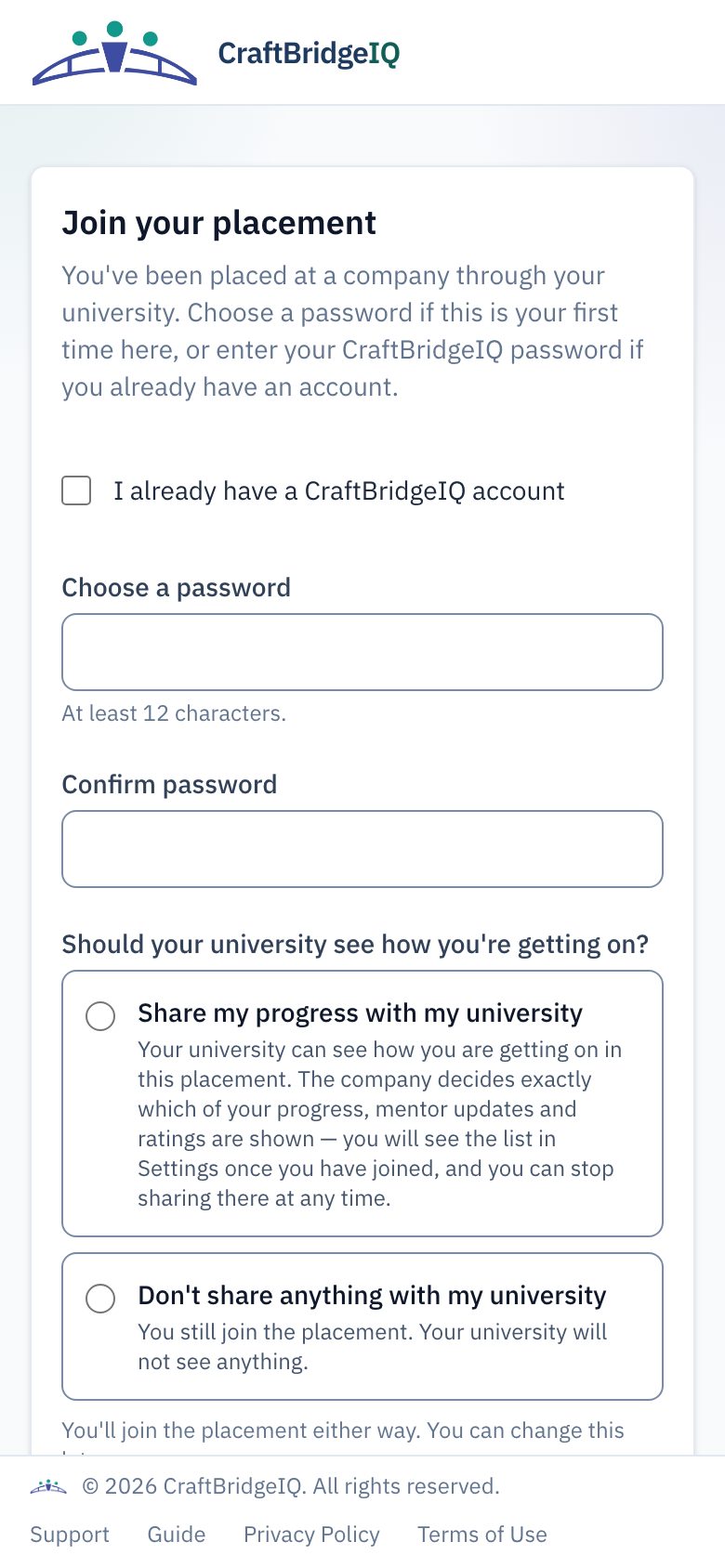
| No. | Control | What it does | What happens next |
|---|---|---|---|
| 2 | Join your placement | The title. Under it a note explains that you were placed at a company through your university. | Nothing; it is a heading. |
| 3 | I already have a CraftBridgeIQ account | A tick box. Leave it empty if this is your first time; tick it if you already sign in to CraftBridgeIQ. | The password box becomes Your current password and Confirm password disappears. |
| 4 | Choose a password | The password you will sign in with. What you type is hidden. | Type it again in Confirm password. |
| 5 | At least 12 characters. | A hint about the shortest password. | Nothing; it is a hint. |
| 6 | Confirm password | The same password again, so a typing slip cannot lock you out of an account you have just made. | If it differs, a red line says so. |
Scroll down for the question about your university and the button.
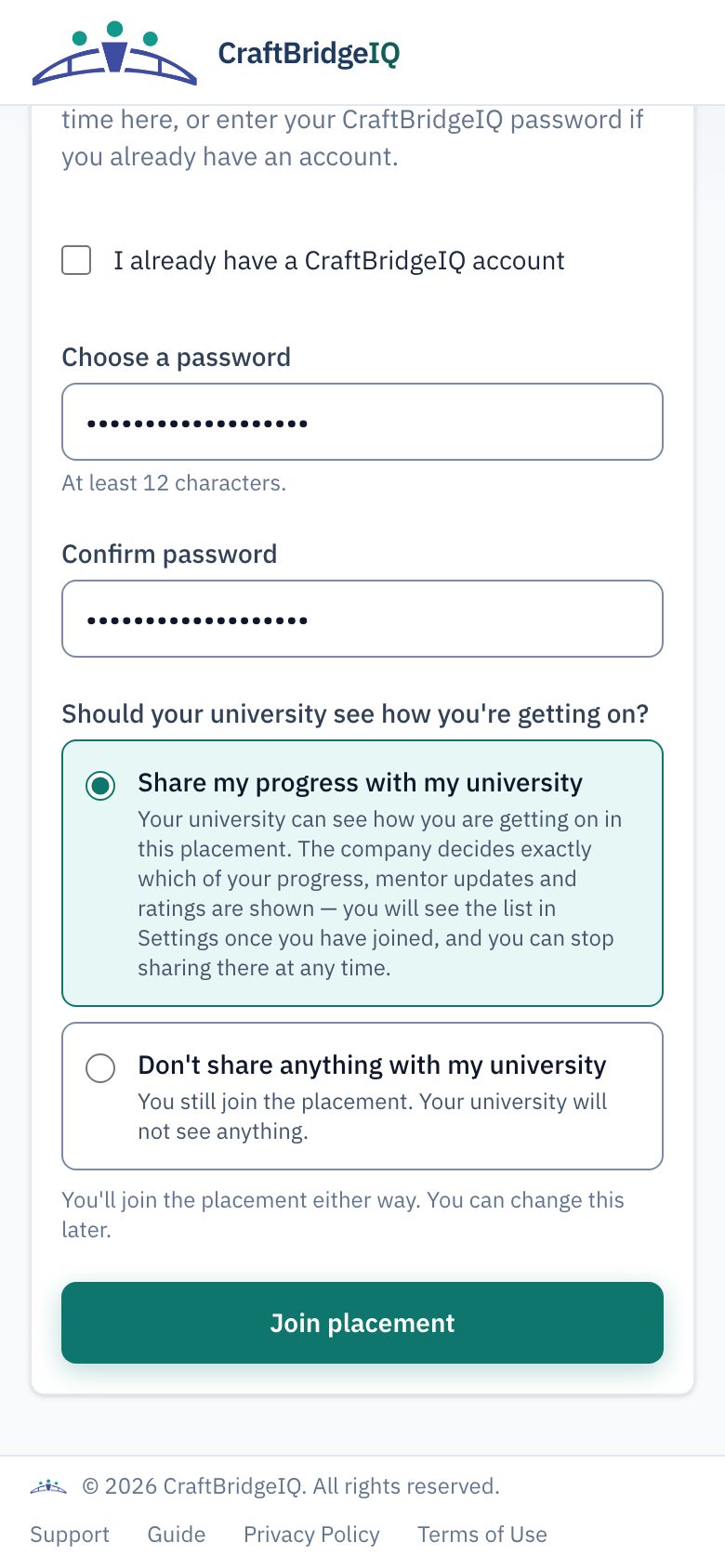
| No. | Control | What it does | What happens next |
|---|---|---|---|
| 7 | Should your university see how you're getting on? | The question. There is no default: you must choose one answer. | Pick one of the two options. |
| 8 | Share my progress with my university | Your university can see how you are getting on in this placement. The company decides exactly which of your progress, mentor updates and ratings are shown. | You can see the list in Settings once you have joined, and stop sharing there at any time. |
| 9 | Don't share anything with my university | You still join the placement. Your university will not see anything. | You can change your mind later in Settings. |
| 10 | You'll join the placement either way. You can change this later. | A reminder that the choice does not affect joining. | Nothing; it is a note. |
| 11 | Join placement | Joins the placement and signs you in. It stays dimmed until the password is long enough, both boxes match and you have chosen an option. It reads Joining… while it works. | You arrive on Your week. |
If you already have an account, tick the box at the top.
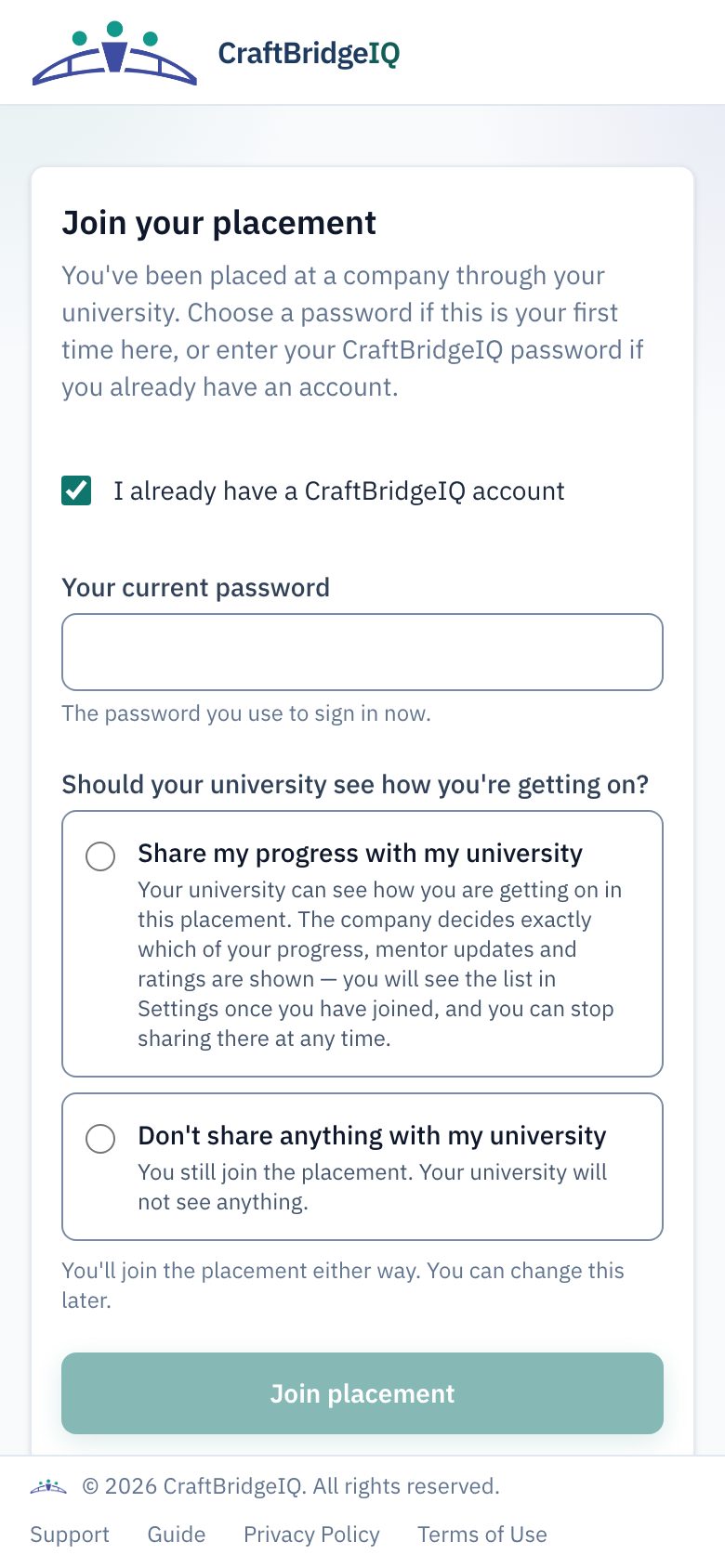
| No. | Control | What it does | What happens next |
|---|---|---|---|
| 12 | I already have a CraftBridgeIQ account | Ticked. The second password box is gone. | Enter the password you use now. |
| 13 | Your current password | Your own password. It is checked, not replaced. | If it is wrong, the page says so and the link is not used up. |
| 14 | The password you use to sign in now. | A hint under the box. | Nothing; it is a hint. |
Without a link, the page asks for it.
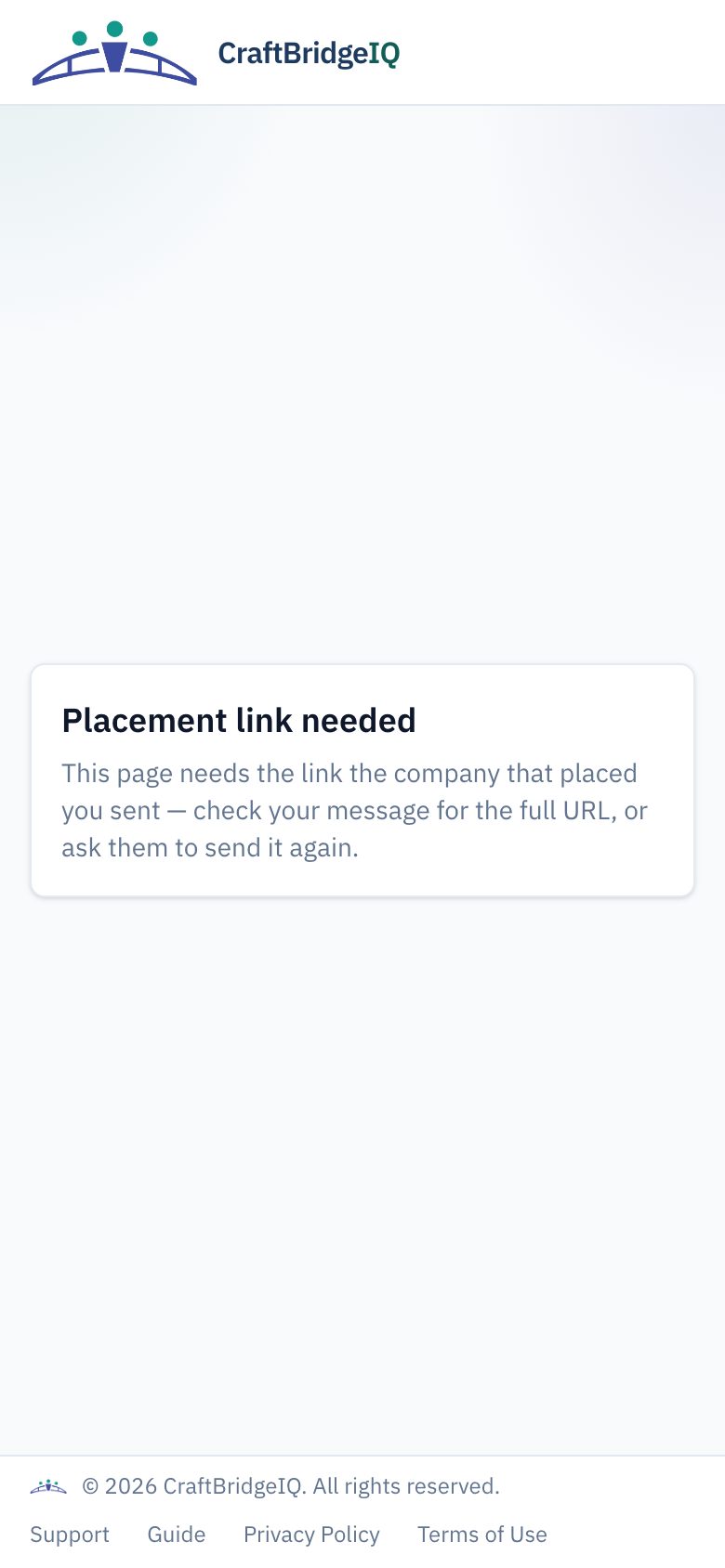
| No. | Control | What it does | What happens next |
|---|---|---|---|
| 1 | Placement link needed | The title shown when the address has no placement code. | Open the whole link from your message, or ask the company to send it again. |
Step by step
Join your placement for the first time
- Open the whole placement link.
- Leave the account box empty. Choose a password and type it again.
- Choose Share my progress with my university or Don’t share anything with my university.
- Press Join placement.
You are signed in and Your week opens.
Join when you already have an account
- Open the link and tick I already have a CraftBridgeIQ account.
- Type your current password in Your current password.
- Choose an answer to the sharing question and press Join placement.
The placement form
| Field | Required | Rules | Example |
|---|---|---|---|
| I already have a CraftBridgeIQ account | No | Tick it only if you already sign in to CraftBridgeIQ. | Ticked |
| Choose a password | Yes | 12 to 128 characters. When you tick the account box the label is Your current password. | A long phrase you can remember |
| Confirm password | Yes, for a new account | Must match the first box. Not shown when the account box is ticked. | The same phrase again |
| Share my progress with my university | One of the two options | No option is chosen for you. | Selected |
Messages you can see
| Message | When you see it | What to do |
|---|---|---|
| The two passwords don't match. | Under Confirm password while the two boxes differ. | Retype the second box. |
| This link isn't valid. Check you copied the whole link, or ask the company that placed you to send it again. | The code in the link is not recognised. | Open the whole link, or ask the company for a new one. |
| This link was already used | The link has been used once. A Sign in link is shown with the message. | Sign in instead. |
| You're already enrolled in this placement | You have already joined this placement. A Sign in link is shown. | Sign in instead. |
| This link has expired | The link is older than the time it stays valid. | Ask the company that placed you for a new link. |
| That password doesn't match your existing account. | You ticked the account box and the password is wrong. The link is not used up. | Retype your current password. |
| Too many attempts. Wait a minute and try again. | Too many tries in a short time. | Wait a minute. |
| Something went wrong. Try again. | Any failure the page cannot name. | Try again; if it repeats, ask the company. |
| Placement link needed | You open the page without a placement code. | Open the full link from your message. |
| This page needs the link the company that placed you sent | Under Placement link needed. | Check your message for the full address. |
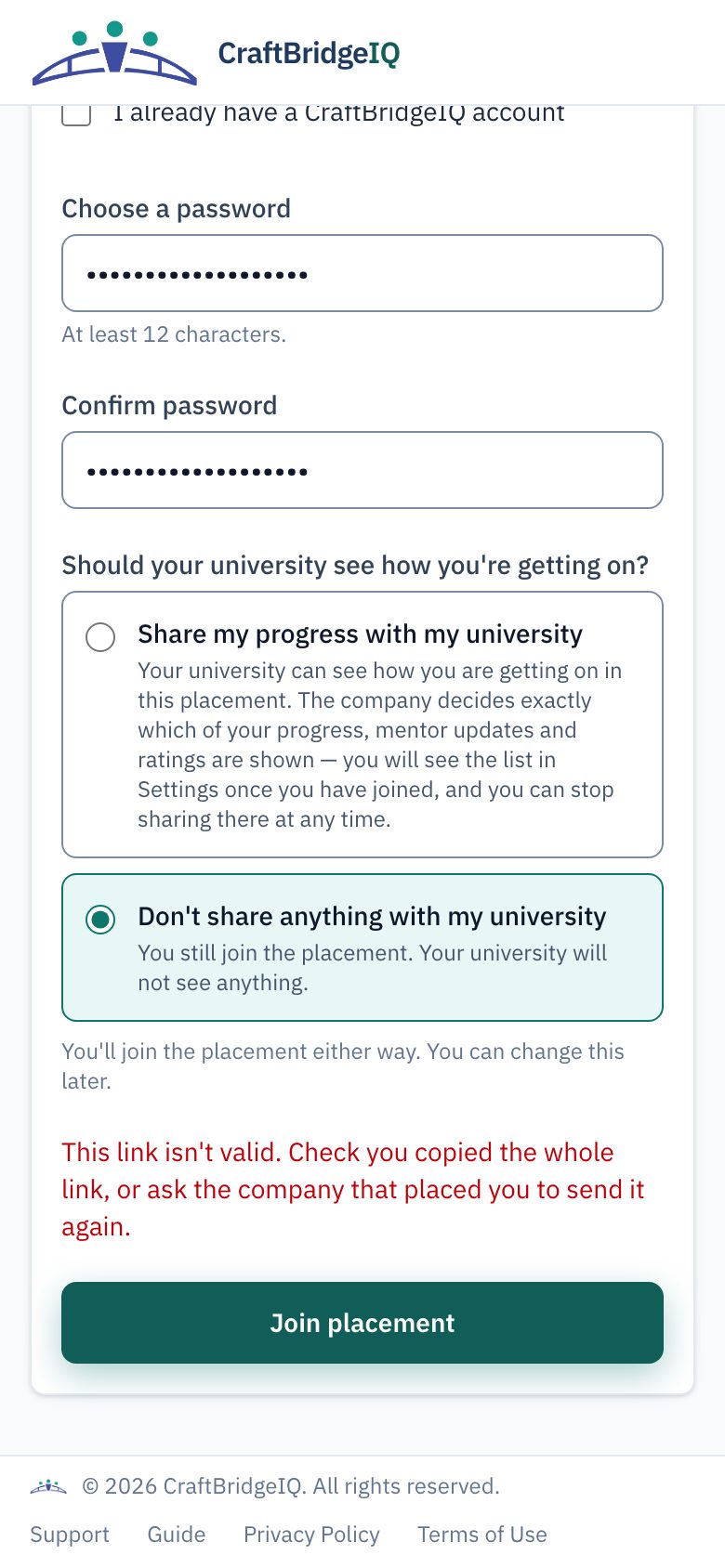
| No. | Control | What it does | What happens next |
|---|---|---|---|
| 15 | This link isn't valid. | A red message above the button. | Ask the company that placed you to send the link again. |
Limits and other roles
- A password has 12 to 128 characters.
- A placement link can be used once. A new link works for 14 days from the day the company sends it, and the company can send a new one.
- The code in the link is taken out of the address bar as soon as the page opens.
Common questions
What happens if I choose not to share?
You still join the placement. Your university will not see anything about it.
Can I change my mind?
Yes, in Settings. See Sharing with your university.
Why is Join placement dimmed?
It stays dimmed until your password is long enough, the two boxes match (for a new account) and you have chosen one of the two sharing options.
Where do I type my email?
You do not. The link already knows which student it is for.
Last checked 2026-11-03 against the product.