
My interns
One card for each intern you mentor.
What this page is for
My interns shows one card for each intern you mentor: how many weeks of their program are open, how much of their work is waiting for you, and how much they have submitted. Tap a card to open that intern’s page, where you review their work, log a check-in and open a week early.
- Where
- My interns, the second link in the menu (address /interns)
- Who can open it
- Mentors
- App
- Mentor Console
How opening a week early works
The same steps as a list
- Open My interns
- Tap the intern's card, then press Unlock through Week N
- Add a reason if you like and press Open Week
- Opens the week for that intern
- The intern sees the week's assignments and can submit
The screen
The header and footer are the same on every Mentor Console page. See the review queue page.
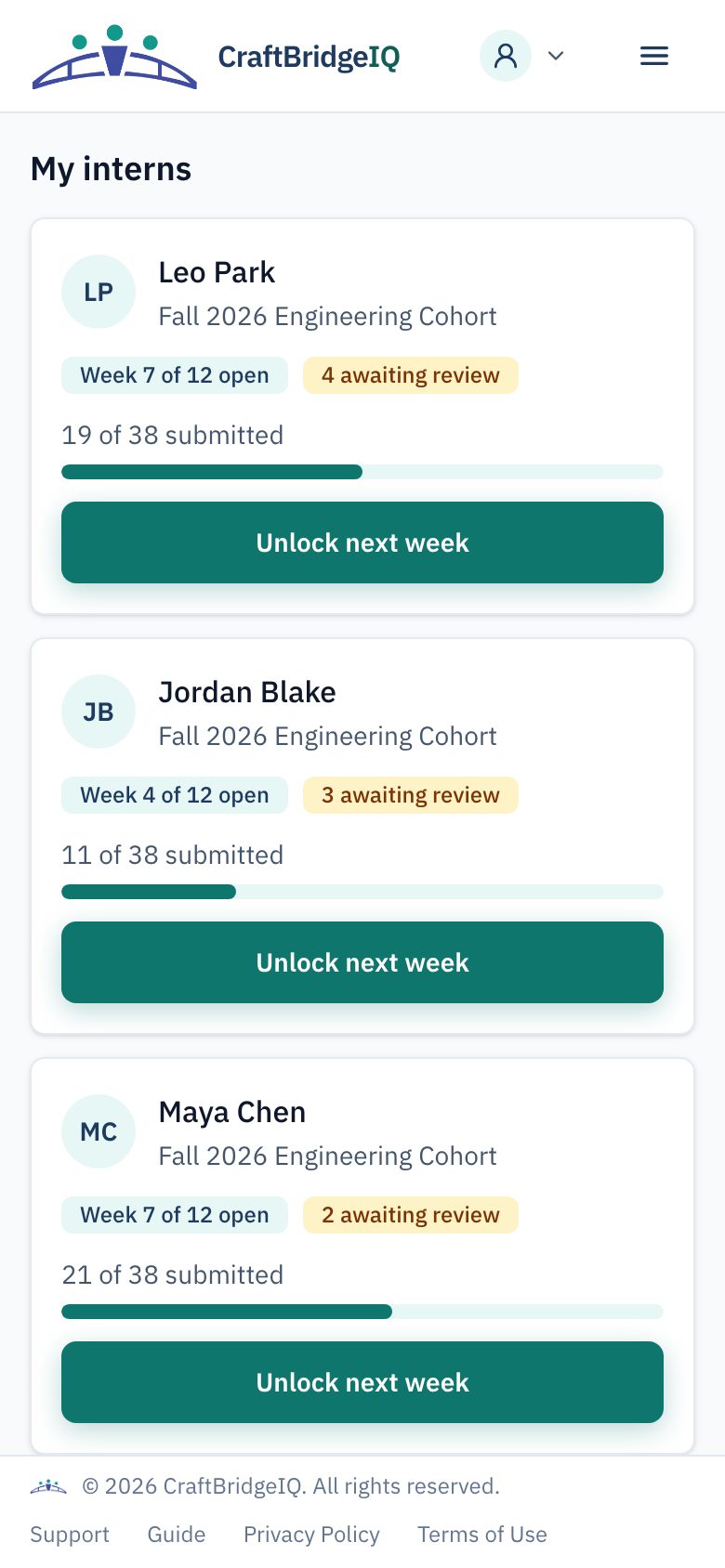
| No. | Control | What it does | What happens next |
|---|---|---|---|
| 1 | My interns | The page heading. | Nothing; it is a heading. |
| 2 | Leo Park | The intern's initials and name. The whole card is a link. | Opens that intern's page. See One intern's weeks. |
| 3 | Fall 2026 Engineering Cohort | The cohort the intern belongs to. | Nothing; it is a label. |
| 4 | Week 7 of 12 open | How many weeks of the program are open to the intern, out of all its weeks. | Nothing; it is a label. |
| 5 | 4 awaiting review | How many of the intern's submissions are waiting for you. It is highlighted when it is above zero and reads Nothing to review when it is zero. | Open the Review queue to sign them off. |
| 6 | 19 of 38 submitted | How many of the intern's assignments they have submitted, out of all of them, with a bar. | Nothing; it is a label. |
| 7 | Unlock next week | Shown in this older screenshot only. The button has moved off the card to the intern's page, as Unlock through Week. | Tap the card, then use the button on the first locked week. |
The cards no longer carry an Unlock next week button (the figure above was taken before the change). On the intern’s page, Unlock through Week opens a sheet that names the week and the intern.
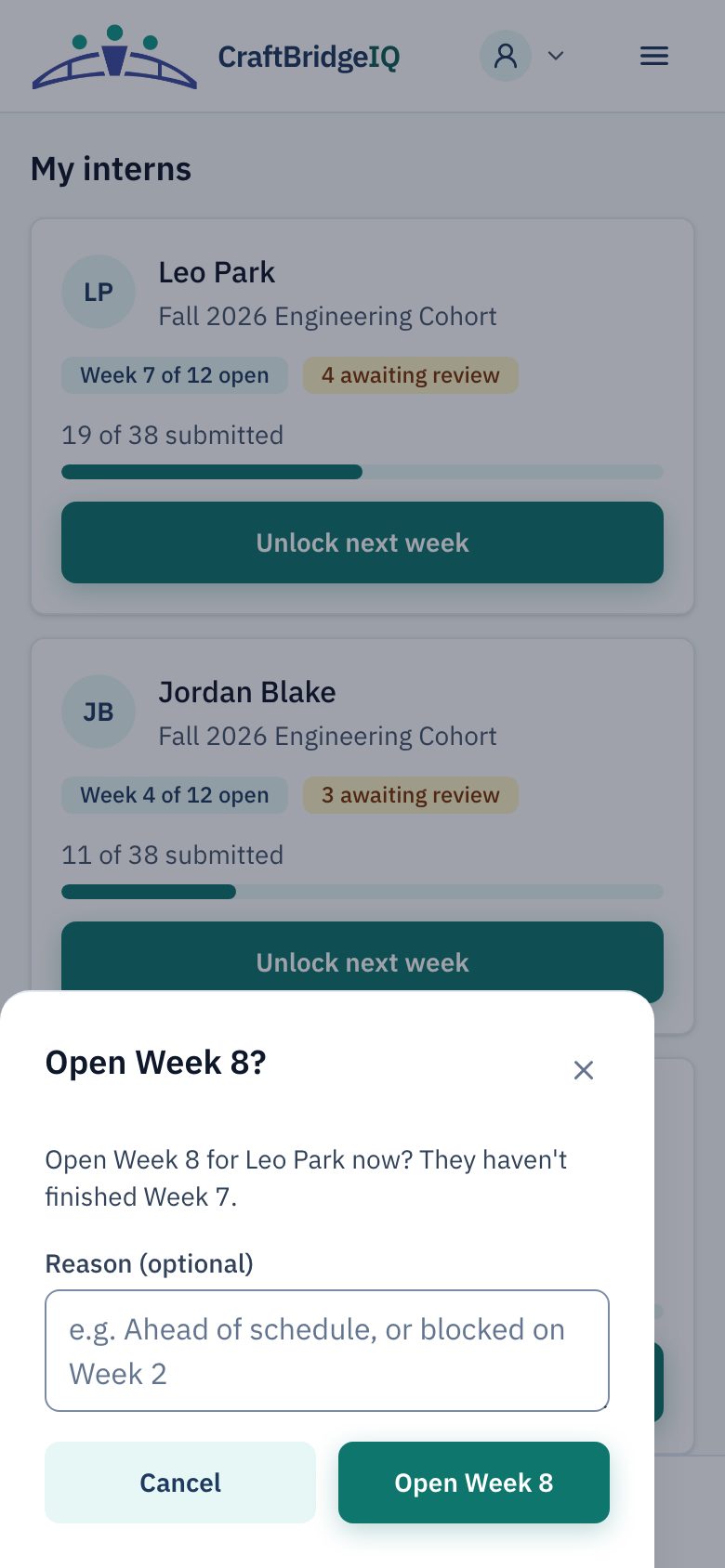
| No. | Control | What it does | What happens next |
|---|---|---|---|
| 8 | Open Week 8? | The title of the sheet. | Nothing; it is a heading. |
| 9 | Open Week 8 for Leo Park now? They haven't finished Week 7. | Says which week opens, for whom, and which week they have not finished. | Read it before you confirm. |
| 10 | Reason (optional) | A note on why you are opening the week early. | Saved with the unlock. |
| 11 | Cancel | Closes the sheet and changes nothing. | You are back on My interns. |
| 12 | Open Week 8 | Opens the week. It reads Opening… while it works. | A message confirms and the card updates. |
| No. | Control | What it does | What happens next |
|---|---|---|---|
| Unlock through Week 8 | On the intern's page, on each locked week. The soonest one is the bright button. | A sheet asks you to confirm. |
If you have no interns, the page says so.
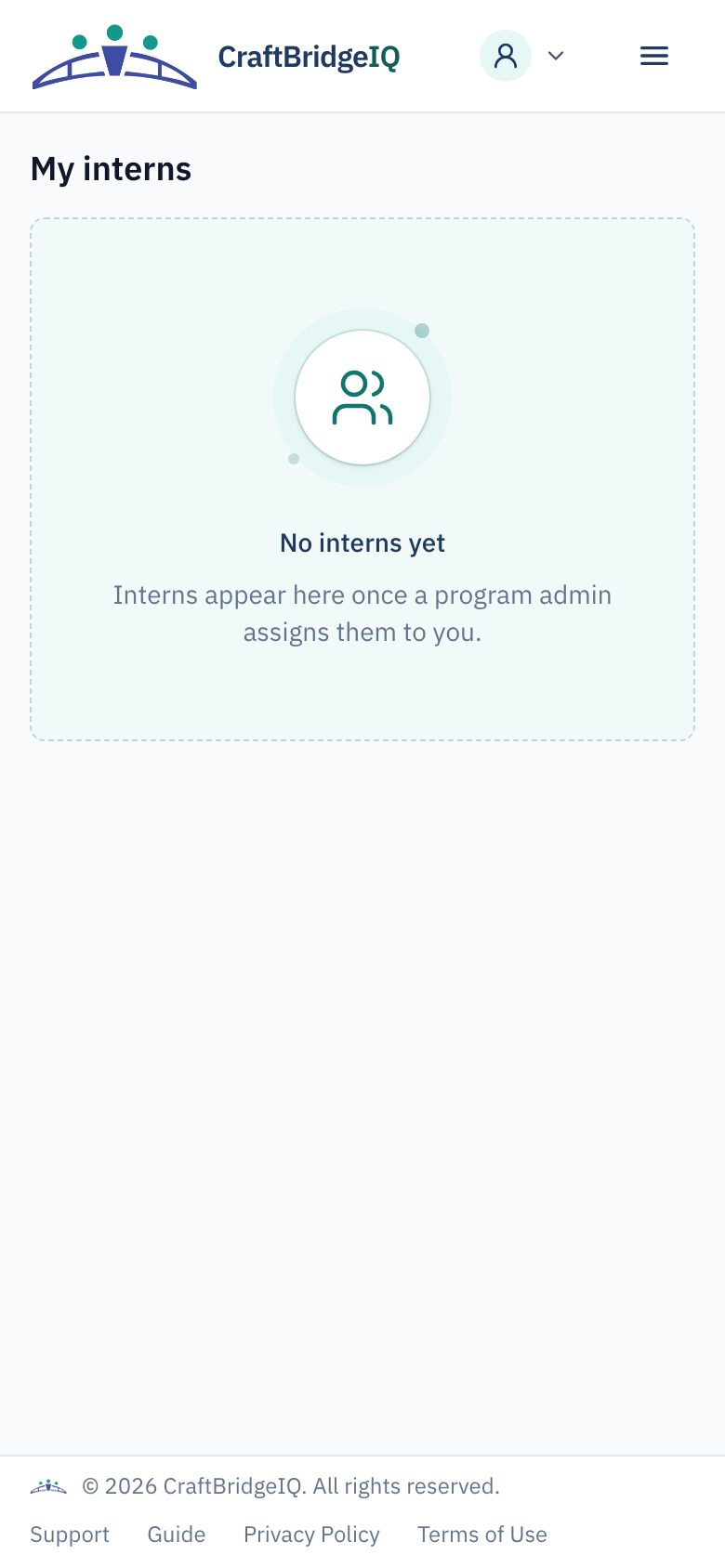
| No. | Control | What it does | What happens next |
|---|---|---|---|
| 13 | No interns yet | Replaces the cards when no intern is assigned to you. | Interns appear once a program admin assigns them to you. |
Step by step
See where your interns stand
- Open the menu and choose My interns.
- Read each card. The awaiting review badge tells you where to go next.
- Tap an intern’s card to see their page.
Cards are ordered with the most work waiting for you first, then interns whose next week is locked, then by name.
Open the next week for an intern
- Tap the intern’s card.
- On their page, press Unlock through Week on the first locked week.
- Read the sheet. It says which week opens and that the intern has not finished the one before.
- Type a reason if you want to. Press Open Week.
A message says the week is open for that intern. Their Your week page shows the week’s assignments.
Messages you can see
| Message | When you see it | What to do |
|---|---|---|
| Week 8 is open for Leo Park | A toast after Open Week works. | Nothing. |
| Couldn't open that week | A toast, when opening failed. It ends with: try again. The cards refresh to show the real state. | Check the card, then try again if the week is still locked. |
| Nothing to review | The second badge of a card when none of the intern's work is waiting. | Nothing. |
| No interns yet | Instead of the cards, when no intern is assigned to you. | Ask your program admin. |
| Interns appear here once a program admin assigns them to you. | Under No interns yet. | Nothing. |
| Couldn't load your interns. | The cards could not be loaded. A Try again button is shown with it. | Press Try again. |
| Opening… | On the button of the sheet while it works. | Wait. |
Limits and other roles
- The reason can be up to 500 characters.
- You can open weeks only for interns you mentor, from the intern’s page.
Common questions
Where did the Unlock next week button go?
To the intern’s page, next to each locked week. A week opens by itself once the intern has submitted everything before it, so opening one early is the exception. See One intern's weeks.
Why is an intern at the top?
The most work waiting for you comes first. Then come interns whose next week is locked, then everyone else by name.
Can I open more than one week at once?
Yes, from the intern’s own page. See One intern's weeks.
Last checked 2026-11-03 against the product.