
Adding interns
Add one intern or import many from a CSV file.
What this page is for
Use the roster on a program to put interns into that program. You can add one person with a name and an email, or import a CSV file of up to 500 people at once. Every person ends with a plain result: added, already on the roster, has an account elsewhere, or not valid.
A new person gets an email with a link to choose their password. Someone who already has an intern account in your company is added to the program without a second email.
- Where
- A program's page, in the Roster section at the bottom (open Programs, then the program)
- Who can open it
- Administrators. A support login sees the roster but not the Add interns button.
- App
- Program Studio
How adding interns works
The same steps as a list
- Open the program and press Add interns
- Type one name and email, or choose a CSV file
- Does the browser find problems in a row? (Yes: rows are held back: Fix the file or import the ready rows; No: Adds each person and sends a setup email to new ones)
- Fix the file or import the ready rows
- Adds each person and sends a setup email to new ones
- Shows one result per row; you can download it
- The person opens the email and chooses a password
The screen
The roster sits at the bottom of a program’s page, under the schedule.
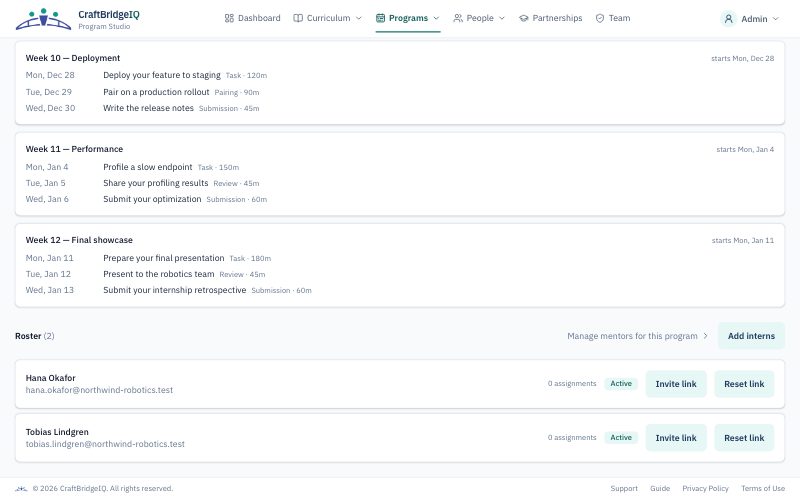
| No. | Control | What it does | What happens next |
|---|---|---|---|
| 1 | Roster | The heading, with the number of interns on the program in brackets. | Nothing; it is a label. |
| 2 | Manage mentors for this program | Opens Assign mentors showing only this program. Shown once the roster has at least one intern. | You land on Assign mentors with this program already chosen. |
| 3 | Add interns | Opens the Add interns panel above the list. Hidden while the panel is open, and hidden for a completed or cancelled program. | The panel opens on the Add one intern tab. |
| 4 | Name and email | One card per intern with their name and email address. | Nothing; it is a label. |
| 5 | 0 assignments | How many assignments the intern has been given. A draft program has none until it is activated. | Nothing; it is a label. |
| 6 | Active | The intern's enrollment status. | Nothing; it is a label. |
| 7 | Invite link | Creates a one-time link for the intern to choose a first password. | A box opens. See the page on invite and reset links. |
| 8 | Reset link | Creates a one-time link that replaces the intern's password. | A box opens. See the page on invite and reset links. |
Press Add interns and the panel opens. This is the Add one intern tab.
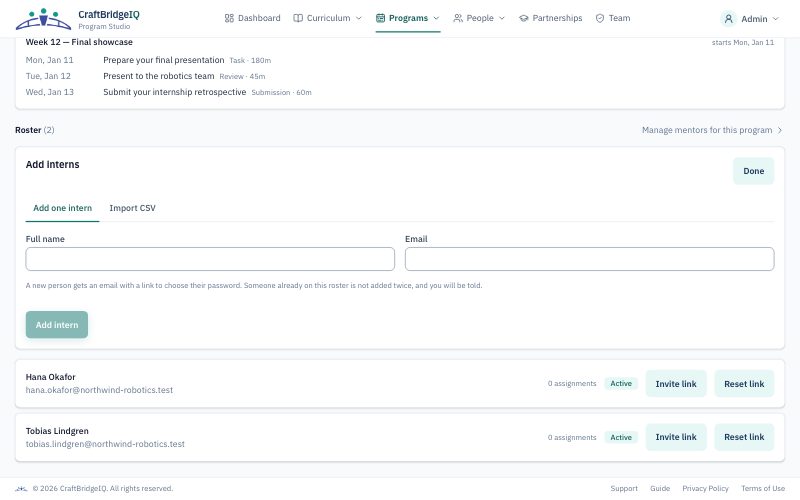
| No. | Control | What it does | What happens next |
|---|---|---|---|
| 1 | Add interns | The title of the panel. | Nothing; it is a label. |
| 2 | Done | Closes the panel. Nothing is lost: people you already added stay on the roster. | You are back on the roster. |
| 3 | Add one intern | Shows the form for one person. | The Full name and Email fields appear. |
| 4 | Import CSV | Shows the file importer. | The file chooser appears. |
| 5 | Full name | The intern's name. | Shown on the roster once added. |
| 6 | The intern's email address. The setup email is sent here. | Shown on the roster once added. | |
| 7 | Add intern | Adds the person. Disabled until both fields have text, and while the request is running (it then reads Adding...). | A result line appears above the button. |
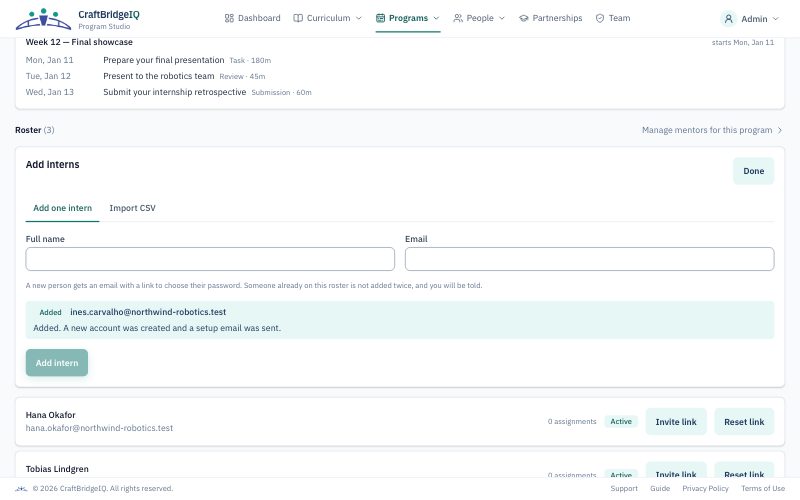
After you add someone, a result line appears with a label and a sentence:
The Import CSV tab starts with a file chooser:
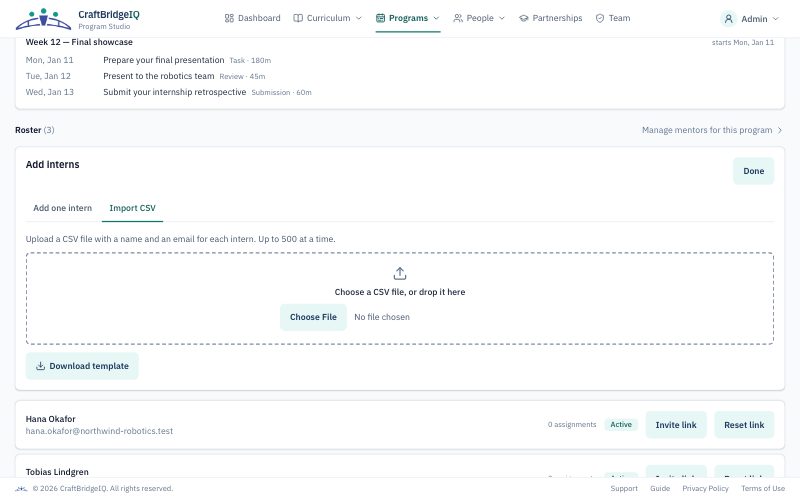
| No. | Control | What it does | What happens next |
|---|---|---|---|
| 1 | Upload a CSV file with a name and an email for each intern. Up to 500 at a time. | Says what the file needs and how many people it may hold. | Nothing; it is a label. |
| 2 | Choose a CSV file, or drop it here | The file chooser. You can also drag a file onto the dashed box. | The file is read in your browser and a preview appears. Nothing is sent yet. |
| 3 | Download template | Saves a small file named interns-template.csv with the two headings and two example people. | Fill it in and choose it above. |
Once you choose a file you see a preview. Rows the browser can already see are wrong are marked and are not sent.
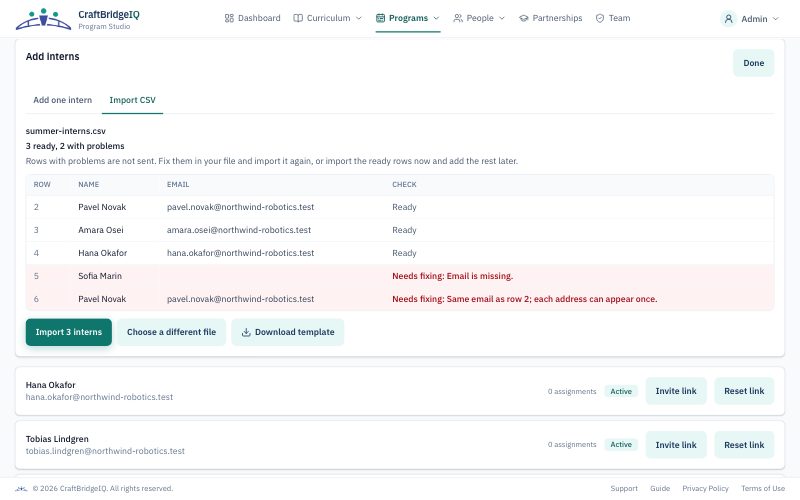
| No. | Control | What it does | What happens next |
|---|---|---|---|
| 1 | File name | The name of the file you chose. | Nothing; it is a label. |
| 2 | 3 ready, 2 with problems | How many rows can be sent and how many cannot. The problems part is left out when there are none. | Nothing; it is a label. |
| 3 | Rows with problems are not sent. | Explains your choices: fix the rows in your file and import again, or import the ready rows now and add the rest later. | Nothing; it is a label. |
| 4 | Check | The table has one row per line of your file. Its columns are Row, Name, Email and Check. | Row is the number the line has in a spreadsheet, where the headings are row 1. |
| 5 | Needs fixing: | A red row. It says what is wrong with that line. Ready rows say Ready. | Fix the line in your file, or leave it out. |
| 6 | Import 3 interns | Sends the ready rows in one request. Disabled when no row is ready. It reads Importing... while it works. | The results table replaces the preview. |
| 7 | Choose a different file | Throws away this preview and goes back to the file chooser. | Nothing has been sent. |
When the import finishes you see what happened to every row:
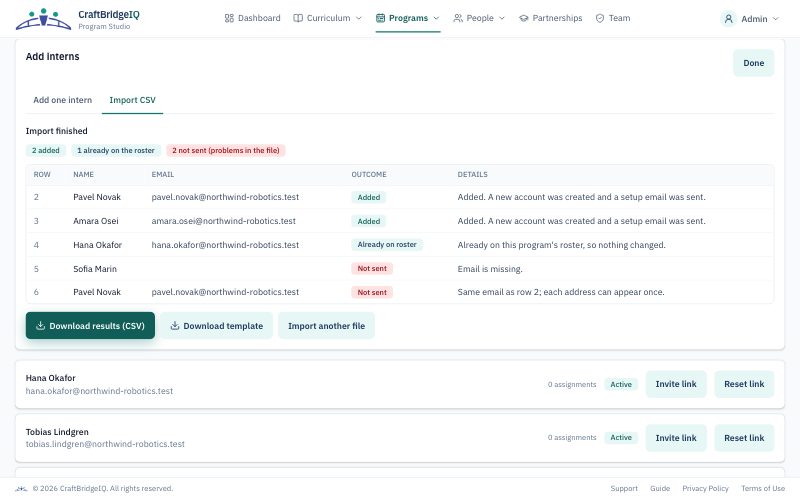
| No. | Control | What it does | What happens next |
|---|---|---|---|
| 1 | Import finished | Tells you the request completed. | Nothing; it is a label. |
| 2 | 2 added | Coloured totals: how many were added, were already on the roster, have an account elsewhere or were not valid, and how many were not sent because of problems in the file. A total of zero is left out. | Nothing; it is a label. |
| 3 | Outcome | The table has the columns Row, Name, Email, Outcome and Details. Details says why in words. | Check any row that is not Added. |
| 4 | Download results (CSV) | Saves a file with every row and its outcome, named interns-import-results with today's date. | Keep it as a record, or use it to fix and re-import the failed rows. |
| 5 | Import another file | Goes back to the file chooser. | Your roster is already updated. |
Step by step
Add one intern
- Open Programs and open the program.
- Scroll to Roster and press Add interns.
- Stay on the Add one intern tab.
- Type the name in Full name and the work email in Email.
- Press Add intern.
A result line appears. For a new person it reads Added. A new account was created and a setup email was sent. The form clears and the person appears on the roster. If the person was not added, the fields keep what you typed.
Import interns from a CSV file
- Press Add interns, then open the Import CSV tab.
- Press Download template if you need a starting file. Fill in a name and an email on each row.
- Choose your file, or drag it onto the dashed box.
- Read the preview. Look for red rows that say Needs fixing.
- Press Import, which shows the number of ready rows, for example Import 3 interns.
- Read the results table. Press Download results (CSV) if you want to keep it.
Fix a file and try again
- Open the results table, or the downloaded results file, and find the rows that are Not sent or Not added.
- Read the Details column for each one.
- Correct those lines in your spreadsheet and save it as CSV.
- Press Import another file and choose the corrected file.
Save a spreadsheet as CSV
- In Excel or Google Sheets choose Save As, or Download.
- Pick CSV as the type.
- Choose that new file in the importer.
A file ending in .xlsx, .xlsm, .xls, .ods or .numbers is refused with a message that says the same thing.
Fields and file columns
The Add one intern form:
| Field | Required | Rules | Example |
|---|---|---|---|
| Full name | Yes | Up to 200 characters. Must be one line. | Hana Okafor |
| Yes | Up to 320 characters. Must be a valid email address. Any email domain is accepted. | hana.okafor@northwind-robotics.test |
The CSV file needs a heading row first. The importer reads the headings without caring about capital letters or spacing, and it accepts commas, semicolons or tabs between columns.
| Field | Required | Rules | Example |
|---|---|---|---|
| name | Yes | Also accepted: full name, intern name, display name. Or use two columns, first name and last name (also given name or forename, and surname or family name). | Pavel Novak |
| Yes | Also accepted: email address, e-mail, work email, intern email, mail. One address per row, and each address once per file. | pavel.novak@northwind-robotics.test |
Messages you can see
Result of one person, in the form or in the results table:
| Message | When you see it | What to do |
|---|---|---|
| Added. A new account was created and a setup email was sent. | The person is new to CraftBridgeIQ. | Nothing. Ask them to check their email. |
| Added to this program. They already had an account here, so no setup email was needed. | The person already has an intern account in your company. | Nothing. |
| Already on this program's roster, so nothing changed. | The person is already on this program (label: Already on roster). | Nothing. |
| This address already has an account on CraftBridgeIQ elsewhere, so it can't be added here. | The address belongs to someone with another role or in another organisation (label: Can't be added). | Use a different address, or ask the person which address they use for this work. |
| This row isn't valid, so nothing was added. | The server refuses a row and gives no reason (label: Not added). | Check the name and the email on that line. |
| not a valid email address | The server finds the email address unusable (label: Not added). | Correct the address. |
| The name or email is too long. | A name is over 200 characters or an email is over 320 (label: Not added). | Shorten it. |
| The server did not report on this row. Check the list before trying again. | The answer for a row is missing (label: No answer). | Look at the roster before you import the row again. |
Problems the browser finds in a row before anything is sent (label: Not sent, and Needs fixing in the preview):
| Message | When you see it | What to do |
|---|---|---|
| Name is missing. | The name cell is empty. | Add the name to that line. |
| Name has a line break in it. | The name spans two lines. | Put the name on one line. |
| Email is missing. | The email cell is empty. | Add the address. |
| Email doesn't look right. | The email is not written like a normal address (no @ or no dot after it). | Correct the address. |
| Same email as row 2; each address can appear once. | An address appears twice in the file. The later row is held back. | Remove the repeat. |
Problems with the file as a whole (the importer stays on the file chooser):
| Message | When you see it | What to do |
|---|---|---|
| That file is empty. | The file has no text. | Choose the right file. |
| That file has headings but no people in it. | Only the heading row is there. | Add people below the headings. |
| That file has 600 people. You can add up to 500 at a time, so split it into smaller files. | The file has more than 500 people. | Split it and import each part. |
| That file is larger than 1 MB. A list of up to 500 people is far smaller, so check you chose the right file. | The file is over 1 MB. | Check you chose the right file. |
| We couldn't find an email column (email) in the first row. Use headings such as: name, email. | The first row has no recognisable name or email heading. | Add a heading row, for example name,email. |
| The first row looks like a person, not column headings. Add a first row with headings such as: name, email. | The first line is a person's details. | Add the heading row above it. |
| A quoted value in this file is never closed (a stray double quote). Fix it and try again. | A double quote is opened and never closed. | Fix the quote in your file. |
| That is a spreadsheet file, not a CSV. In Excel or Sheets choose Save As (or Download) and pick CSV, then upload that file. | You chose an .xlsx, .xls, .ods or similar file. | Save it as CSV first. |
| Couldn't read that file. Try choosing it again. | The browser cannot read the file. | Choose the file again. |
When a whole request fails, and other states:
| Message | When you see it | What to do |
|---|---|---|
| This program is closed, so interns can't be added. | The program is completed or cancelled and you tried to add anyway. | Add the person to an open program. |
| Couldn't add that intern. Try again. | The single add fails for another reason. | Try again. |
| Couldn't import interns. Nothing was changed; try again. | The whole import fails. Your preview stays on screen. | Press Import again. |
| This account can view but not change data. | A support login tries to add people. | Ask an administrator. |
| No interns enrolled | The roster is empty. The text under it says to add interns now, or activate first and add them as they're hired. | Press Add interns. |
| Couldn't load the roster. | The list failed to load. | Press the retry button shown with it. |
Limits and other roles
- One import takes up to 500 people.
- The file must be 1 MB or smaller.
- A name may be up to 200 characters and an email up to 320.
- A new person’s setup link works for 7 days (168 hours).
- A completed or cancelled program does not take new interns.
Common questions
What happens if I add the same person twice?
Nothing changes. The result says Already on roster. The person is not added a second time.
Does the person get an email?
A new person gets a setup email with a link to choose a password. Someone who already had an account in your company is added to the program and is not emailed again.
Why is an address marked Can't be added?
That address already has an account on CraftBridgeIQ outside your intern list, for example as a mentor or at another organisation. The product does not attach it to your program automatically.
The person lost their email. What now?
Create an invite link from their row on the roster. See Invite and reset links.
Can I add interns before the program starts?
Yes. A draft program and an active program both take interns. The empty roster of a draft program says to add interns now, or activate first and add them as they are hired.
Last checked 2026-11-03 against the product.