
Submitting your work
Send notes, a link and documents for an assignment, and see its history.
What this page is for
Each assignment opens in a sheet where you send your work to your mentor: notes, up to five links and up to five documents. You can send a new version later, and the sheet keeps a history of everything you sent.
- Where
- Tap an assignment on Your week, or press Submit work on the Up next card
- Who can open it
- Interns, for assignments in a week that is open
- App
- Intern Portal
How submitting works
The same steps as a list
- Open the assignment
- Add notes, a link or documents
- Press Submit
- Files small enough and week open? (Yes: Uploads the files and saves a new version; No: read the message: Add notes, a link or documents)
- Uploads the files and saves a new version
- Checks each document and marks it Verified
- Your mentor reviews the newest version
The screen
On a phone the assignment opens as a sheet from the bottom of the screen. The sheet starts with the assignment’s title, a status badge, the due date and the instructions your program wrote. The form follows.
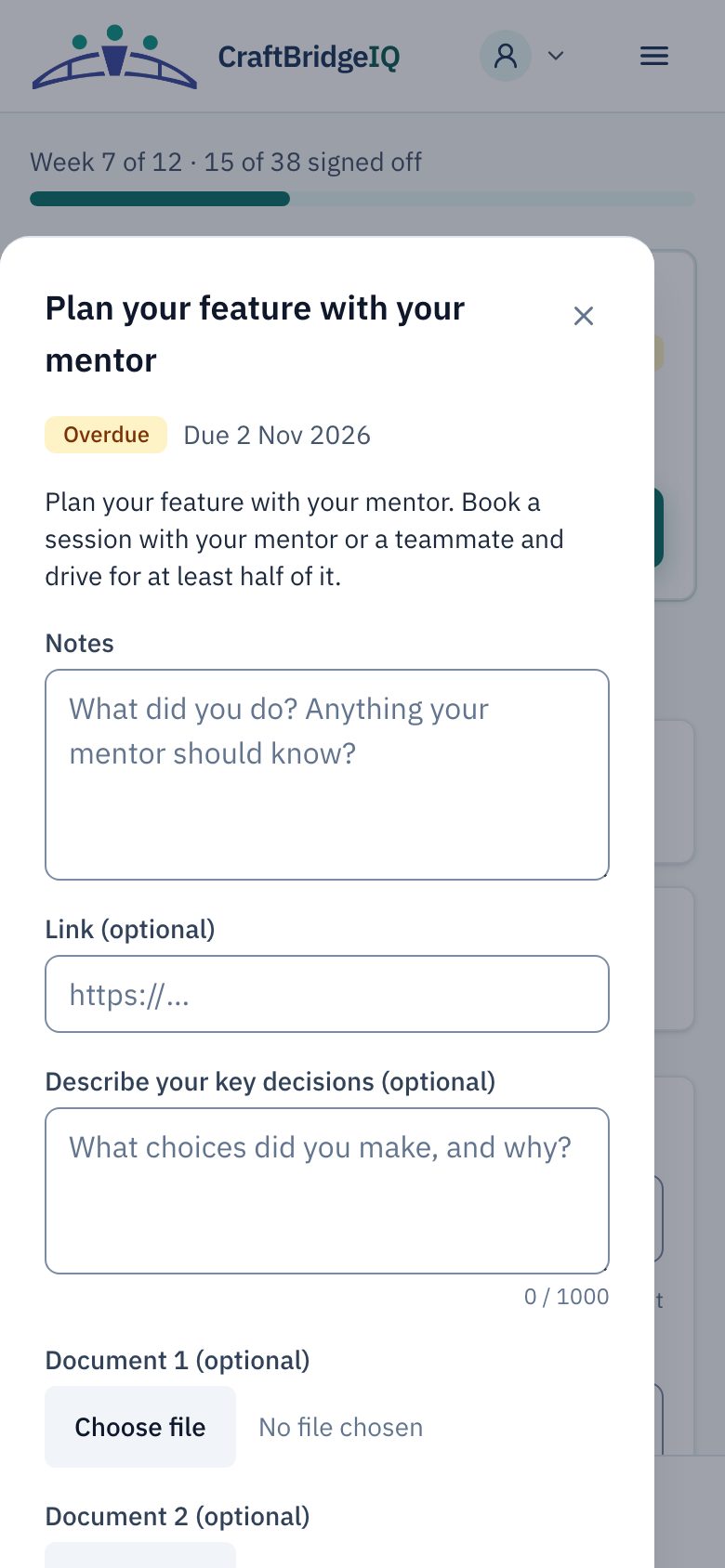
| No. | Control | What it does | What happens next |
|---|---|---|---|
| 1 | Close | The cross at the top right. Closes the sheet without sending anything. | You are back on Your week. What you typed in the text fields stays in this tab. |
| 2 | Overdue | Shows where the assignment stands. It reads Overdue when the due date has passed, Signed off when your mentor has signed it off, or otherwise Pending or Submitted. | Nothing; it is a label. |
| 3 | Due 2 Nov 2026 | The due date of the assignment. | Nothing; it is a label. |
| 4 | Notes | What you did and anything your mentor should know. | Counts as content, so the Submit button can turn on. |
| 5 | Link (optional) | A web address for your work, such as a pull request. You can add up to five links; the next ones are labelled Link 2 (optional), Link 3 (optional) and so on. | Counts as content. Your mentor sees each one as a link. |
| 6 | Describe your key decisions (optional) | The choices you made and why. Your mentor reads this above your notes. | Alone it is not enough to submit; add notes, a link or a document too. |
| 7 | 0 / 1000 | Counts the characters in the key decisions box against its limit. | Nothing; it is a counter. |
Scroll down inside the sheet for the document slots and the buttons. One slot shows to start with; press Add another document for more.
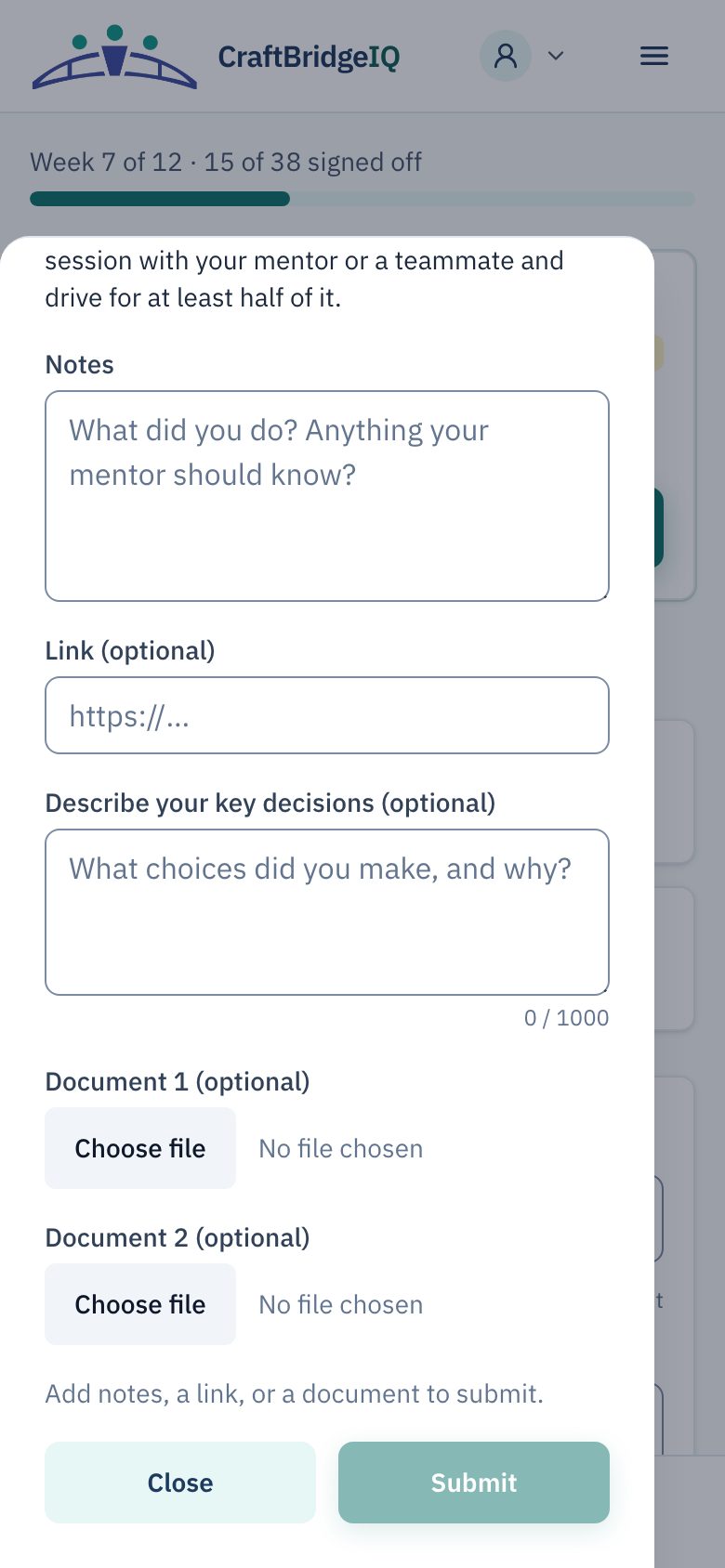
| No. | Control | What it does | What happens next |
|---|---|---|---|
| 8 | Document 1 (optional) | The first slot for a file. Further slots are Document 2 (optional) up to Document 5 (optional). | Press Choose file to pick a file. |
| 9 | Choose file | Opens your phone or computer's file picker. | The file's name and size replace the words No file chosen. |
| 10 | Add notes, a link, or a document to submit. | Shown while the form is empty. | Fill in at least one of notes, link or a document. |
| 11 | Close | Closes the sheet without sending anything. | You are back on Your week. |
| 12 | Submit | Sends your work. It stays dimmed until you add notes, a link or a document. | The sheet closes and a Submitted message appears. |
| No file chosen | Shown next to Choose file while a slot is empty. | Nothing; it is a label. | |
| Add another link | Shown under the links while you have fewer than five. It adds one more empty link box. | Type the web address in the new box. | |
| Remove link | Shown under each link box when there is more than one. It takes that link out of the form. | The other links stay as they are. | |
| Add another document | Shown under the document slots while you have fewer than five. It shows the next slot. | Press Choose file in the new slot. |
When you choose a file, the slot shows its name and size and a Remove button. A file that is too large is refused at once.
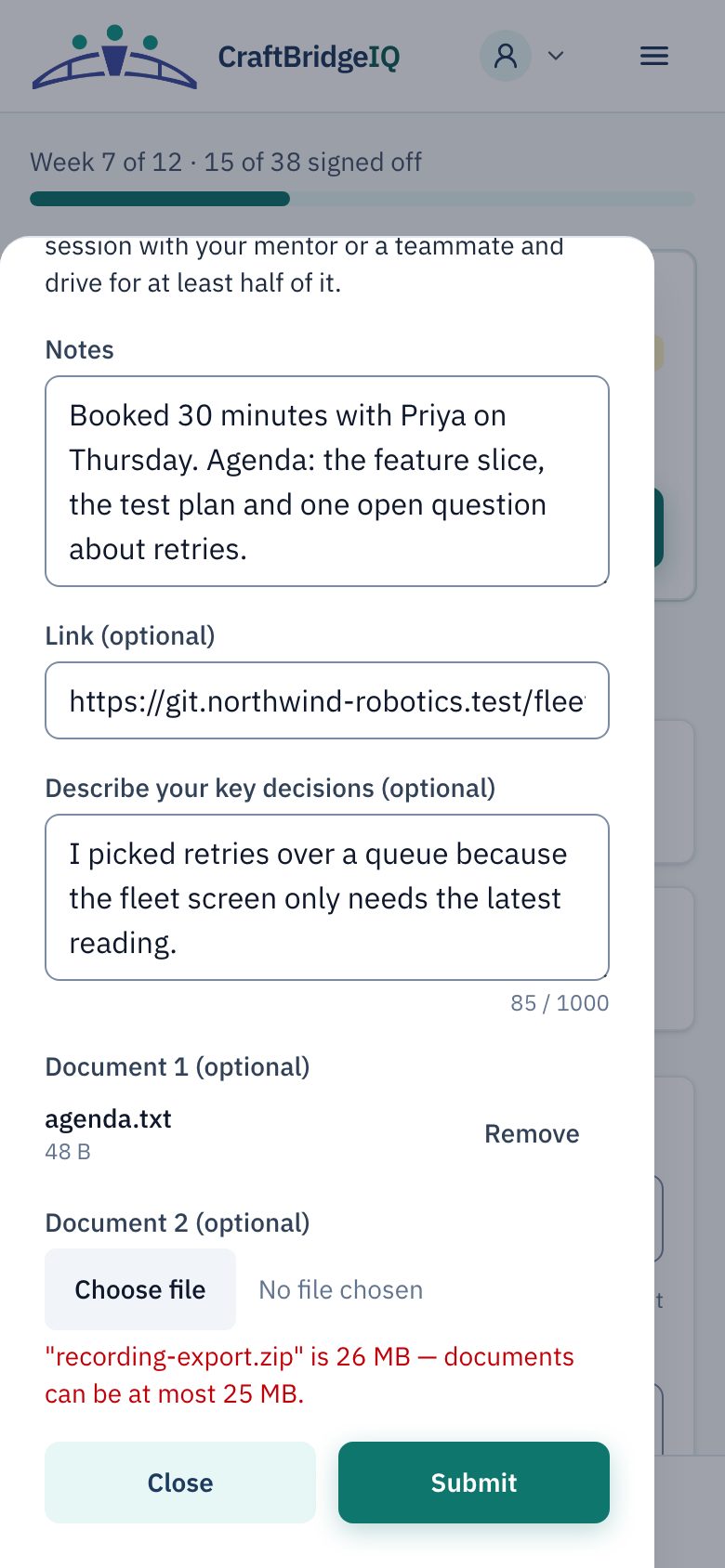
| No. | Control | What it does | What happens next |
|---|---|---|---|
| 13 | 48 B | The chosen file's name and, under it, its size. | Nothing; it is a label. |
| 14 | Remove | Takes the chosen file out of the slot so you can pick a different one. | The slot shows Choose file again. |
| 15 | documents can be at most 25 MB. | Appears under a slot when the file you picked is over the limit. It starts with the file's name and size. | Pick a smaller file. Nothing was uploaded. |
| 16 | Submit | Now bright, because the form has content. | Sends your work. |
If you already sent work for an assignment, opening it shows the form filled in from your newest version, with Resubmit in place of Submit.
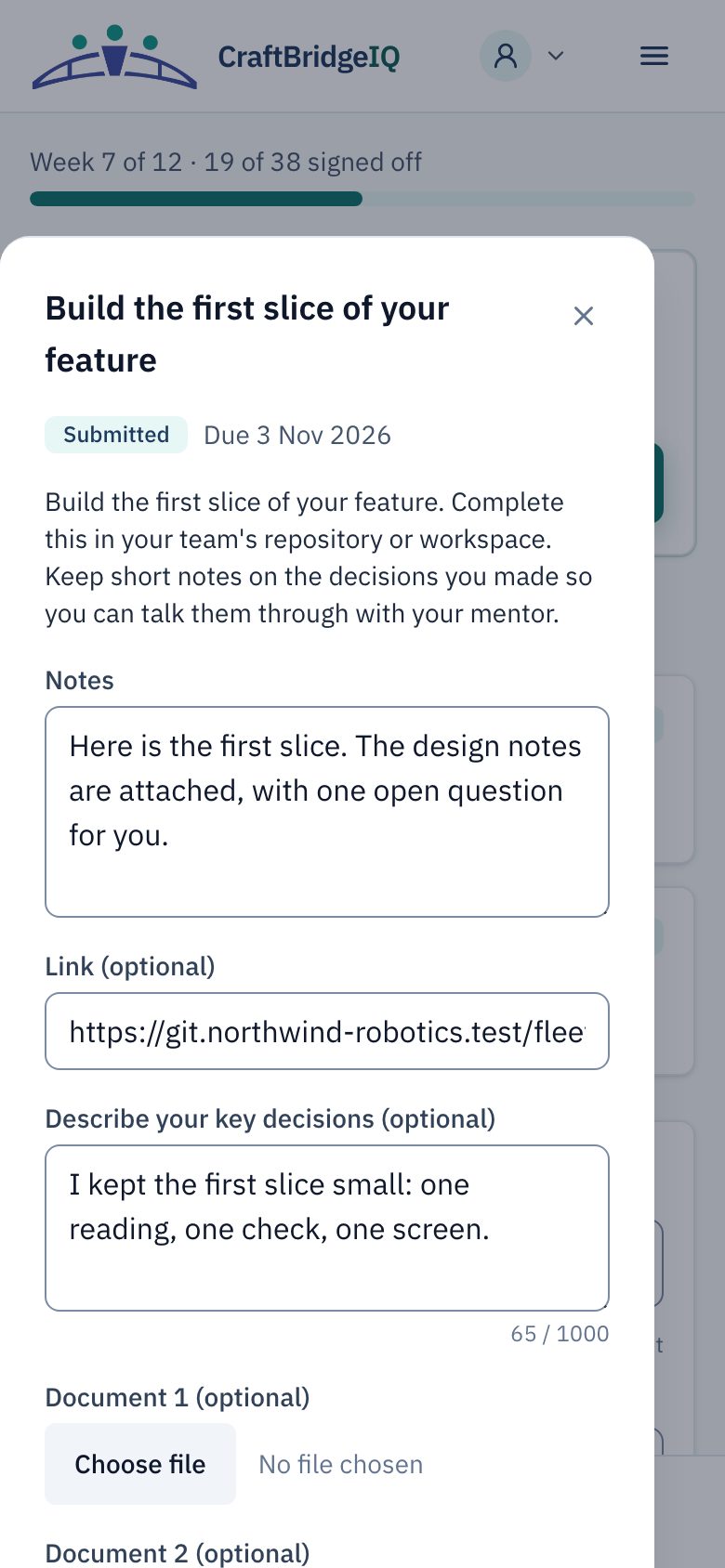
| No. | Control | What it does | What happens next |
|---|---|---|---|
| 17 | Submitted | The badge for work you sent that your mentor has not signed off yet. | You can still send a new version. |
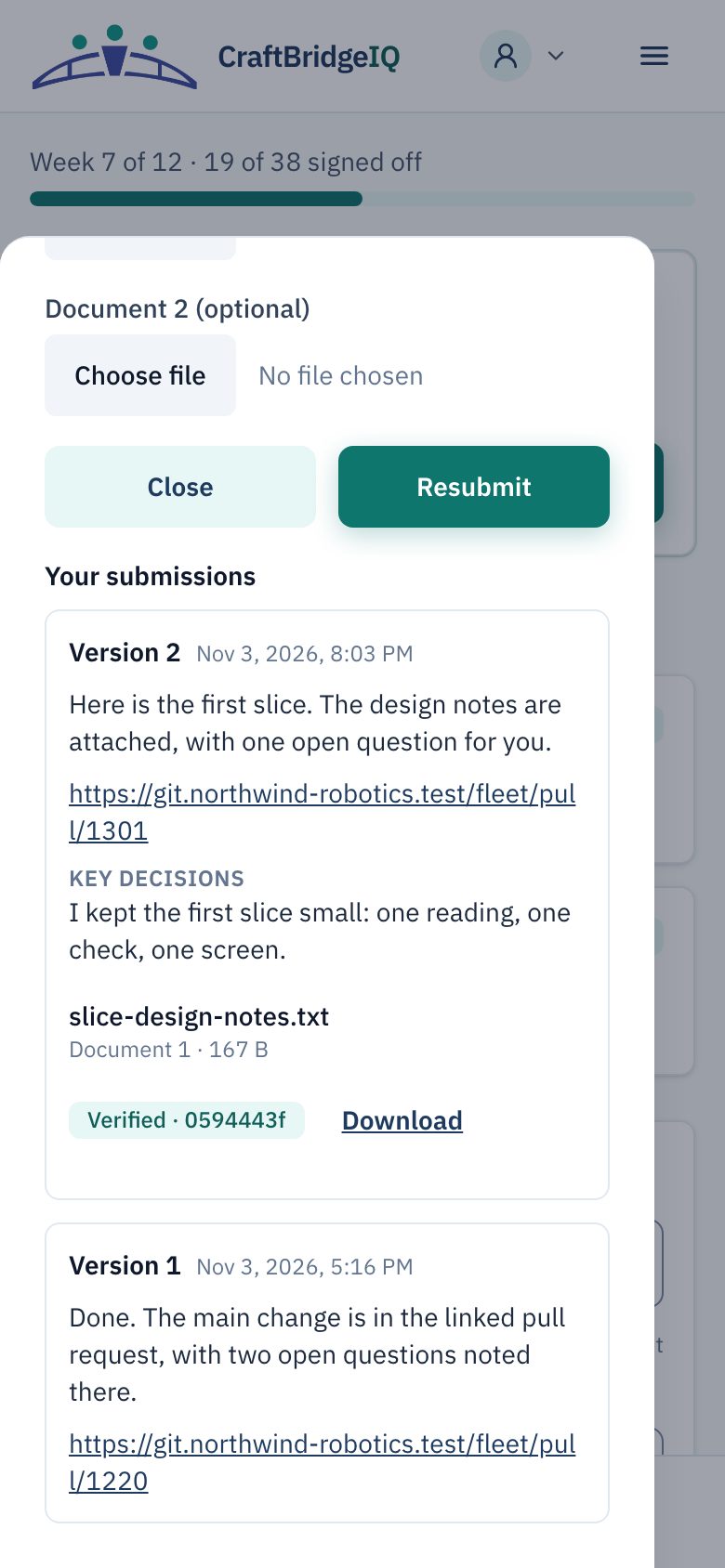
Under the form, Your submissions lists every version, newest first.
| No. | Control | What it does | What happens next |
|---|---|---|---|
| 18 | Resubmit | Sends a new version. It replaces Submit once the assignment has been submitted. | Your mentor reviews the newest version. |
| 19 | Your submissions | The heading of the history. It appears once you have sent something. | Nothing; it is a heading. |
| 20 | Version 2 | One version, with the date and time you sent it, then its notes, link, key decisions and documents. | Nothing; it is a record. |
| 21 | Key decisions | Your answer to Describe your key decisions, when you wrote one. | Nothing; it is a label. |
| 22 | Document 1 · 167 B | A document of that version: its file name, its slot and its size. | Nothing; it is a label. |
| 23 | Verified · 0594443f | The document has been checked. The letters and digits after the dot are the start of the file's fingerprint, so the exact file you sent can always be recognised. | A Download link appears next to it. |
| 24 | Download | Saves the document to your device. | The button reads Preparing… for a moment, then the download starts in this tab. |
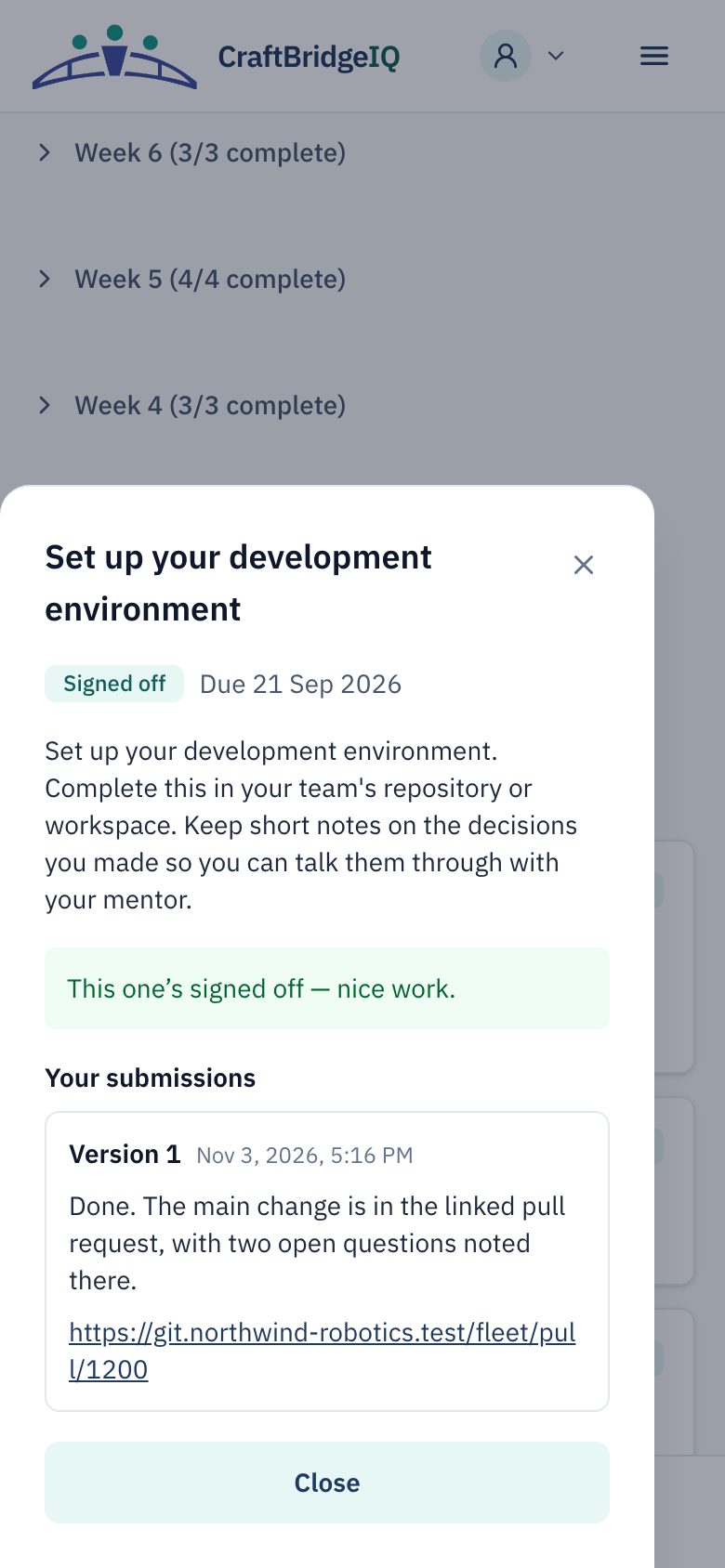
An assignment that your mentor has signed off cannot be changed. Its sheet shows the history only.
| No. | Control | What it does | What happens next |
|---|---|---|---|
| 25 | Signed off | The badge for an assignment your mentor has signed off. | Nothing; it is a label. |
| 26 | This one's signed off | Replaces the form. | Press Close when you have read the history. |
| 27 | Your submissions | The history of what you sent. | Nothing; it is a heading. |
When your mentor reviews your work
Your mentor can sign your work off, with a mark if they choose, or ask you for changes. Either way you read it in the same sheet, above the form or the history. A sent-back assignment is shown on Your week with a Changes requested badge, and the Up next card reads Your mentor asked for changes with a Resubmit work button.
| No. | Control | What it does | What happens next |
|---|---|---|---|
| Changes requested | The badge on an assignment your mentor sent back. | Open it, read the reason and send a new version. | |
| Your mentor asked for changes | A box at the top of the sheet. It gives the reason your mentor wrote and the date they wrote it. | Make the changes and press Resubmit. | |
| Make the changes and resubmit below. | The line under the reason. | Scroll to the form, which holds your last version. | |
| Mark | Shown on signed-off work when your mentor gave one: Developing, Proficient or Exceeds, with a short meaning beside it. | Nothing; it is a label. | |
| Your mentor: | Any note your mentor wrote when they signed the work off. | Nothing; it is a note. |
Resubmitting sends a new version and puts the work back in your mentor’s queue. Sending work back does not lock a week again, so you can keep working on later assignments while you make the changes.
Step by step
Send your work for the first time
- Open Your week and press Submit work, or tap any assignment in an open week.
- Read the instructions under the title.
- Type what you did in Notes, add a Link (press Add another link for more, up to five), or choose a document. Any one of these is enough.
- Press Submit.
The sheet closes and a Submitted message appears. Your assignment now shows the Submitted badge.
Attach a document
- Scroll to Document 1 (optional) and press Choose file.
- Pick the file. Its name and size appear.
- To attach more files, press Add another document and repeat, up to five in all. To swap a file, press Remove and choose again.
- Press Submit. The slots show Preparing…, Uploading… and Uploaded one by one, and the button reads Uploading… and then Submitting….
Send a new version
- Tap the assignment. The form fills in from your newest version.
- Change the notes, link or key decisions, and choose documents again if you want them in the new version.
- Press Resubmit.
Your mentor reviews the newest version only. The older versions stay in Your submissions. Documents are not carried over, so choose them again if the new version needs them.
Open a document you sent
- Tap the assignment and scroll to Your submissions.
- Find the document. Wait until it says Verified.
- Press Download.
While a document says Processing…, the sheet checks again every few seconds, so the word changes on its own.
Come back to a half-written submission
The sheet keeps what you typed in Notes, Link and key decisions in the tab you are using. If you close the sheet, reload the page or are signed out, it is there again when you open the same assignment in that tab. Documents are not kept. Once you submit, the saved text is cleared.
The submission form
| Field | Required | Rules | Example |
|---|---|---|---|
| Notes | One of Notes, Link or a document | Up to 10,000 characters. Spaces alone do not count. | Finished the slice and added two tests. |
| Link (optional) | One of Notes, Link or a document | Must start with http:// or https://. Up to 2,048 characters. | https://git.northwind-robotics.test/fleet/pull/1310 |
| Link 2 (optional) | No | Same rules as the first link. You can have up to five links; the boxes are labelled Link 2 (optional) to Link 5 (optional). | https://docs.northwind-robotics.test/fleet/design |
| Describe your key decisions (optional) | No | Up to 1,000 characters. It cannot be the only thing you send. | I used retries because the screen needs only the latest reading. |
| Document 1 (optional) | No | Up to 25 MB. An empty file is refused. | design-notes.pdf |
| Document 2 (optional) | No | Same rules as Document 1. It shows after you press Add another document. You can have up to five documents. | results.csv |
Messages you can see
| Message | When you see it | What to do |
|---|---|---|
| Submitted | After Submit or Resubmit works. | Nothing. Your mentor can now review it. |
| Add notes, a link, or a document to submit. | Under the document slots while the form is empty. | Add at least one of the three. |
| documents can be at most 25 MB. | You choose a file over 25 MB. The line starts with the file's name and size. | Choose a smaller file or compress it. |
| choose a file with content. | You choose an empty file. The line starts with the file's name and says it is empty. | Choose a different file. |
| Preparing… | Under a document while the upload is being set up. | Wait. |
| Uploading… | Under a document while it goes up. The Submit button reads the same. | Wait. The sheet cannot be closed now. |
| Uploaded | Under a document once it has gone up. | Wait for the sheet to close. |
| Submitting… | On the button while the work is being saved. | Wait. |
| the upload link expired. Try again. | A toast, after a document waited too long before it was sent. It starts with Document 1 or Document 2. | Press Submit again. |
| couldn't be uploaded (error 500). Try again. | A toast, when a document could not go up. It starts with Document 1 or Document 2. | Check your connection and press Submit again. |
| Week 8 is still locked. Submit everything in Week 7 to unlock. | A toast, when the week closed while you were typing, for example because the page was out of date. | Finish the week it names. The sheet closes. |
| Couldn't submit | A toast, when saving failed and the server gave no clearer reason. The toast ends with Try again. | Press Submit again. |
| Processing… | On a document in your history while it is being checked. | Wait. The sheet checks again every few seconds. |
| Failed | On a document that could not be checked. | Resubmit with the file again. |
| be verified. Resubmit with the file again to retry. | Under a document marked Failed. It begins with This document couldn't. | Resubmit and choose the file again. |
| Couldn't start the download | A toast, when Download failed. It ends with try again. | Press Download again. |
| Couldn't load your submission history. | The sheet could not load your earlier versions. A Try again button is shown with it. | Press Try again. |
| Loading… | While the sheet loads your earlier versions. | Wait. |
Limits and other roles
- Notes: up to 10,000 characters. Link: up to 2,048 characters. Key decisions: up to 1,000 characters.
- Up to five links and up to five documents per submission. Each document can be up to 25 MB.
- A signed-off assignment cannot be changed. An assignment in a locked week cannot be opened.
Common questions
Why is Submit dimmed?
The form is empty. Add notes, a link or a document. Key decisions alone are not enough.
Why was my file refused?
A document can be at most 25 MB and cannot be empty. The line under the slot gives the file’s name and size.
Does my mentor see my old versions?
Your mentor reviews the newest version. Older versions stay in Your submissions for you.
Why is there no Download button?
The button appears only once the document says Verified. While it says Processing… or Failed it is not shown.
Why can't I open an assignment in a later week?
Its week is locked. See Your week.
Last checked 2026-11-03 against the product.