
What a support login sees
What a view-only support login can and cannot do.
What a support login is
A support login is a login for a colleague who needs to look at your company’s program but must not change anything. In Program Studio it is called Support (view only). It can open every page that an administrator can, except Team, and it can read everything on them. It cannot create, edit, remove, accept, activate or send anything.
The buttons that change things are not greyed out. They are not shown at all. If a change is attempted some other way, the server refuses it.
- Where
- Everywhere in Program Studio, once you sign in with a support login
- Who can open it
- Anyone with a support login. An administrator adds them on the Team page.
- App
- Program Studio
How you can tell
A small yellow label reading View only sits in the top bar, beside your account menu. Open the account menu and it says Signed in as Support (view only). The menu also holds Profile, Help & guide and Log out. Profile shows your name, your email and a Your access card that says what a support login can and cannot do.
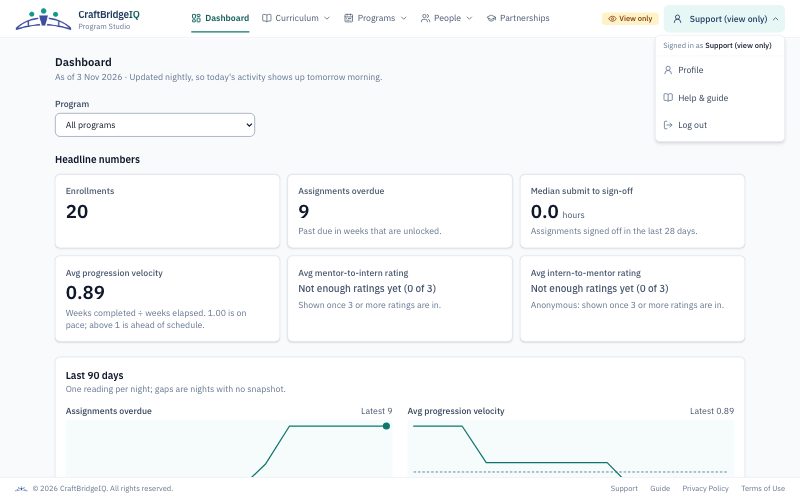
| No. | Control | What it does | What happens next |
|---|---|---|---|
| View only | A yellow label in the top bar. Hover over it for a short explanation. | Nothing; it is a label. | |
| Support (view only) | Your role, shown on the account menu button and after Signed in as. | Nothing; it is a label. | |
| Signed in as | The line at the top of the account menu. | Nothing; it is a label. |
The top menu has Dashboard, Curriculum, Programs, People and Partnerships. It does not have Team, the last item an administrator sees.
| No. | Control | What it does | What happens next |
|---|---|---|---|
| Team | A top menu item that an administrator sees and you do not. | Typing its address shows a notice instead. See Page by page. |
Page by page
Dashboard
The same as an administrator sees. Nothing on it changes data.
Track templates, versions and the version editor
You can open every template, its versions and each week of a version. Nothing is editable.
| No. | Control | What it does | What happens next |
|---|---|---|---|
| New track template | Hidden on Track templates. Where an administrator would see an empty list you read None have been created yet. | You can still open every template. | |
| Rename… | Hidden from the actions menu on each template. View versions stays. | Open View versions. | |
| New version | Hidden on a template's list of versions. | You can still open every version. | |
| Publish… | Hidden in the version editor, with Create new version from this. | You read the version; you cannot change it. | |
| Create new version from this | Hidden in the version editor. | You read the version; you cannot change it. | |
| + Add week | Hidden under the list of weeks. | Every week can still be opened. | |
| Save | Hidden under a week's title and summary. Those fields, and every activity field, are switched off. | You can read them. | |
| + Add activity | Hidden above a week's activities. | You can read every activity. |
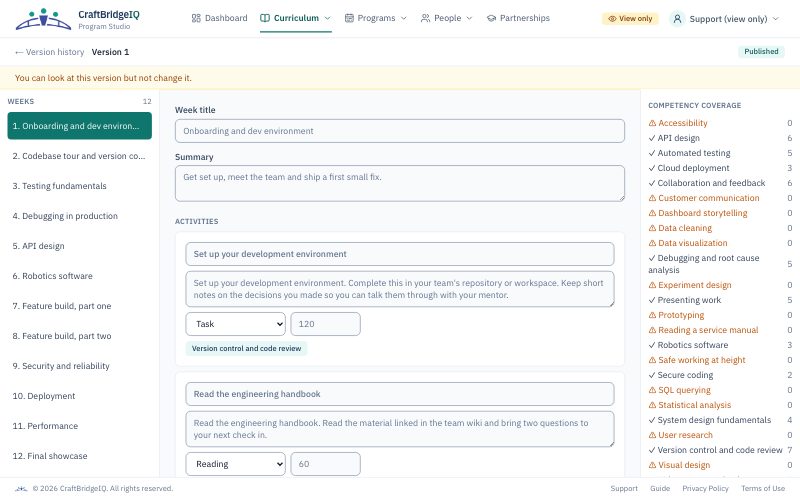
A yellow strip under the top bar says You can look at this version but not change it. A published version is read only for an administrator too, but the strip then says to use Create new version from this to keep editing.
Competencies
| No. | Control | What it does | What happens next |
|---|---|---|---|
| New framework | Hidden. Where an administrator would see an empty list you read None have been created yet. | You can still open every framework. | |
| Add a competency… | The form for adding a competency to a framework is hidden. Competencies show as plain labels with no x to remove them. | You can read every competency. |
Programs and a program's page
| No. | Control | What it does | What happens next |
|---|---|---|---|
| New program | Hidden on Programs. The Holiday calendars link beside it stays. | You can still open every program. | |
| Activate… | Hidden on a draft program's page. | You see the status label only. | |
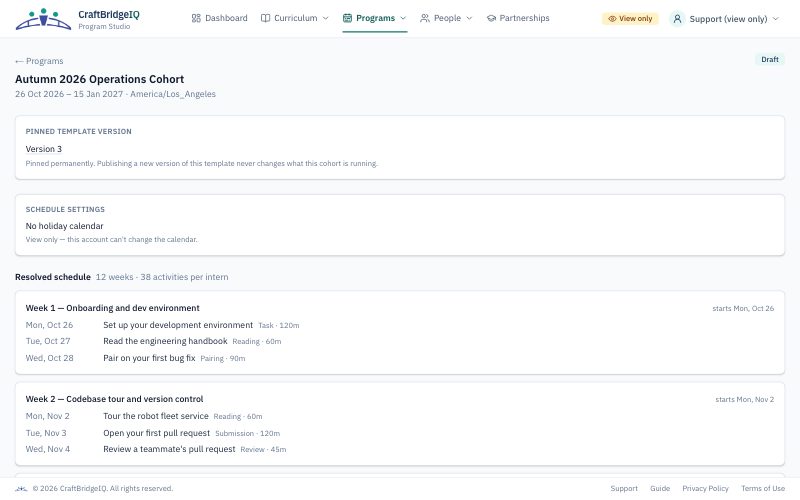
| Start date | The card for changing a draft program's start date is hidden. | The dates under the program's name are still shown. | |
| Holiday calendar | The menu is replaced by the calendar's name and a line saying View only and that this account can't change the calendar. | You can read which calendar the program uses. | |
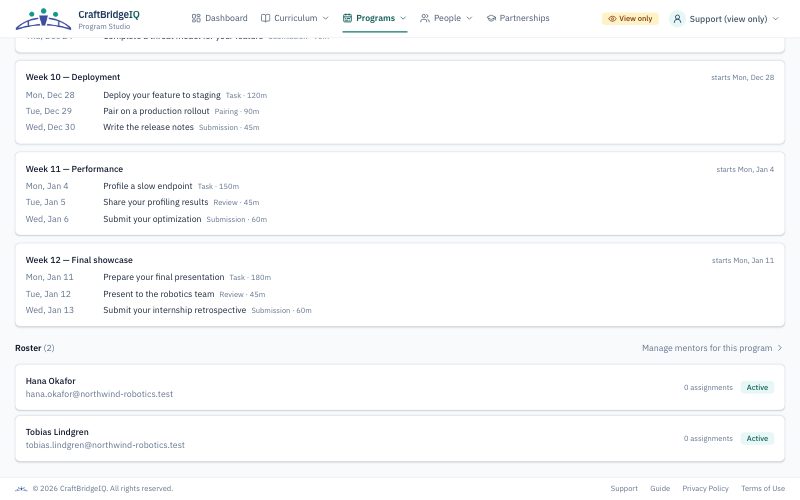
| Add interns | Hidden in the Roster. In an empty roster you read Nobody has been added to this program yet. | You can read the roster. | |
| Invite link | Hidden on each intern's card, with Reset link. | You still see name, email, assignments and status. | |
| Reset link | Hidden on each intern's card. | You still see name, email, assignments and status. |
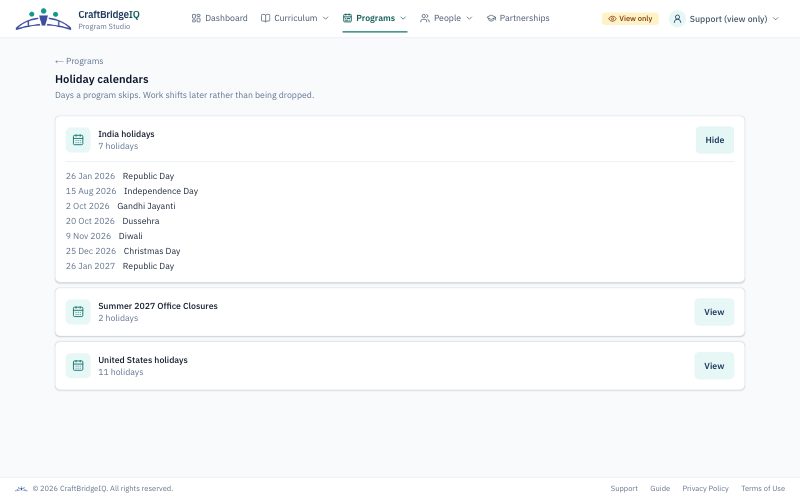
Holiday calendars
| No. | Control | What it does | What happens next |
|---|---|---|---|
| New calendar | Hidden. Where an administrator would see an empty list there is no button either. | You can still read every calendar. | |
| View | Each card's button reads View, then Hide, instead of Edit and Done. It lists the holidays. | You can read the holidays. | |
| Delete | Hidden on each card. | Nothing can be deleted. | |
| Label | The Date and Label fields and the Add button for a new holiday are hidden, and so is the x on each holiday. | Nothing can be added or removed. |
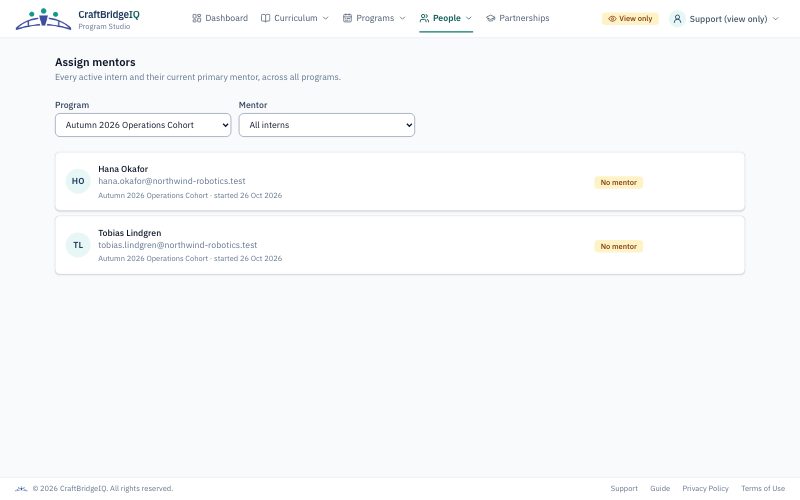
Assign mentors and People
| No. | Control | What it does | What happens next |
|---|---|---|---|
| Assign | Hidden on Assign mentors, with Change and End. Each intern shows their mentor, or No mentor. | You can read who mentors whom. | |
| Change | Hidden on Assign mentors. | You can read who mentors whom. | |
| End | Hidden on Assign mentors. | You can read who mentors whom. | |
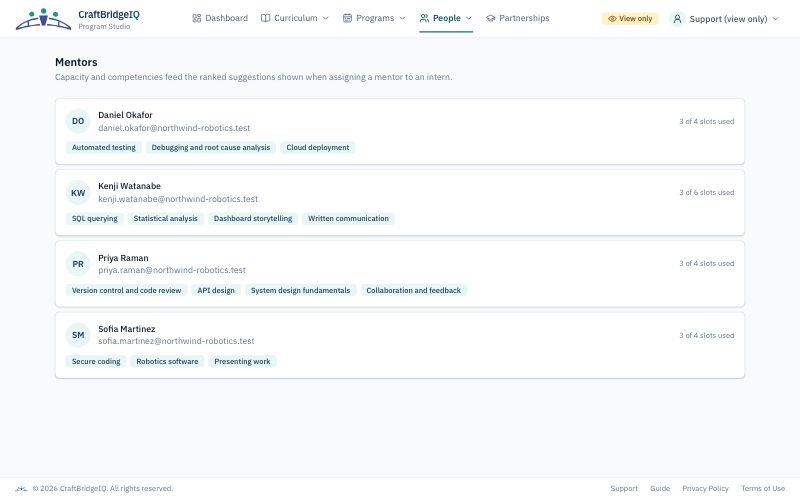
| Remove profile | Hidden on a mentor's page. Mentor settings shows capacity, competencies as plain labels and notes, with nothing to change. | You can read every profile, interns and reviews. | |
| Open week 3 early | Hidden on an intern's page. | You can read every assignment and week. |
Partnerships
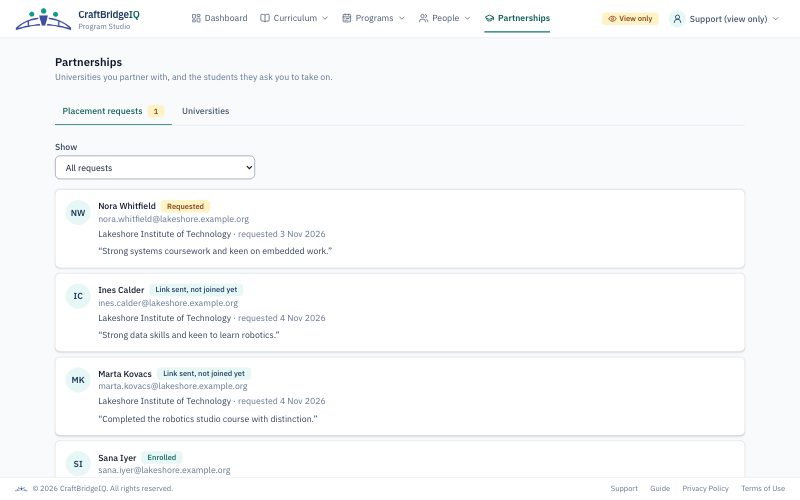
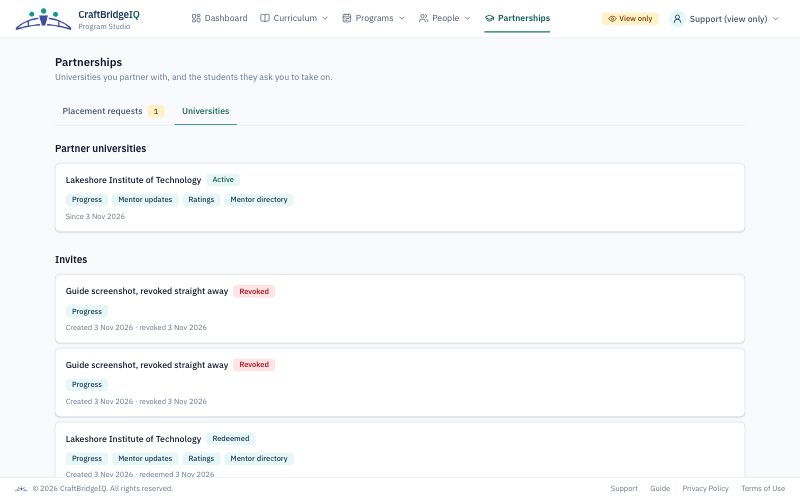
Both tabs open and show real requests, partners and invites. The server allows reading them, so a support login can see them all.
| No. | Control | What it does | What happens next |
|---|---|---|---|
| Accept | Hidden on Placement requests, with Decline and Reissue link. | You can read every request, its status and any reason. | |
| Decline | Hidden on Placement requests. | You can read every request. | |
| Reissue link | Hidden on Placement requests. | You can read every request. | |
| Invite a university | Hidden on Universities. Where an administrator would see an empty partner list you read No university has partnered with you yet. | You can read the partners and invites. | |
| End partnership | Hidden on each active partner. | You can read the partner and what it can see. | |
| Revoke | Hidden on each open invite. | You can read the invite. |
Team
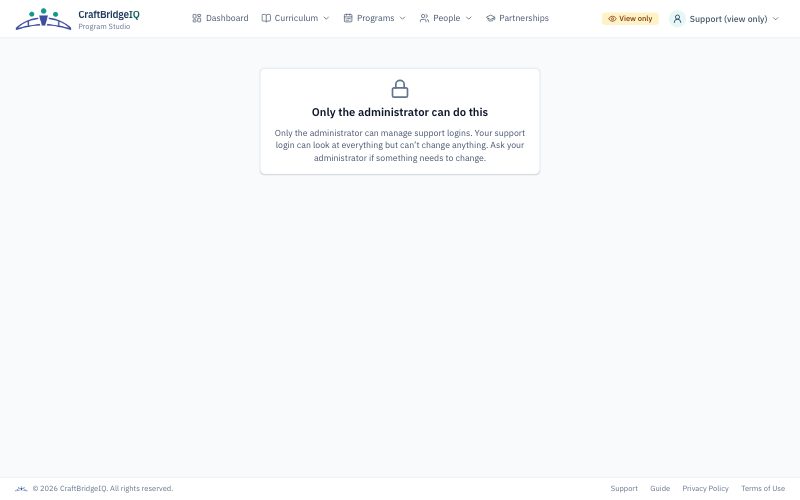
There is no Team item in the menu. If you type the address, /team, you see a notice in place of the page.
See Your team for what an administrator does there.
Messages you can see
| Message | When you see it | What to do |
|---|---|---|
| This account can look at everything but can't change anything. | The tooltip on the View only label. | Nothing. |
| You can look at this version but not change it. | The yellow strip in the version editor. | Nothing. Ask an administrator for a change. |
| this account can't change the calendar. | On a program's page under Schedule settings, after the words View only and a dash. | Nothing. |
| Only the administrator can do this | The heading of the notice on the Team address. | Ask your administrator. |
| Only the administrator can manage support logins. | The first sentence under that heading. It goes on to say your support login can look at everything but can't change anything. | Ask your administrator if something needs to change. |
| Nobody has been added to this program yet. | An empty roster. | Nothing. |
| None have been created yet. | In place of an empty list of templates, versions or frameworks. | Nothing. |
| No university has partnered with you yet. | An empty partner list. | Nothing. |
| This account can view but not change data. | The server refuses a change from your login. You should not meet it, because the buttons are hidden. | Ask an administrator to make the change. |
Limits and other roles
- A support login can read everything it can open and change nothing.
- A support login cannot open Team.
- A company has a limited number of support logins. The administrator sees the count on the Team page.
Common questions
Why is a button I was told about missing?
Because you are signed in with a support login. The buttons that change things are hidden. Ask an administrator.
Can I still download or export what I can see?
Yes, where the page offers it. Nothing on the Dashboard is hidden from a support login, including its downloads.
Can a support login use the Mentor Console or Intern Portal?
No. A support login is for Program Studio. It does not give you any other app.
How does a support login choose a password?
The administrator adds the person on the Team page and the person gets an email with a link. See Setting your password.
Last checked 2026-11-03 against the product.