
Students
Add one student or import many from a CSV file.
What this page is for
Students is your university’s hub for people: name, email, optional student reference, year and programme of study, and each student’s placement status. You add students here first, then pick them when you request a placement. Open a student to see shared week-by-week progress. You can add one by hand, or import many from a CSV file.
Adding a student does not share anything with a company. Nothing is shared until you request a placement and the student agrees. Progress on a student’s page is a nightly snapshot, not live.
- Where
- Students, in the top menu (address /students)
- Who can open it
- University administrators can add and import. A support login can see the list only.
- App
- University Portal
How a CSV import works
The same steps as a list
- Press Import CSV and choose your file
- Reads the file in your browser and shows a preview
- Any rows with problems? (No: Press the Import button; Yes: Fix the file and choose it again, or import the ready rows)
- Fix the file and choose it again, or import the ready rows
- Press the Import button
- Shows what happened to every row
The screen
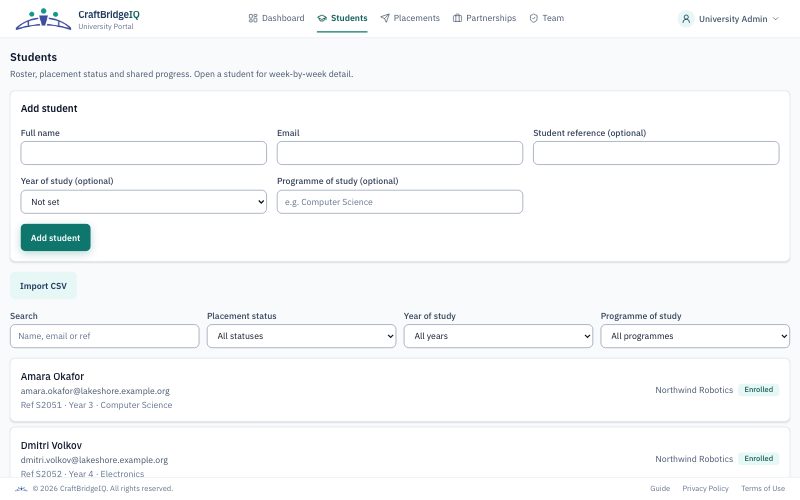
| No. | Control | What it does | What happens next |
|---|---|---|---|
| 1 | Students | The page heading. | Nothing; it is a label. |
| 2 | Add student | The heading of the card with the form for one student. | Nothing; it is a label. |
| 3 | Full name | The student's name. | Shown on the student's card in the list. |
| 4 | The student's email address. | Shown on the card. Each address can be on your list once. | |
| 5 | Student reference (optional) | Your own number or code for the student, if you use one. | Shown on the card as Ref followed by the value. |
| 6 | Year of study (optional) | Which year the student is in, from Year 1 to Year 6. Not set is the default. | Shown on the card, and used by the Year of study filter and the Dashboard. |
| 7 | Programme of study (optional) | The course or branch the student studies, for example Computer Science. | Shown on the card, and used by the Programme of study filter and the Dashboard. |
| 8 | Add student | Adds the student to your list. | A confirmation appears, the form clears and the student joins the list. |
| 9 | Import CSV | Opens the import panel for a file of many students. | The panel opens below the form. |
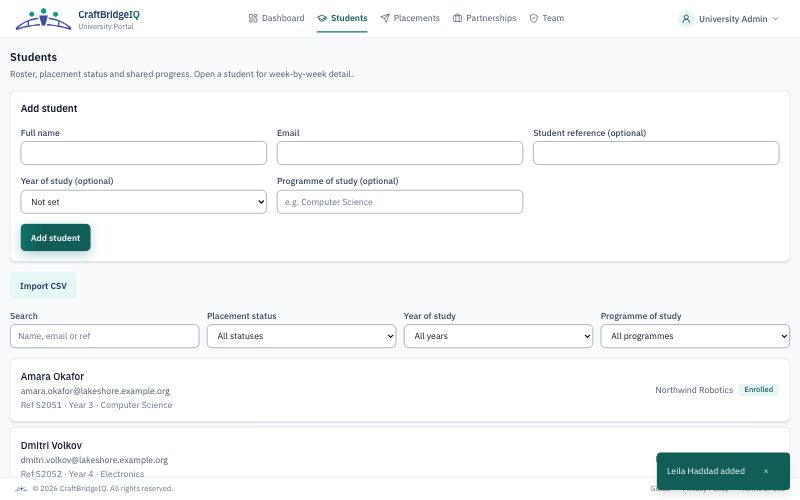
After you add a student, a confirmation appears in the bottom right corner:
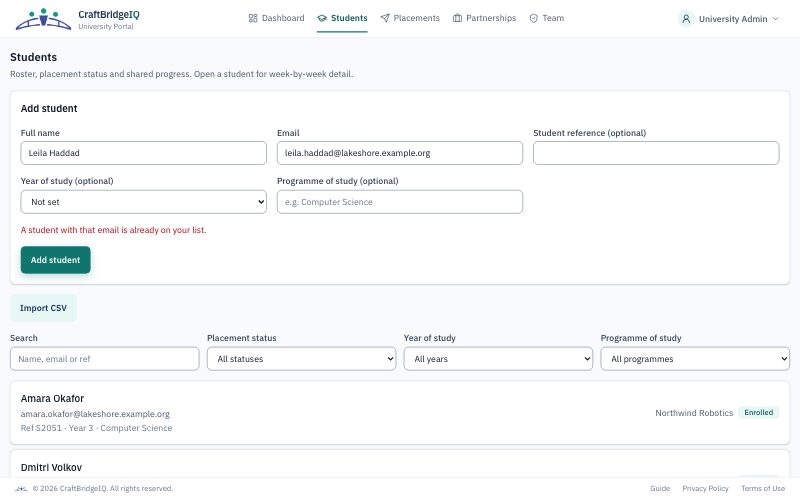
If the email is already on your list, the form tells you instead and nothing is added:
The import panel
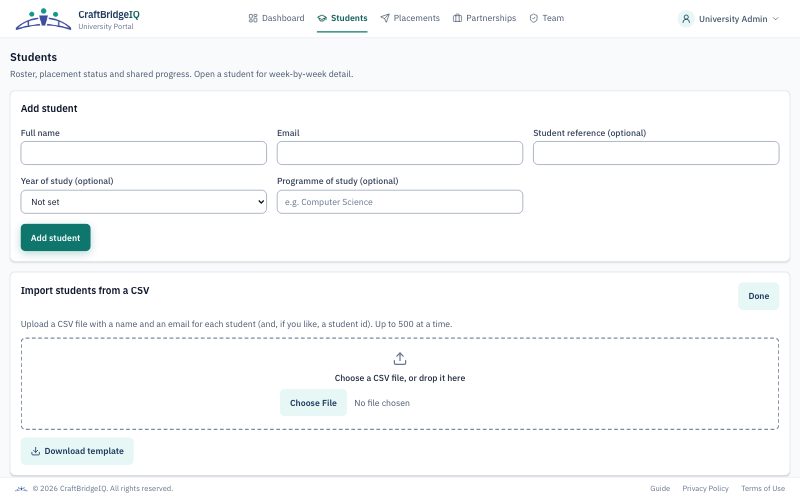
| No. | Control | What it does | What happens next |
|---|---|---|---|
| 1 | Import students from a CSV | The heading of the import panel. | Nothing; it is a label. |
| 2 | Done | Closes the import panel. | The Import CSV button comes back. |
| 3 | Up to 500 at a time. | The size rule, in a line that also says which columns to include: a name and an email for each student, and a student id if you like. | Nothing; it is a label. |
| 4 | Choose a CSV file, or drop it here | Pick a file from your computer, or drag one onto the dashed box. | The file is read in your browser and a preview appears. |
| 5 | Download template | Downloads a small CSV file with the right headings and two example rows. | Fill it in and use it as your file. |
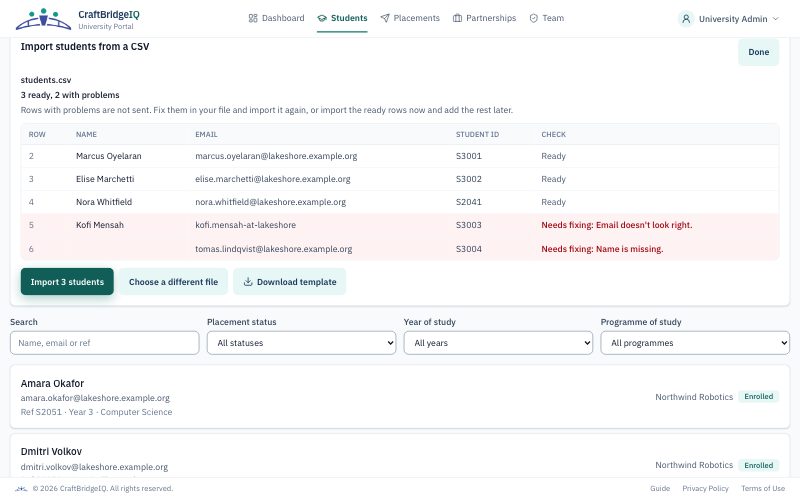
| No. | Control | What it does | What happens next |
|---|---|---|---|
| 1 | students.csv | The name of the file you chose. | Nothing; it is a label. |
| 2 | 3 ready, 2 with problems | How many rows can be sent and how many have a problem. The second part is left out when there are no problems. | Nothing; it is a label. |
| 3 | Rows with problems are not sent. | Explains that rows with problems are skipped, and that you can fix the file or import the ready rows now. | Nothing; it is a label. |
| 4 | Check | Says Ready for a good row, or Needs fixing with the reason for a row that cannot be sent. The table also shows each row's number, name, email and student id. | Nothing; it is a label. |
| 5 | Import 3 students | Sends the ready rows. The number is how many are ready, and the button is disabled when none are. It reads Importing... while it works. | The results appear. |
| 6 | Choose a different file | Throws the preview away and goes back to choosing a file. | You are back at step one. |
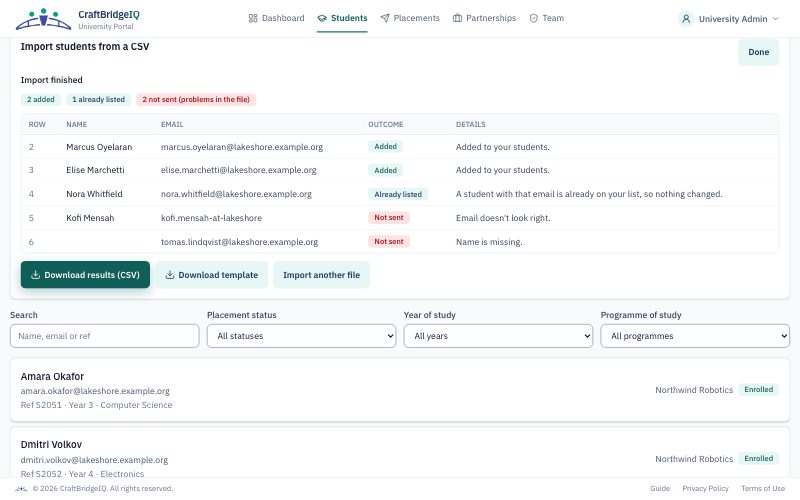
| No. | Control | What it does | What happens next |
|---|---|---|---|
| 1 | Import finished | Tells you the import has run. | Nothing; it is a label. |
| 2 | Import totals | A badge for each outcome with its count: added, already listed, not valid, and rows that were not sent because of problems in the file. | Nothing; they are labels. |
| 3 | Outcome | One line for every row of your file in file order. The label is Added, Already listed, Not added or Not sent, and the Details column says why. | Nothing; it is a label. |
| 4 | Download results (CSV) | Saves the table as a CSV file with the columns Row, Name, Email, Outcome and Details. | A file downloads to your computer. |
| 5 | Import another file | Clears the results and goes back to choosing a file. | You are back at step one. |
The list of students
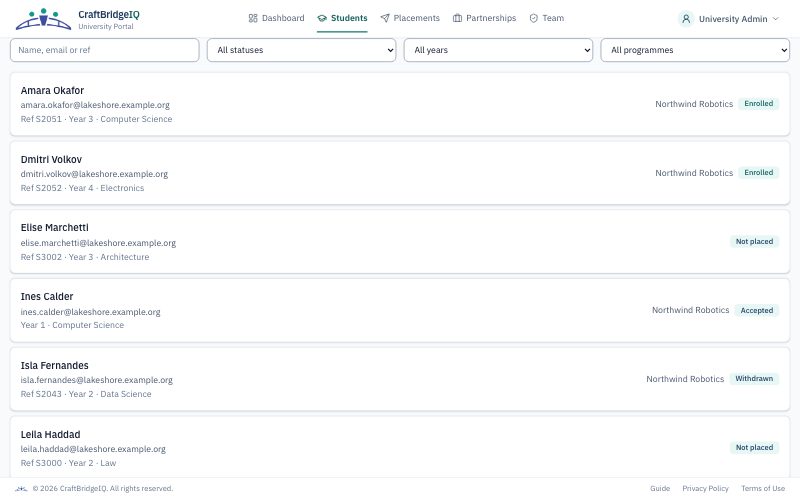
| No. | Control | What it does | What happens next |
|---|---|---|---|
| 1 | Search | Shows only students whose name, email or reference contains what you type. Capital letters do not matter. | The list narrows as you type. |
| 2 | Placement status | Shows only students with a placement in one status: Requested, Accepted, Enrolled, Declined or Withdrawn, or Not placed for students with no request at all. All statuses is the default. | The list narrows. |
| 3 | Year of study | Shows only students in one year, or Not set for students with no year. All years is the default. | The list narrows. |
| 4 | Programme of study | Shows only students on one programme, or Not set. The choices are the programmes already on your list. | The list narrows. |
| 5 | Ref S2051 · Year 3 · Computer Science | One card for each student: the name, the email and, when there are any, the reference, year and programme. The company's name is on the right when the student has a request. | Press the card to open the student's own page. |
| 6 | Enrolled | The status of the student's current placement, or the latest one. A student with no request shows Not placed. | Nothing; it is a label. |
A student's own page
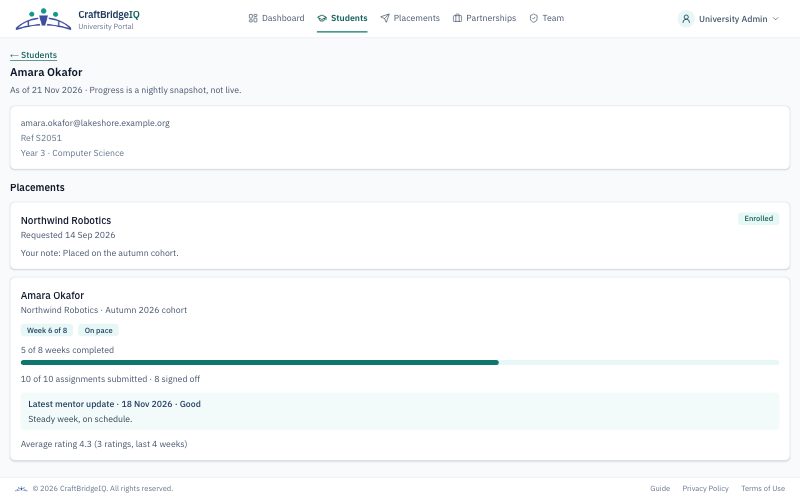
| No. | Control | What it does | What happens next |
|---|---|---|---|
| 1 | ← Students | A link back to the list. | You are back on the Students page. |
| 2 | Amara Okafor | The student's name. | Nothing; it is a label. |
| 3 | Progress is a nightly snapshot, not live. | Appears with an As of date once a nightly update has run. Anything shown below is as of that date. | Nothing; it is a label. |
| 4 | Ref S2051 | The card under the name holds the email and, when there are any, the reference, year and programme. | Nothing; it is a label. |
| 5 | Placements | The heading of the list of this student's requests, newest first. | Nothing; it is a label. |
| 6 | Requested 14 Sep 2026 | One card for each request: the company, the date you asked, its status and your note. | Nothing; it is a label. |
| 7 | Latest mentor update | Shown for an enrolled student whose company shares progress and who agreed to share. The card also shows the week, the pace, the weeks completed and the assignments. Mentor updates and ratings appear only when the company shares them. | Nothing; it is a label. |
Until a student has agreed to share, or before the first nightly update, the progress card says that it is waiting for the student to share and shows nothing else. It does not say why.
Step by step
Add one student
- Open Students in the top menu.
- Type the student’s name in Full name.
- Type their email address in Email.
- If you use student numbers, type it in Student reference (optional).
- If you want to filter by year or course later, choose a year in Year of study (optional) and type the course in Programme of study (optional).
- Press Add student.
The form clears and the student appears in the list.
Find a student and see their progress
- Open Students in the top menu.
- Type part of a name, email or reference in Search, or choose a Placement status, Year of study or Programme of study.
- Press the student’s card.
- Read the placements. For an enrolled student who shares progress, the card below shows the week, the pace and the latest mentor update.
- Press ← Students to go back to the list.
Import students from a CSV file
- Press Import CSV.
- Press Download template if you want a file with the right headings, and fill it in. Save it as a CSV file.
- Press Choose File and pick your file, or drop it on the dashed box.
- Read the preview. Rows marked Needs fixing are not sent.
- Press the Import button, for example Import 3 students.
- Read the results. Press Download results (CSV) to keep a copy.
- Press Done when you have finished.
Fix rows with problems
- Read the Check column in the preview. Each row that needs fixing says why.
- Either press Choose a different file after fixing it in your spreadsheet, or import the ready rows now.
- Add the rows you skipped later, by importing a file that holds only them.
The Add student form and the CSV file
| Field | Required | Rules | Example |
|---|---|---|---|
| Full name | Yes | Up to 200 characters. Blank is refused. | Leila Haddad |
| Yes | Up to 320 characters, with an at sign and a domain that has a dot. Any domain is fine. Each address can be on your list once. | leila.haddad@lakeshore.example.org | |
| Student reference (optional) | No | Up to 100 characters. Your own number or code. | S3000 |
| Year of study (optional) | No | Year 1 to Year 6, or Not set. | Year 3 |
| Programme of study (optional) | No | Up to 100 characters. Blank is the same as not set. | Computer Science |
A CSV file has one row of headings, then one row per student. The columns are:
- A name column. The heading can be name, full name or student name. A file with first name and last name columns also works.
- An email column. The heading can be email, email address or student email.
- Optionally a student id column. The heading can be student id, student reference, student number or ref.
- Optionally a year of study column, with a whole number from 1 to 6. The heading can be year of study, year, study year or academic year.
- Optionally a programme of study column. The heading can be programme of study, program of study, programme, program, branch of study, branch, major or discipline.
Upper or lower case and extra spaces in the headings do not matter. Press Download template to get a file with the headings name, email, student id, year of study and programme of study, and two example rows.
Messages you can see
Adding one student
| Message | When you see it | What to do |
|---|---|---|
| Leila Haddad added | After Add student works. | Nothing. |
| A student with that email is already on your list. | Under the form when the email is already on your list. | Find the student in the list. Use another address if it is a different person. |
| Couldn't add that student. Try again. | Any other failure without a reason from the server. | Try again; if it repeats, tell your CraftBridge contact. |
| No students yet | In place of the list when you have no students. | Add a student above, then request a placement for them. |
| Couldn't load your students. | The list could not load. | Press the retry button shown with it. |
| No matching students | In place of the list when the search or a filter matches nobody. | Clear a filter or change what you typed. |
| Couldn't load that student. | A student's own page could not load. | Press the retry button shown with it. |
| No placements yet | On a student's own page when you have made no request for them. | Press Go to Placements and request one. |
Choosing a file
| Message | When you see it | What to do |
|---|---|---|
| That is a spreadsheet file, not a CSV. In Excel or Sheets choose Save As (or Download) and pick CSV, then upload that file. | You chose a .xlsx, .xlsm, .xls, .ods or .numbers file. | Save it as CSV and choose that file. |
| That file is larger than 1 MB. A list of up to 500 people is far smaller, so check you chose the right file. | The file is over 1 MB. | Check you chose the right file. |
| Couldn't read that file. Try choosing it again. | Your browser could not open the file. | Choose it again. |
| That file is empty. | The file has nothing in it. | Fill the template in and choose it again. |
| That file has headings but no people in it. | There is only the row of headings. | Add a row for each student. |
| That file has 600 people. You can add up to 500 at a time, so split it into smaller files. | The file has more than 500 rows. | Split it into files of 500 or fewer and import each. |
| We couldn't find an email column (email) in the first row. Use headings such as: name, email, student id. | The first row has no heading it can read as an email or a name. The message names what is missing. | Rename the headings, for example to name, email, student id. |
| The first row looks like a person, not column headings. Add a first row with headings such as: name, email. | The first row holds an email address instead of headings. | Add a row of headings above the people. |
| A quoted value in this file is never closed (a stray double quote). Fix it and try again. | The file has a double quote that is never closed. | Fix the file in a text editor or spreadsheet and choose it again. |
In the preview
| Message | When you see it | What to do |
|---|---|---|
| Needs fixing: Name is missing. | A row has no name. | Add the name in your file. |
| Needs fixing: Name has a line break in it. | A name spans two lines. | Put the name on one line. |
| Needs fixing: Email is missing. | A row has no email. | Add the email in your file. |
| Needs fixing: Year of study must be a whole number from 1 to 6. | The year of study cell holds anything other than 1, 2, 3, 4, 5 or 6. | Correct the number, or leave the cell empty. |
| Needs fixing: Programme of study has a line break in it. | A programme name spans two lines. | Put the programme on one line. |
| Needs fixing: Email doesn't look right. | The email has no at sign or no dot in its domain, or it has spaces or a line break. | Correct the address. |
| Needs fixing: Same email as row 2; each address can appear once. | The same address appears twice in the file. The later row is the one marked. | Remove one of the rows. |
| Rows with problems are not sent. Fix them in your file and import it again, or import the ready rows now and add the rest later. | Shown above the table when any row needs fixing. | Choose: fix the file, or import the ready rows now. |
In the results
| Message | When you see it | What to do |
|---|---|---|
| Added to your students. | Outcome Added: the student is now on your list. | Nothing. |
| A student with that email is already on your list, so nothing changed. | Outcome Already listed: that address was already there. | Nothing. |
| This row isn't valid, so nothing was added. | Outcome Not added: the server refused the row and gave no reason. | Check the name and email, then import that row again. |
| Email doesn't look right. | Outcome Not sent: the preview found a problem, so the row never left your browser. The reasons are the ones in the preview. | Fix the row and import it in another file. |
| The server did not report on this row. Check the list before trying again. | Outcome No answer: the server's reply left this row out. | Look for the student in the list before importing again. |
| Couldn't import students. Nothing was changed; try again. | The whole request failed. The preview stays on screen. | Press the Import button again. |
Limits and other roles
- One import carries up to 500 students.
- A file can be up to 1 MB. The file must be a CSV, not a spreadsheet.
- Names are up to 200 characters, emails up to 320 and a student reference up to 100.
- The list shows up to 500 students, in alphabetical order by name.
- An email address can be on your list once. A second try is reported as already listed and changes nothing.
Common questions
Does adding a student tell the company?
No. The list is your own. A company sees a student only after you request a placement for them and they agree. See Placements.
What if I import the same file twice?
Students already on your list are reported as Already listed and nothing changes, so it is safe to import a file again after fixing it.
Can I change or remove a student?
Not on this page. The list has no edit or delete controls.
Do I have to include a student id?
No. Only a name and an email are needed. The student id, year of study and programme of study columns are all optional.
Where do I see how a student is getting on?
Open the student from the list. Their own page shows shared progress as of the last nightly update. The Dashboard shows the same figures added up for everyone.
Last checked 2026-11-03 against the product.