
One organisation
Domain, support-login seats, suspending, and resending the setup link.
What this page is for
Each company and university has its own page. Use it to see the organisation’s details, to send its first administrator the setup email again, to change its email domain or its support-login limit, and to suspend or reactivate it.
The setup email goes to the organisation’s first administrator, not to you. The link in it lets that person choose a password.
- Where
- Click an organisation's name on Organisations (address /organizations, then the kind and the organisation)
- Who can open it
- CraftBridge staff with the role Platform admin
- App
- Admin Console
How a suspension works
The same steps as a list
- Open the organisation and press Suspend organisation
- Read the confirmation and press Suspend
- Signs everyone in the organisation out and blocks sign-in
- Later, press Reactivate organisation and confirm
- People can sign in again; nothing was deleted
The screen
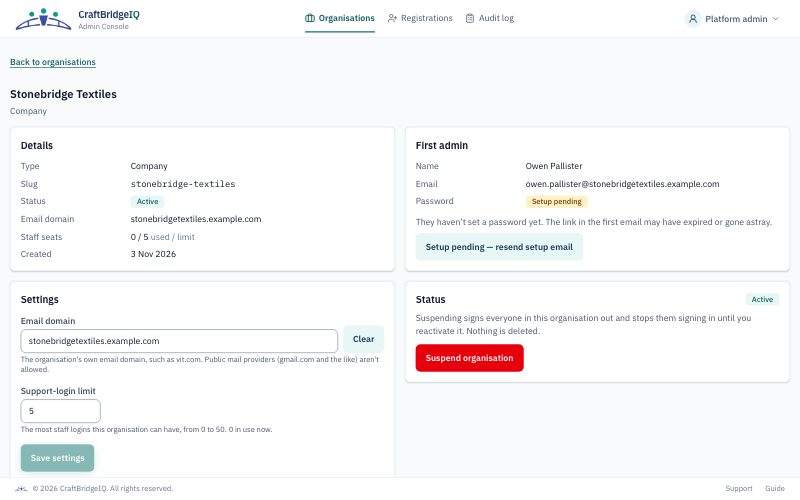
| No. | Control | What it does | What happens next |
|---|---|---|---|
| 1 | Back to organisations | Returns to the list, on the Companies or Universities tab this organisation belongs to. | Opens Organisations. |
| 2 | Stonebridge Textiles | The organisation's name, with its type (Company or University) under it. | Nothing; it is a label. |
| 3 | Details | A read-only card: Type, Slug, Status, Email domain, Staff seats (support logins in use, a slash, the limit) and Created. | Nothing; it is a label. Email domain shows No domain yet when none is set. |
| 4 | First admin | A read-only card with the administrator's Name and Email, and Password, which is Setup pending until they choose one and Set afterwards. | Nothing; it is a label. With no administrator it says This organisation has no admin on file. |
| 5 | resend setup email | Sends the administrator a new link to choose a password. The button is labelled Setup pending, then resend setup email, and appears only while they have no password. It reads Sending... while it works. | A confirmation names the address it was queued for. |
| 6 | Email domain | The domain every login in this organisation must use. A line under it explains the rule. | Save settings becomes available once you change it. |
| 7 | Clear | Removes the email domain at once, without Save settings. Greyed out when there is no domain. | A confirmation says Email domain cleared. The organisation then cannot add support logins. |
| 8 | Support-login limit | How many support logins the organisation may have, from 0 to 50. A line under it says how many are in use now. | Save settings becomes available once you change it. |
| 9 | Save settings | Saves the changes. Only fields you changed are sent. Greyed out until something changes, and reads Saving... while it works. | A confirmation says Settings saved. |
| 10 | Status | The heading of the Status card, with the current status (Active or Suspended) beside it and a line saying what suspending does. | Nothing; it is a label. |
| 11 | Suspend organisation | Starts a suspension. It becomes Reactivate organisation while the organisation is suspended. | A confirmation box asks you to confirm. |
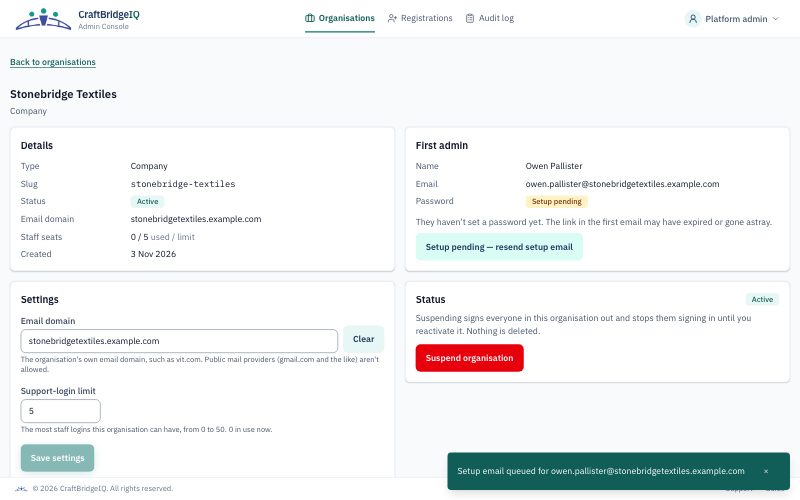
After you press resend setup email, a confirmation appears in the bottom right:
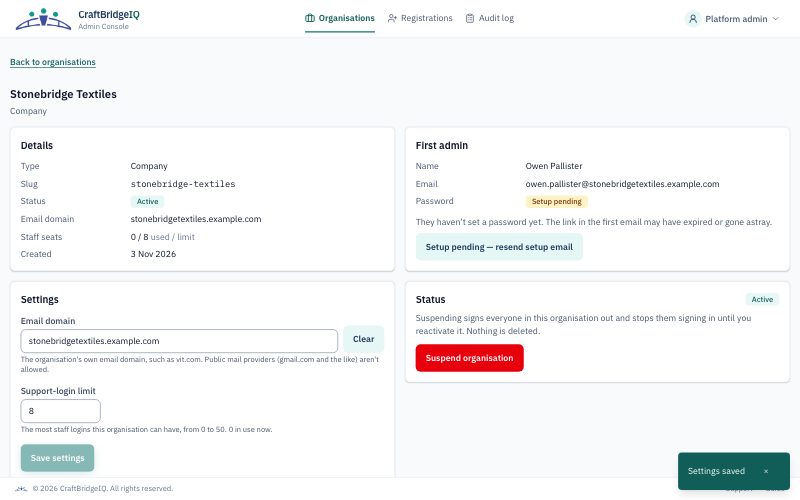
After Save settings works:
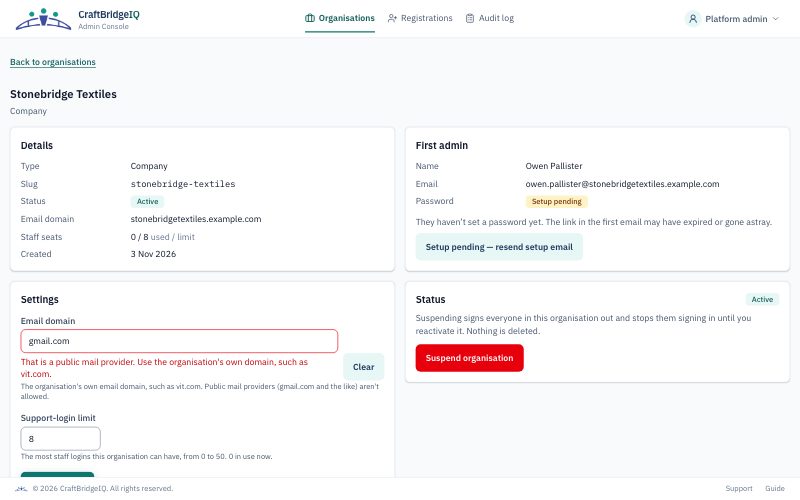
If the domain is not allowed, the message appears under the field and nothing is saved:
The Suspend and Reactivate boxes
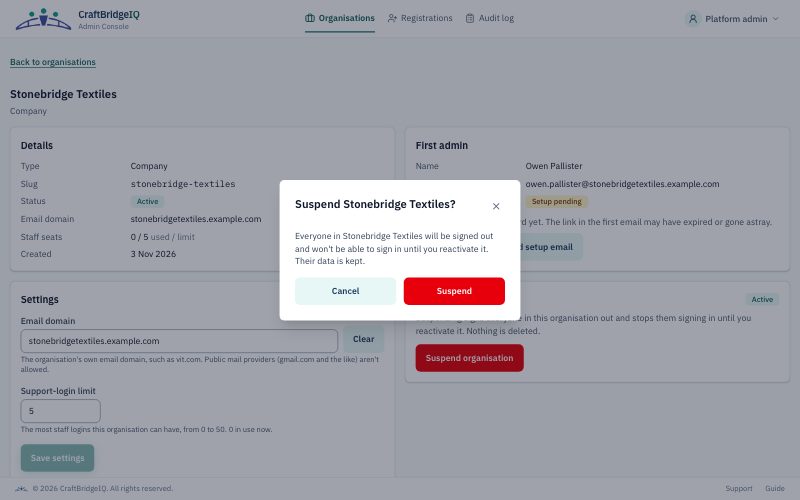
| No. | Control | What it does | What happens next |
|---|---|---|---|
| Suspend Stonebridge Textiles? | The title of the box. It names the organisation and says everyone in it will be signed out and cannot sign in until you reactivate it. Their data is kept. | Nothing until you choose a button. | |
| Cancel | Closes the box and changes nothing. | You are back on the page. | |
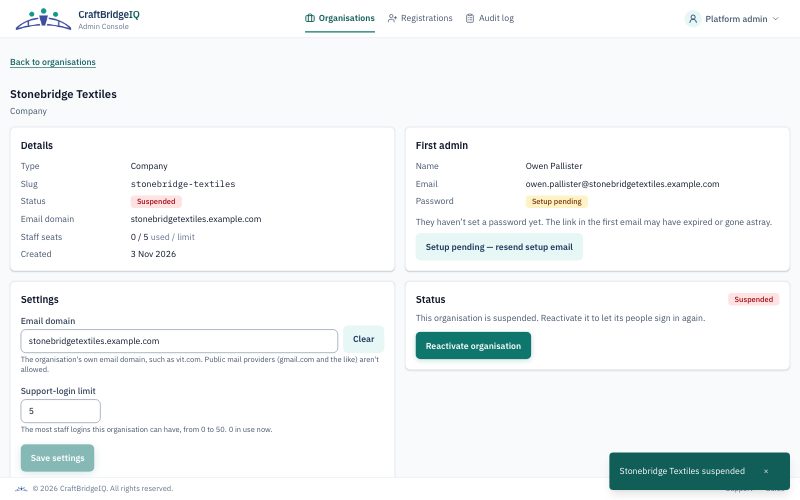
| Suspend | Confirms. The button reads Suspending... while it works. | The status changes to Suspended and a confirmation says so. |
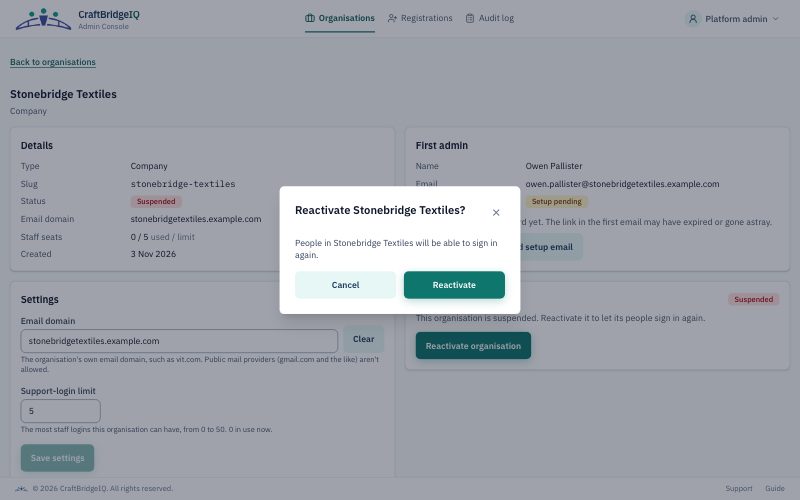
| No. | Control | What it does | What happens next |
|---|---|---|---|
| Reactivate Stonebridge Textiles? | The title of the box. It says people in the organisation will be able to sign in again. | Nothing until you choose a button. | |
| Reactivate | Confirms. The button reads Reactivating... while it works. | The status changes to Active and a confirmation says so. |
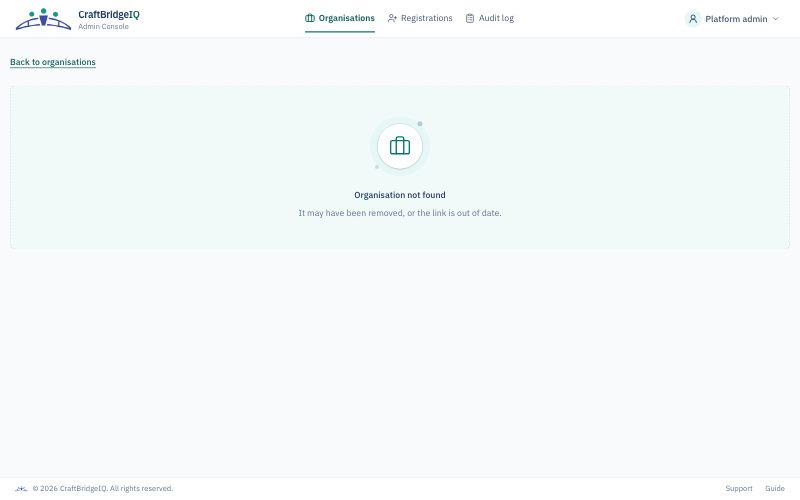
When the organisation cannot be found
Step by step
Send the setup email again
- Open the organisation from Organisations.
- In the First admin card, check Password says Setup pending.
- Press the Setup pending, resend setup email button.
Change the support-login limit
- Type a whole number from 0 to 50 in Support-login limit.
- Press Save settings.
The Details card shows the new limit under Staff seats. New organisations start with 5.
Change or clear the email domain
- Type the organisation’s own domain in Email domain, for example vit.com.
- Press Save settings. To remove the domain instead, press Clear.
Suspend an organisation
- Press Suspend organisation.
- Read the confirmation and press Suspend.
Everyone in the organisation is signed out and cannot sign in until you reactivate it. Nothing is deleted.
Reactivate an organisation
- Press Reactivate organisation.
- Read the confirmation and press Reactivate.
The Settings form
| Field | Required | Rules | Example |
|---|---|---|---|
| Email domain | No | The organisation's own domain. A leading @ is removed and capitals are lowered. Public mail providers such as gmail.com are refused, and so is a domain another organisation uses. Leave it as it is to keep it, or press Clear. | stonebridgetextiles.example.com |
| Support-login limit | No | A whole number from 0 to 50. New organisations start at 5. | 8 |
Messages you can see
| Message | When you see it | What to do |
|---|---|---|
| Settings saved | After Save settings works. | Nothing. |
| Email domain cleared | After Clear works. | Set a new domain when the organisation needs support logins. |
| Enter a domain such as vit.com, or choose Clear to remove it. | Under Email domain when you emptied the field and pressed Save settings. | Type a domain, or press Clear. |
| Enter a domain such as vit.com. | Under Email domain when it is not shaped like a domain. | Type a domain with at least one dot. |
| That is a public mail provider. Use the organisation's own domain, such as vit.com. | Under Email domain for gmail.com and similar. | Use the organisation's own domain. |
| Another organisation already uses that email domain. | Under Email domain when the server finds the domain taken. | Check you have the right organisation and domain. |
| Enter a whole number from 0 to 50. | Under Support-login limit when it is not in range. | Type a number from 0 to 50. |
| Couldn't save the settings. Try again. | A confirmation in red when saving failed. | Try again. |
| Setup email queued for owen.pallister@stonebridgetextiles.example.com | After resend setup email works. | Nothing. Ask the administrator to check their email. |
| Couldn't queue the setup email. Try again. | A confirmation in red when resending failed. | Try again. |
| This admin has already set a password, so there is no setup email to resend. | In red when the administrator chose a password after you loaded the page. The page then shows the true state. | Nothing. |
| This organisation has no admin to send a setup email to. | In red when there is no administrator. | Nothing. |
| Stonebridge Textiles suspended | After you confirm Suspend. | Nothing. |
| Stonebridge Textiles reactivated | After you confirm Reactivate. | Nothing. |
| Couldn't suspend the organisation. Try again. | In red when suspending failed. | Try again. |
| Couldn't reactivate the organisation. Try again. | In red when reactivating failed. | Try again. |
| This organisation is suspended. Reactivate it to let its people sign in again. | In the Status card while suspended. | Press Reactivate organisation when ready. |
| This organisation's status can't be changed here. | In the Status card for an organisation whose status is neither Active nor Suspended. | Nothing. |
| This organisation has no admin on file. | In the First admin card when there is no administrator. | Nothing. |
| Organisation not found | The address names an organisation that does not exist, or the wrong kind. | Press Back to organisations and open it from the list. |
| Couldn't load this organisation. | The page could not load. | Press the retry button shown with it. |
Limits and other roles
- Support-login limit: from 0 to 50. New organisations start at 5.
- You can change the email domain, the limit and the status. The name, slug and type cannot be changed here.
- Suspending keeps all data. Only active and suspended organisations can be switched; no other status can be changed here.
Common questions
The administrator says the link does not work.
Press resend setup email. A new email gives a fresh link. The button is not there once the administrator has chosen a password; they use the normal sign-in page instead.
Does suspending delete anything?
No. Everyone is signed out and cannot sign in until you reactivate, and all data is kept.
An organisation needs more support logins. What do I do?
Raise Support-login limit and press Save settings. The Seats column on Organisations shows the new limit.
Where are these changes recorded?
Saving settings, suspending, reactivating and resending are listed on The audit log.
Last checked 2026-11-03 against the product.