
Publishing a version
Check a draft and publish it so programs can use it.
What this page is for
Publishing turns a draft version into the finished plan that programs can use. It is a one-way step: a published version is frozen and can never be edited, unpublished or deleted. So the product shows you a check first, and asks you to type the template’s name before the Publish button works.
- Where
- Press Publish… at the top right of a draft in the version editor
- Who can open it
- Administrators. Support logins do not see the button.
- App
- Program Studio
How publishing works
The same steps as a list
- Press Publish… on the draft
- Shows weeks, activities, time and coverage
- Read the check, then type the template name
- Has at least one week and one activity? (Yes: Saves it as Published and freezes it; No: the message says what to add: Read the check, then type the template name)
- Saves it as Published and freezes it
The screen
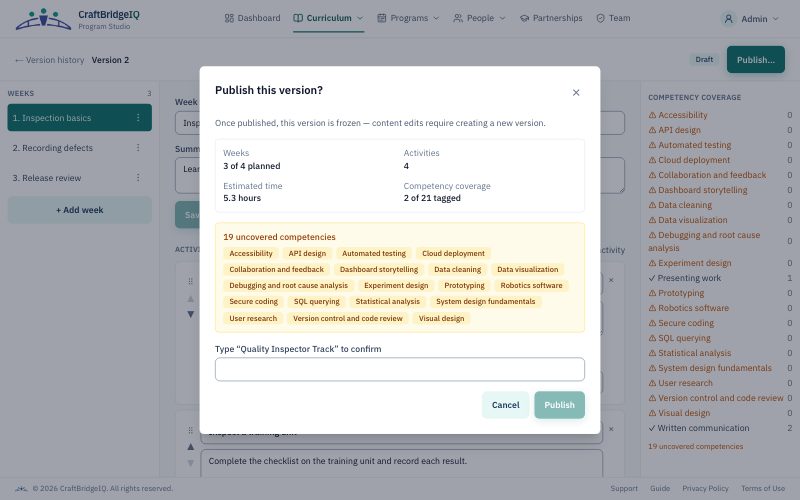
| No. | Control | What it does | What happens next |
|---|---|---|---|
| 1 | Publish this version? | The title of the box. | Nothing; it is a label. |
| 2 | Once published, this version is frozen, content edits require creating a new version. | A reminder that publishing cannot be undone. | Nothing; it is a notice. |
| 3 | Weeks | How many weeks you built, against the number planned when the draft was created, for example 3 of 4 planned. | A difference does not stop you. It is there so you can notice it. |
| 4 | Activities | How many activities there are in the whole version. | Nothing; it is a display. |
| 5 | Estimated time | The estimated minutes of all activities added up, shown in hours. | Nothing; it is a display. Activities without minutes add nothing. |
| 6 | Competency coverage | How many of your competencies at least one activity is tagged with, for example 2 of 21 tagged. | Reads unavailable if the figures could not be loaded. |
| 7 | 19 uncovered competencies | A yellow box naming the competencies that no activity teaches. Shown only when there are some. | Nothing; it is a warning, not a block. |
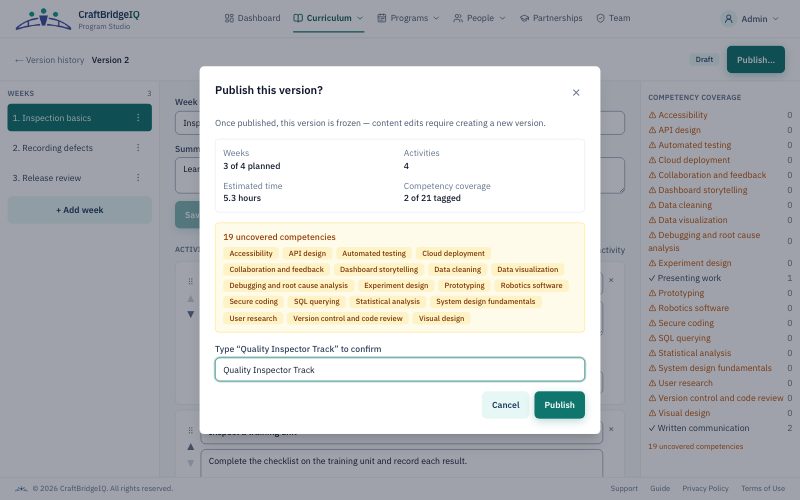
| 8 | Type “Quality Inspector Track” to confirm | A box where you type the template's name exactly. Your template's name appears in the label. | Publish stays greyed out until what you typed matches. |
| 9 | Cancel | Closes the box without publishing. | You are back in the editor. |
| 10 | Publish | Publishes the version. It reads Publishing… while it works. | A confirmation appears, the box closes and the version becomes Published. |
After you type the name exactly, Publish turns on:
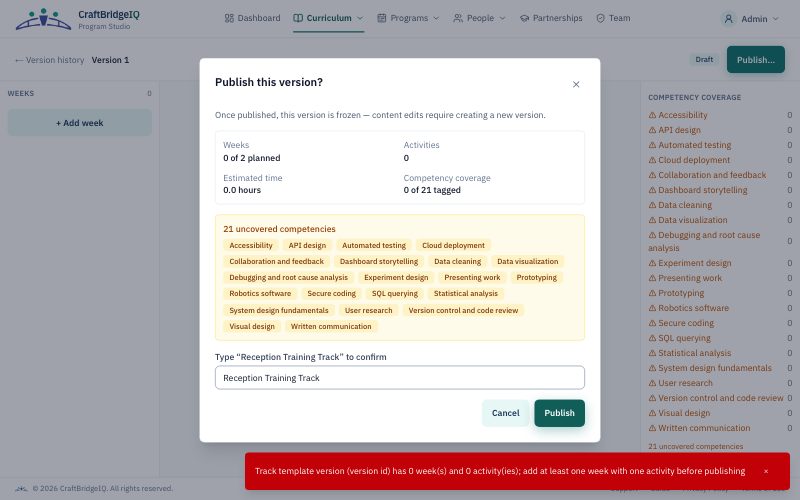
If a draft has no weeks or no activities, the server refuses and the box stays open with a red message at the bottom:
Step by step
Publish a draft
- Open the draft in the version editor.
- Press Publish…
- Read Weeks, Activities, Estimated time and Competency coverage.
- If you want to cover a competency that is listed as uncovered, press Cancel and tag it. Otherwise carry on.
- Type the template’s name in the confirmation box, exactly as it is written in the label.
- Press Publish.
The version is now Published and read-only. It can be chosen when you create a program. See Programs.
Stop before publishing
- Press Cancel, or the cross at the top right of the box.
The draft is exactly as you left it.
Change something after publishing
- Open the published version.
- Press Create new version from this.
- Edit the new draft, then publish it.
The confirmation field
| Field | Required | Rules | Example |
|---|---|---|---|
| Type “Quality Inspector Track” to confirm | Yes | Must match the template's name exactly, apart from spaces at the start or end. Up to 200 characters. | Quality Inspector Track |
Messages you can see
| Message | When you see it | What to do |
|---|---|---|
| Version published | After Publish works. | Nothing. The box closes and the version is read-only. |
| Couldn't publish this version. | Publish failed and the server gave no more specific reason. A more specific server message is shown in its place when there is one. | Try again. |
| Track template version (id) has 0 week(s) and 0 activity(ies); add at least one week with one activity before publishing | The draft has no weeks or no activities. The message starts with the version's id and shows the real counts. | Press Cancel, add a week with an activity, then publish again. |
| Track template version (id) is 'published'; only a draft can be published | The version was already published, for example by a colleague a moment earlier. | Nothing. Reload the page. |
| Couldn't load everything needed to check this version, so its counts may be wrong. Publishing is disabled until it loads. | The check could not read the weeks, activities or competencies. | Press Try again beside the message. |
| unavailable | In place of the competency coverage figure while the check could not load. | Press Try again. |
| This account can view but not change data. | A support login's publish was refused by the server. | Ask your administrator. |
Limits and other roles
- A version needs at least one week and at least one activity to be published.
- Publishing cannot be undone. A published version cannot be edited, unpublished or deleted.
- Publish stays off while the check is still loading or could not load.
- The box cannot be closed while it is publishing.
Common questions
Why is Publish greyed out?
Either what you typed does not match the template’s name yet, or the check is still loading or failed to load. Type the name exactly as the label shows it.
Do uncovered competencies stop me?
No. The yellow list is a warning. You can publish with competencies that no activity teaches.
The weeks say 3 of 4 planned. Is that a problem?
The product does not block it. The number planned was set when the draft was created, and the check shows how many weeks you built. If you meant to build four weeks, cancel and add the last one.
Can I unpublish a version?
No. There is no control for it, and the product refuses any edit to a published version. Create a new version from it and publish that instead.
Why is there no Publish… button?
The version is already published, or you are signed in as a support login. A published version shows Create new version from this instead.
Last checked 2026-11-03 against the product.