
Your team
Add support logins for your university.
What this page is for
Use Team to give colleagues at your university a login that can look at everything in the University Portal but change nothing. These are called support logins. Each person gets an email with a link to choose their own password.
- Where
- Team, the last item in the top menu (address /team)
- Who can open it
- University administrators. A support login does not see the Team link; if they open the address they see a notice that only the administrator can do this.
- App
- University Portal
How adding a support login works
The same steps as a list
- Open Team
- Enter the full name and email, then press Add support login
- Right domain and a free seat? (Yes: Saves the login and sends the setup email; No: read the message: Enter the full name and email, then press Add support login)
- Saves the login and sends the setup email
- The person opens the link and chooses a password
- The login is Active and Setup pending goes away
The screen
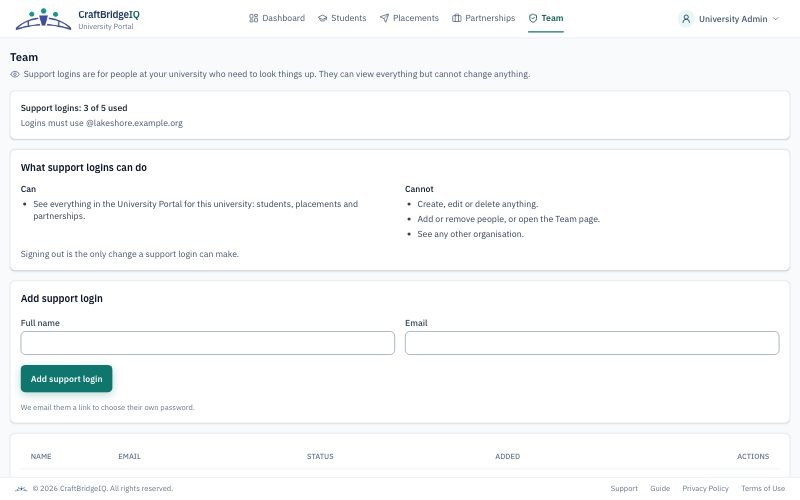
| No. | Control | What it does | What happens next |
|---|---|---|---|
| 1 | Team | The page heading, with a one-line reminder that support logins can view everything but change nothing. | Nothing; it is a label. |
| 2 | Support logins: 3 of 5 used | Shows how many seats are in use out of the seats your university has. | At the limit the Add support login button is disabled until you deactivate someone. |
| 3 | Logins must use @lakeshore.example.org | Shows the email domain every support login must use. Your university's domain appears here. | If CraftBridge has not set a domain, a notice replaces this line and the form is disabled. |
| 4 | What support logins can do | A card saying in plain words what every support login can and cannot do: see everything in the University Portal for this university, create, edit or delete nothing, no Team page, no other organisation. Signing out is the only change it can make. | Nothing; it is a statement, not a setting. |
| 5 | Full name | The new person's name. | Shown in the table once the login is added. |
| 6 | The new person's work email. It must end with the domain in line 3. | The setup email is sent here. | |
| 7 | Add support login | Adds the login and sends the setup email. | A confirmation appears and the person joins the table. |
Scroll down to see the people who already have a login:
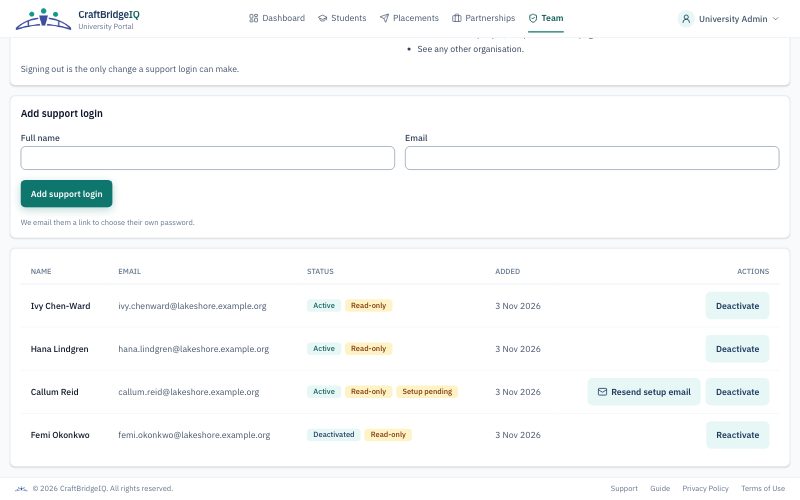
| No. | Control | What it does | What happens next |
|---|---|---|---|
| 1 | Status | Shows Active or Deactivated for each person, with a Setup pending badge until they choose a password. The table also lists each person's name, email and the date they were added. | Nothing; it is a label. |
| 2 | Read-only | A badge on every support login: none of them can change anything. | Nothing; it is a label. |
| 3 | Resend setup email | Sends the setup link again. Shown only while the person is Active and Setup pending. | A confirmation names the address it went to. |
| 4 | Deactivate | Stops this person signing in and frees their seat. Shown for Active people. | A confirmation box asks you to confirm. |
| 5 | Reactivate | Lets a deactivated person sign in again. Shown for Deactivated people. | The person becomes Active and uses a seat again. |
The confirmation box that opens when you press Deactivate:
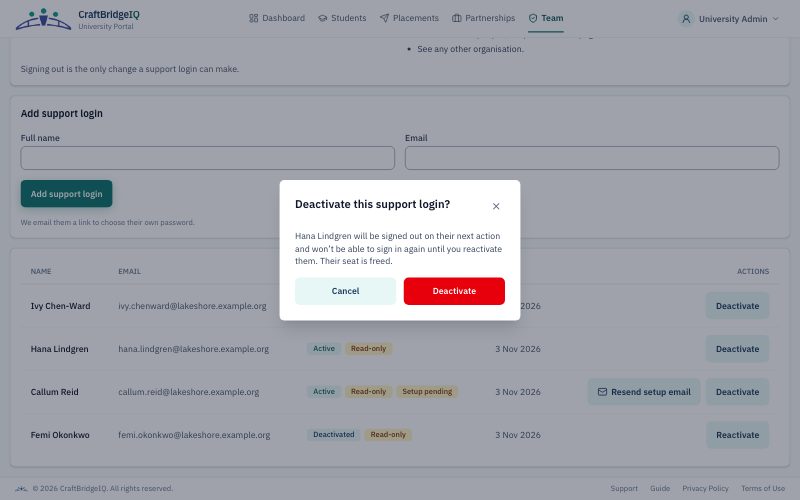
| No. | Control | What it does | What happens next |
|---|---|---|---|
| Deactivate this support login? | The title of the confirmation box. It names the person and explains they will be signed out on their next action. | Nothing until you choose a button. | |
| Cancel | Closes the box and changes nothing. | You are back on the Team page. | |
| Deactivate | Confirms. The button reads Deactivating... while it works. | The person is deactivated and the table updates. |
Step by step
Add a support login
- Open Team in the top menu.
- Check line 2 shows a free seat and line 3 shows your university’s domain.
- Type the person’s name in Full name.
- Type their work email in Email. It must end with the domain shown.
- Press Add support login.
The form clears, the person appears in the table as Active with Setup pending, and they receive the email.
Send the setup email again
- Find the person in the table. They must show Setup pending.
- Press Resend setup email.
Deactivate a support login
- Press Deactivate on the person’s row.
- Read the confirmation and press Deactivate again.
Their seat is freed straight away. Nothing about them is deleted.
Reactivate a support login
- Press Reactivate on the person’s row.
The Add support login form
| Field | Required | Rules | Example |
|---|---|---|---|
| Full name | Yes | Up to 200 characters. Blank is refused. | Ana Lindqvist |
| Yes | Up to 320 characters. Must end with your university's email domain exactly; a sub-domain does not match. | ana.lindqvist@lakeshore.example.org |
Messages you can see
| Message | When you see it | What to do |
|---|---|---|
| Callum Reid added. We emailed them a link to set up their login. | After Add support login works. | Nothing. Ask the person to check their email. |
| Setup email sent to callum.reid@lakeshore.example.org | After Resend setup email. | Nothing. |
| Hana Lindgren deactivated | After you confirm Deactivate. | Nothing. |
| Femi Okonkwo reactivated | After Reactivate. | Nothing. |
| Enter a full name. | Under Full name when you press Add with it blank. | Type a name. |
| Enter an email address. | Under Email when it is blank. | Type the address. |
| Use an address ending in @lakeshore.example.org. | Under Email when the domain is wrong. | Use an address at your university's domain. |
| That email address already has a login here. | After pressing Add for someone who is already on the team. | Find them in the table. Use Resend setup email or Reactivate. |
| Support logins must use an @lakeshore.example.org address. | The server refuses the domain. | Use an address at your university's domain. |
| All your support logins are in use. Deactivate one to make room. | Above the button when every seat is taken. | Deactivate someone, or ask CraftBridge for more seats. |
| That person already has another role on CraftBridgeIQ, so they can't also be a support login. | The address already belongs to someone with another role. | Use a different person or address. |
| That support login no longer exists. Refresh the page. | Someone else removed the row before your action. | Refresh the page. |
| No support logins yet | In place of the table when the team is empty. | Add the first one using the form. |
| Couldn't load your team. | The list could not load. | Press the retry button shown with it. |
| Couldn't do that. Try again. | Any other failure. | Try again; if it repeats, tell your CraftBridge contact. |
| Only the administrator can do this | A support login opens the Team address. | Ask your administrator. |
Limits and other roles
- Every university starts with 5 support login seats. CraftBridge can raise this up to 50; you cannot change it yourself.
- Deactivated people do not use a seat.
Common questions
Why is Add support login greyed out?
Either every seat is in use or CraftBridge has not set your university’s email domain yet. The line under the seats count tells you which.
Can a support login change anything?
No. They can look at everything, and the server refuses any change with “This account can view but not change data.”
Does deactivating delete the person?
No. They cannot sign in until you reactivate them, and their seat is freed in the meantime.
Last checked 2026-11-03 against the product.