
A mentor's page
A mentor's figures, interns, reviews waiting and editable profile.
What this page is for
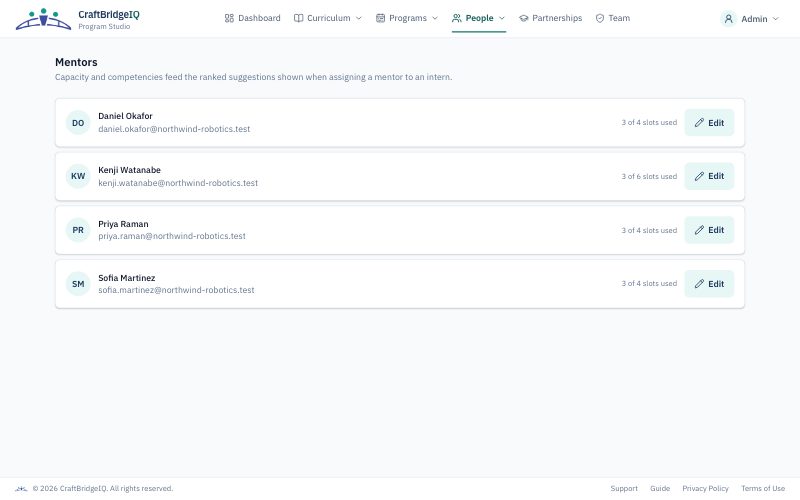
Each mentor has a page with everything about them: how many interns they carry, the reviews waiting for them, how fast they sign work off, their anonymous rating, and the profile that Assign mentors uses to rank them: how many interns they can take, whether they take new ones, and which competencies they can teach.
The page does not add people. It is there for every mentor who already has a profile.
- Where
- People menu, then Mentors (address /people/mentors), then the mentor's name
- Who can open it
- Administrators can edit. A support login can read.
- App
- Program Studio
How mentor profiles are used
The same steps as a list
- Open People, then Mentors, and press a mentor's name
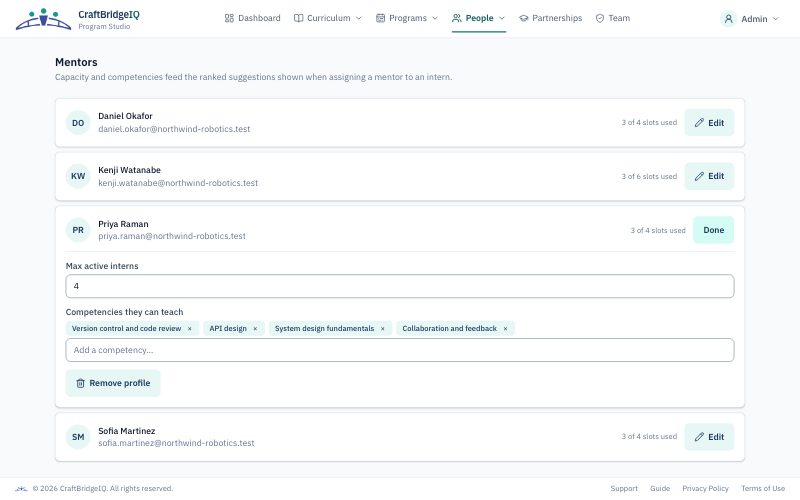
- Change Max active interns or the competencies
- Saves each change as you make it
- Uses the new values to rank mentors on Assign mentors
- Assign the best match to an intern
The screen
| No. | Control | What it does | What happens next |
|---|---|---|---|
| Mentor name and email | The heading, with the mentor's initials and email. | Nothing; it is a label. | |
| Accepting new interns | A badge saying whether the mentor takes new interns. | Changes when you tick or untick the box of the same name below. | |
| Interns | How many interns the mentor has now, out of the most they can take, with 3 of 4 slots used under it. | Nothing; it is a figure. | |
| Awaiting review | Submitted assignments waiting for this mentor, right now. | Listed in full under Waiting for review. | |
| Median submit to sign-off | From the nightly snapshot: the middle time between submitting and sign-off, last 28 days. | Reads No sign-offs in the last 28 days when there were none. | |
| Avg rating received (4 wks) | The average rating interns gave this mentor. Anonymous. | Shown once 3 or more interns have rated. | |
| Current interns | Every intern the mentor mentors now, with how much they have submitted and how far their weeks are open. | Press a name to open the intern's page. | |
| Waiting for review | Each submission waiting for this mentor, with the intern, the week, the due date and how long it has waited. | Press the intern's name to open their page. |
The Mentor settings card holds the profile:
| No. | Control | What it does | What happens next |
|---|---|---|---|
| Max active interns | The most interns this mentor can have at once. A whole number from 0 to 100. | It saves when you leave the field. A confirmation appears. | |
| Accepting new interns | Tick to offer this mentor for new interns, untick to stop. | It saves at once and a confirmation appears. | |
| Competencies they can teach | The competencies this mentor can teach, as chips. Competencies come from your Competencies page. | Nothing; it is a label. | |
| Remove Version control and code review | The x on a chip. Takes that competency off this mentor. | It saves at once, with no confirmation. | |
| Add a competency… | Type part of a competency name, then choose it from the list. Competencies the mentor already has are not offered. | It saves at once and appears as a chip. | |
| Admin notes (private to administrators) | Free notes about the mentor, up to 2000 characters. Mentors and interns never see them. | Nothing is saved until you press Save notes. | |
| Save notes | Saves the notes. | A confirmation appears. The button is greyed out until you change the notes. | |
| Remove profile | Removes this mentor's profile after your browser asks you to confirm. | You go back to the Mentors page, and the mentor is no longer offered in the ranked suggestions. |
Step by step
Change how many interns a mentor can take
- Open People, then Mentors.
- Press the mentor’s name.
- Type a whole number from 0 to 100 in Max active interns.
- Click or tab out of the field.
The new number is saved when you leave the field and a confirmation appears. If you clear the field and leave it, nothing is saved. A number that is not a whole number from 0 to 100 shows a message under the field and is not saved.
Add a competency to a mentor
- Open the mentor’s page.
- Click Add a competency and type part of the name.
- Choose the competency in the list that appears.
The competency appears as a chip and is saved straight away.
Take a competency off a mentor
- Open the mentor’s page.
- Press the x on the chip.
Remove a mentor's profile
- Open the mentor’s page.
- Press Remove profile.
- Read the question your browser shows, then confirm.
The profile fields
| Field | Required | Rules | Example |
|---|---|---|---|
| Max active interns | Yes | A whole number from 0 to 100. Saved when you leave the field. Empty is ignored. | 4 |
| Accepting new interns | No | On or off. Saved as soon as you change it. | On |
| Admin notes (private to administrators) | No | Up to 2000 characters. Saved with Save notes. | Prefers backend interns |
| Competencies they can teach | No | Any of your competencies, added one at a time. Each add or remove is saved straight away. | API design |
Messages you can see
| Message | When you see it | What to do |
|---|---|---|
| Capacity updated | After Max active interns is saved. | Nothing. |
| Notes saved | After Save notes. | Nothing. |
| Now accepting new interns | After you tick Accepting new interns. | Nothing. |
| This mentor profile doesn't exist or was removed. | The address points at a profile that is not in your company. | Go back to the Mentors page. |
| Couldn't load this mentor's interns. | The interns and review lists could not load. | Press the retry button shown with it. |
| Mentor profile removed | After you confirm Remove profile. | Nothing. |
| Remove Daniel Okafor's mentor profile? | Your browser's own question when you press Remove profile. | Confirm, or cancel to keep the profile. |
| Enter a whole number from 0 to 100. | Under Max active interns when the number is not a whole number from 0 to 100. | Type a valid number. |
| Couldn't update that mentor profile. | A change fails and the server gives no reason. | Try again. |
| Couldn't remove that profile. | Remove profile fails and the server gives no reason. | Try again. |
| Couldn't load mentor profiles. | The list failed to load. | Press the retry button shown with it. |
| Couldn't load competencies. | In Mentor settings when the competency list failed to load. | Press the retry button shown with it. |
| No mentor profiles yet | On the Mentors page when there are none. | Profiles appear for people given the mentor role in your company. |
| This account can view but not change data. | A support login tries to change a profile. | Ask an administrator. |
Limits and other roles
- Max active interns is a whole number from 0 to 100.
- Each mentor has one profile.
Common questions
How do I add a mentor here?
You cannot, here. Mentors appear once they have a profile, and this page has no button to create one.
What does slots used mean?
The first number is the interns the mentor has now. The second is their Max active interns. A mentor at the limit cannot be assigned another intern.
Do I need to press Save?
Only for the notes. Each competency change and the Accepting new interns box are saved as you make them, and Max active interns is saved when you leave the field.
Does removing a profile end the mentor's current interns?
The page only removes the profile. To end an intern’s mentorship use Assigning mentors.
Last checked 2026-11-03 against the product.