
Invite and reset links
Copy an invite link or a password reset link for a person.
What this page is for
Use a link when an intern cannot get in by themselves. An invite link lets an intern choose their first password. A password reset link replaces the password of an intern who already has one. You create the link, copy it and send it to the intern yourself, for example in a message.
- Where
- A program's page, on the intern's card in the Roster section
- Who can open it
- Administrators. A support login does not see the buttons.
- App
- Program Studio
How a link gets an intern in
The same steps as a list
- Press Invite link or Reset link on the intern
- Press Create invite link, or Create reset link
- Shows the link once and cancels any earlier link
- Press Copy and send the link to the intern
- The intern opens the link and chooses a password
- The intern can sign in
The screen
Both buttons are on each intern’s card in the roster. See Adding interns for the roster itself. Press Invite link and a box opens:
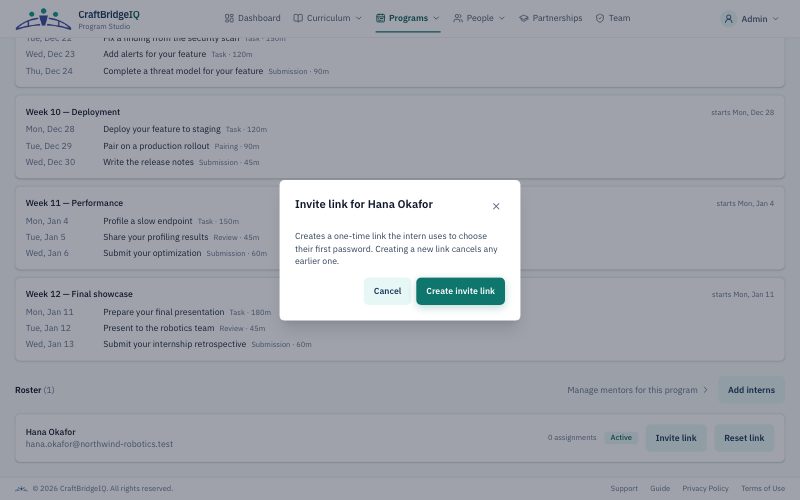
| No. | Control | What it does | What happens next |
|---|---|---|---|
| 1 | Invite link for Hana Okafor | The title. It names the intern the link is for. | Nothing; it is a label. |
| 2 | Close | The X in the corner. Closes the box. It is switched off while a link is being created. | You are back on the roster. |
| 3 | Creates a one-time link the intern uses to choose their first password. Creating a new link cancels any earlier one. | Says what the link does. | Nothing; it is a label. |
| 4 | Cancel | Closes the box without creating a link. Switched off while a link is being created. | Nothing is created. |
| 5 | Create invite link | Creates the link. The button reads Creating… while it works. | The box shows the link. |
The link appears once, in a box you can copy from. Here the link itself is hidden by the coloured block.
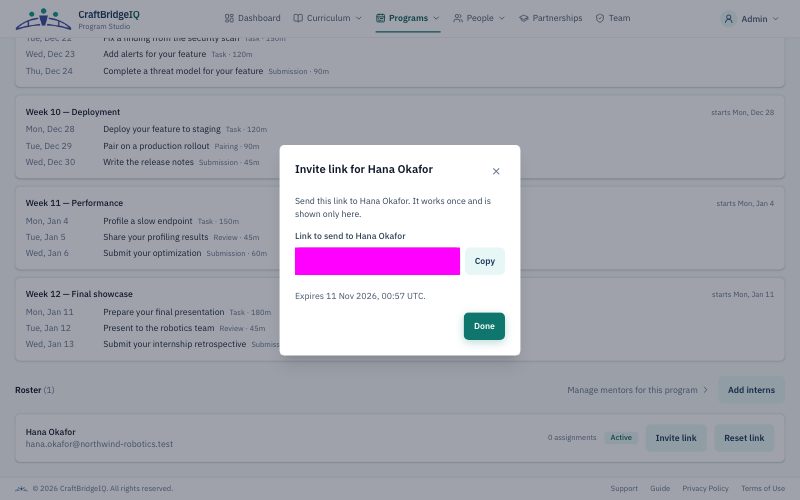
| No. | Control | What it does | What happens next |
|---|---|---|---|
| 1 | Send this link to Hana Okafor. It works once and is shown only here. | Tells you to send the link to the intern and that you will not see it again. | Nothing; it is a label. |
| 2 | Link to send to Hana Okafor | The link itself, in a box you cannot edit. Clicking it selects all of it. | Copy it, or press Copy. |
| 3 | Copy | Copies the link to your clipboard. The button then reads Copied for a moment. | Paste the link into your message to the intern. |
| 4 | Expires 10 Nov 2026, 20:02 UTC. | The day, time and time zone after which the link stops working. | Send the link before then. |
| 5 | Done | Closes the box. The link is gone for good. | Create a new link if you lose it. |
After you press Copy the button reads Copied and a line under the box says so:
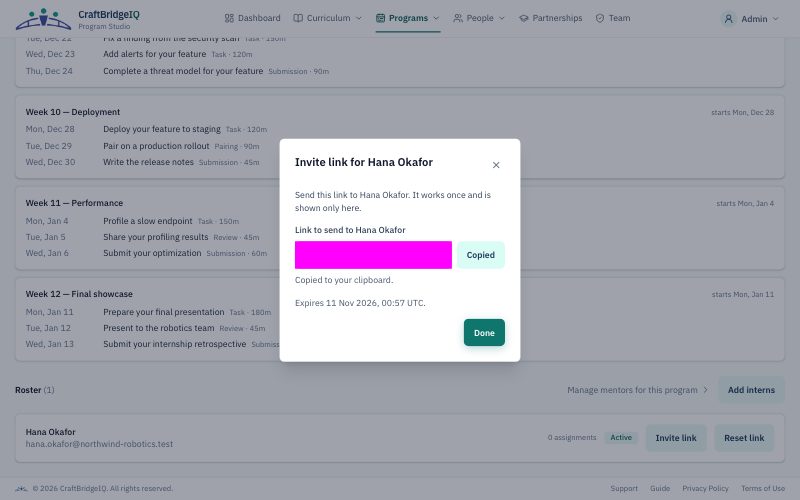
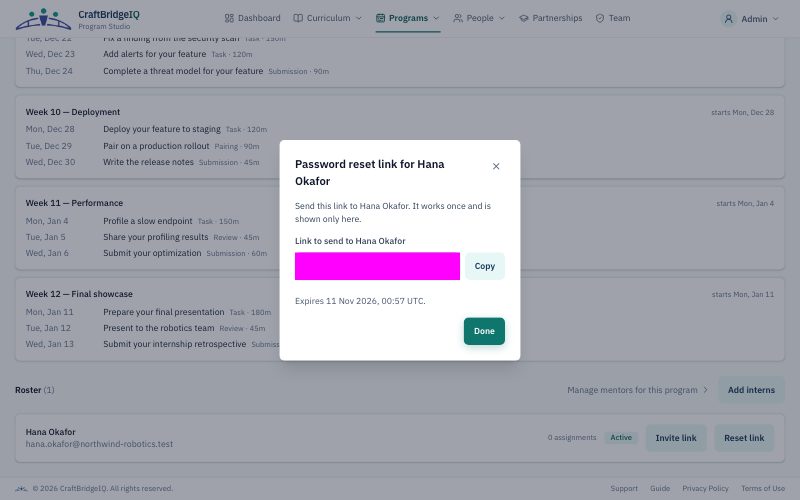
The Reset link button opens a similar box. Its title and text are different:
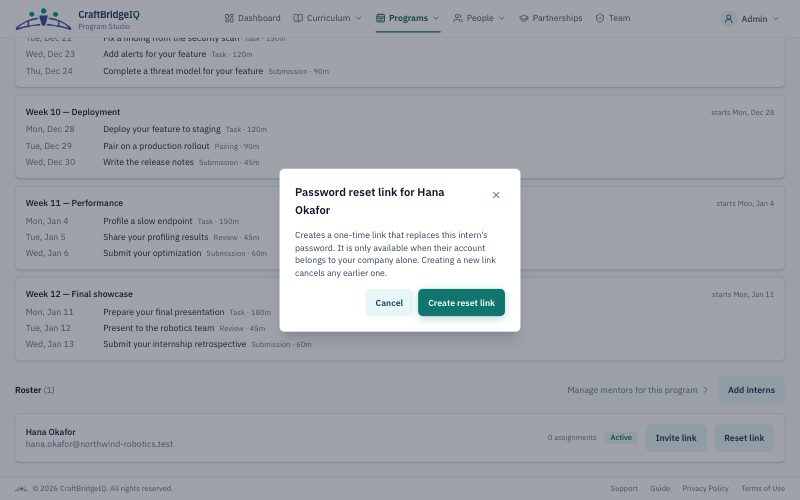
| No. | Control | What it does | What happens next |
|---|---|---|---|
| 1 | Password reset link for Hana Okafor | The title. It names the intern. | Nothing; it is a label. |
| 2 | Creates a one-time link that replaces this intern's password. It is only available when their account belongs to your company alone. Creating a new link cancels any earlier one. | Says what the link does and when it is allowed. | Nothing; it is a label. |
| 3 | Create reset link | Creates the link. The button reads Creating… while it works. | The box shows the link, with Copy, an expiry and Done, just like the invite box. |
Step by step
Create an invite link for an intern who has not signed in yet
- Open Programs and open the program the intern is on.
- Find the intern in Roster and press Invite link.
- Press Create invite link.
- Press Copy.
- Paste the link into a message to the intern and send it.
- Press Done.
The intern opens the link, chooses a password and is signed in.
Create a password reset link for an intern who forgot their password
- Find the intern in Roster and press Reset link.
- Press Create reset link.
- Press Copy and send the link to the intern.
- Press Done.
Replace a link that was lost or not used
- Press Invite link or Reset link again on the same intern.
- Press Create invite link or Create reset link.
- Copy and send the new link.
Creating a new link cancels any earlier one, so the old link stops working at once.
Messages you can see
In the box, for you:
| Message | When you see it | What to do |
|---|---|---|
| Copied | On the Copy button after the link is copied. | Paste the link where you want it. |
| Copied to your clipboard. | Under the link box after Copy. | Paste the link where you want it. |
| Couldn't copy automatically | Your browser refuses to copy. The text of the link is selected and the line goes on to say to press Ctrl/Cmd+C. | Press Ctrl+C (Cmd+C on a Mac). |
| A password reset link cannot be issued for this account. | You press Create reset link for an intern whose login is also used somewhere else, such as another company or a university, or who is no longer active in your company. | A reset link is not available for this login, so there is nothing to retry. |
| Couldn't create that link. | The link could not be created and the server gave no reason. | Try again. |
| This account can view but not change data. | A support login tries to create a link. | Ask an administrator. |
What the intern sees when the link fails:
| Message | When you see it | What to do |
|---|---|---|
| This invite link is invalid. | The link is mistyped, cut short, or was replaced by a newer one. | Create a new link and send it. |
| This invite link has already been used. Sign in instead. | The link was already used once. | The intern signs in with the password they chose. |
| This invite link has expired. Ask your admin for a new one. | More than 7 days have passed. | Create a new link. |
| This account already has a password. Sign in instead, or ask your admin for a password reset link. | An invite link is used by someone who already has a password. | Create a reset link instead. |
| This reset link can no longer be used. Sign in, or ask for a new link. | After you created the reset link, the intern's login was also linked to another company or a university. | The intern signs in. A reset link is not available for that login. |
Limits and other roles
- A link works for 7 days from the moment you create it. The box shows the exact day, time and time zone.
- A link works once.
- Creating a new link cancels any earlier one.
Common questions
Which one do I use, invite or reset?
Use Invite link for an intern who has never chosen a password. Use Reset link for an intern who has one and lost it. An invite link does not work for someone who already has a password.
Can I see the link again after I close the box?
No. It is shown only in that box. Create a new link instead; the old one stops working.
Does the product email the link?
No. These buttons only show you the link. You send it. The setup email a new intern gets when you add them is a separate message, see Adding interns.
Why can I not create a reset link for someone?
A reset link is only possible when the intern’s login belongs to your company alone. The product does not say why when it refuses.
Last checked 2026-11-03 against the product.