
What a viewer sees
What a view-only login can and cannot do.
What this page is for
A support login is a view-only login for a colleague at your university. This page shows what that person sees in the University Portal, so you know what to expect before you add one, or what to expect if you are one.
In short: a viewer can read everything an administrator can read, and change nothing. Controls that would change something are not shown, and the server refuses any change that is attempted anyway.
- Where
- Every page of the University Portal except Team
- Who can open it
- Support logins, shown as Support (view only). Administrators add them on the Team page.
- App
- University Portal
What a viewer sees
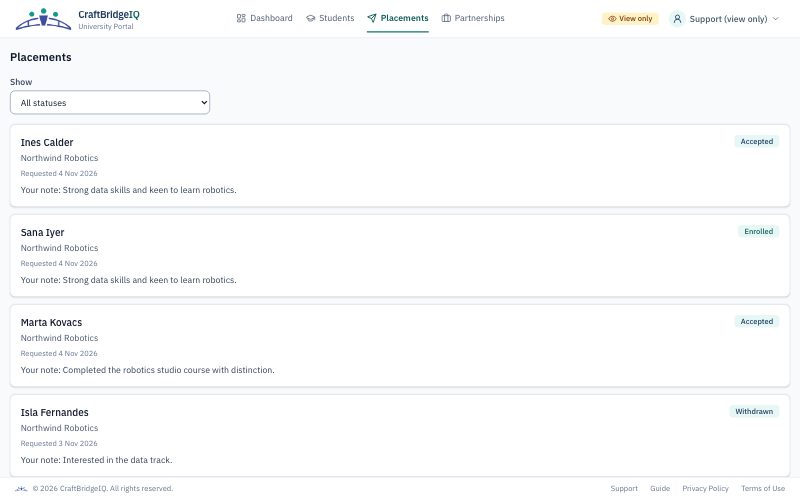
| No. | Control | What it does | What happens next |
|---|---|---|---|
| 1 | Partnerships | The last item in the top menu. A viewer sees Dashboard, Students, Placements and Partnerships. The Team link is left out. | Opens that page. |
| 2 | View only | A badge in the header that reminds you this login can look at everything but cannot change anything. | Nothing; it is a label. |
| 3 | Support (view only) | Your role, shown on the account menu in the top right. | Opens the account menu with Profile, Help & guide and Log out. Profile shows a Your access card that says what a support login can and cannot do. |
| 4 | Placements | The page heading. The Request a placement button an administrator sees beside it is not shown to you. | Nothing; it is a label. |
| 5 | Accepted | The status of one placement request. An administrator sees a Withdraw button on a Requested or Accepted request; you do not. | Nothing; it is a label. |
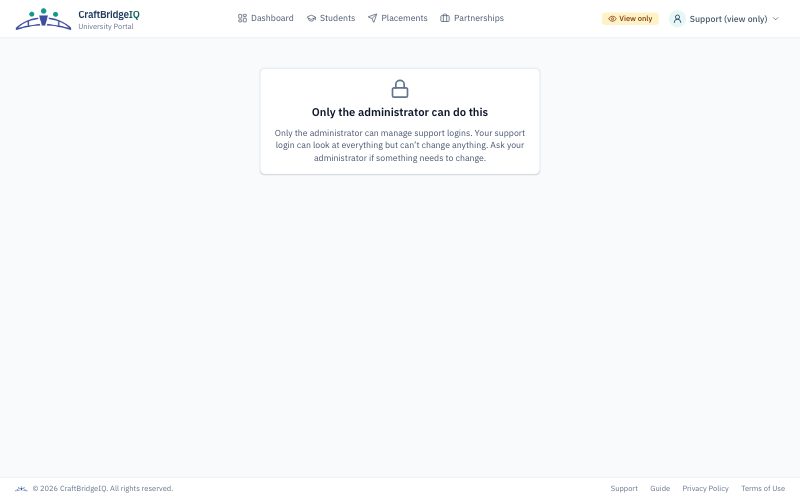
If a viewer opens the Team address directly, a notice replaces the page:
| No. | Control | What it does | What happens next |
|---|---|---|---|
| 1 | Only the administrator can do this | Replaces the Team page. It says only the administrator can manage support logins, and that your login can look at everything but cannot change anything. | Nothing; ask your administrator if something needs to change. |
Page by page
Dashboard
You see the partner cards and the students on placement exactly as an administrator does. When there are no partners yet, the Add a partner link is left out and the page says “No company has partnered with you yet.”
Students
You see the list of students. The Add student form and the Import CSV button are not shown. With an empty list the page says “No students have been added yet.”
Placements
You see every placement request, the Show filter and the reason a company gave when it declined. The Request a placement button and the Withdraw buttons are not shown. With no requests the page says “No placement has been requested yet.”
Partnerships
You see each partner, what it shares with you and whether the partnership is active or ended. The Add a partner form and the End partnership button are not shown.
Team
The Team link is not in the menu. The address shows the notice above.
Messages you can see
| Message | When you see it | What to do |
|---|---|---|
| This account can view but not change data. | The server refuses a change made from a view-only login. The controls are hidden, so this is rare. | Ask your administrator to make the change. |
| Only the administrator can do this | You open the Team address. | Ask your administrator. |
| Only the administrator can manage support logins. | Under the heading of the notice on the Team address. | Ask your administrator. |
| No company has partnered with you yet. | Dashboard or Partnerships when there are no partners. | Nothing. Your administrator adds partners. |
| No students have been added yet. | Students when the list is empty. | Nothing. Your administrator adds students. |
| No placement has been requested yet. | Placements when there are no requests. | Nothing. Your administrator requests placements. |
Common questions
Why can I not find the Add student button?
Buttons that change data are not shown to a support login. Ask your administrator to add the student, or to make you an administrator if you need to.
How do I get a support login?
Your administrator adds you on the Team page. You receive an email with a link to choose your own password.
Can I still read this guide?
Yes. Open the account menu and choose Help & guide, or use the Guide link at the bottom of any page.
Last checked 2026-11-03 against the product.