
Registering your organisation
Ask CraftBridge to open an account for your company or university.
What this page is for
A company or a university asks to join CraftbridgeIQ here. You give the organisation’s name, your details and a password. You confirm your email, a CraftBridge administrator reviews the request, and you are emailed when it is approved.
- Where
- Press Register your organisation under the sign-in form (address /register on the sign-in site)
- Who can open it
- Anyone with a work email at the organisation
- App
- Sign-in
How registering works
The same steps as a list
- Fill in the three steps and press Register
- A confirmation email arrives
- Open the link to confirm your address
- A CraftBridge administrator reviews the request
- You are emailed when it is approved and can sign in
The screen
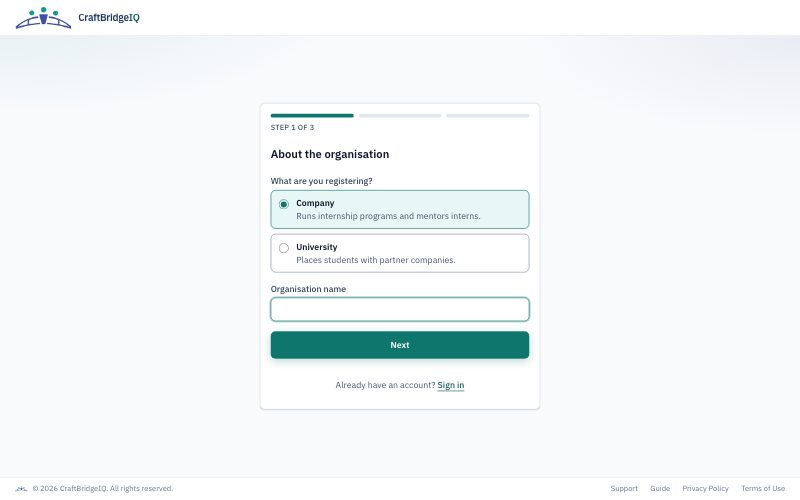
| No. | Control | What it does | What happens next |
|---|---|---|---|
| 1 | What are you registering? | Choose Company or University. | Decides which kind of organisation is created. |
| 2 | Organisation name | The name your organisation goes by. | Shown to everyone in your organisation. |
| 3 | Next | Checks this step and moves to the next. | A message under a field says what to fix. |
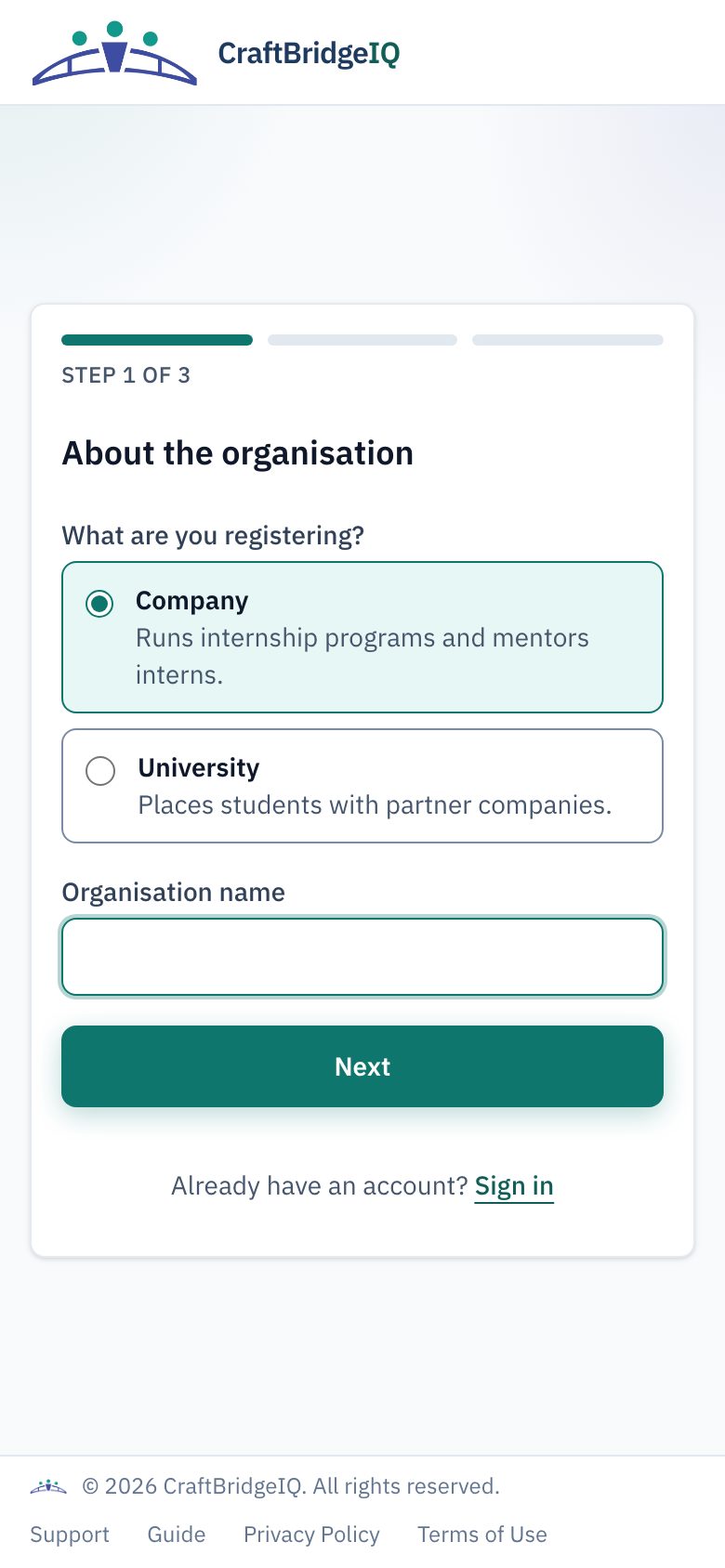
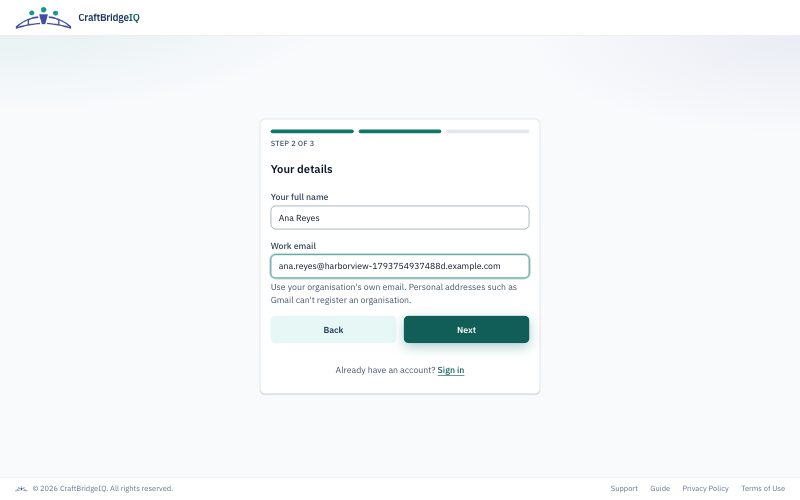
| No. | Control | What it does | What happens next |
|---|---|---|---|
| 1 | Your full name | Your own name. You become the organisation's administrator. | Used in emails to you. |
| 2 | Work email | Your email at the organisation. | The confirmation link is sent here, and its domain is the one your support logins must use. |
| 3 | Back | Returns to the step before without losing what you typed. | Nothing is sent. |
| 4 | Next | Checks this step and moves on. | Step 3 opens. |
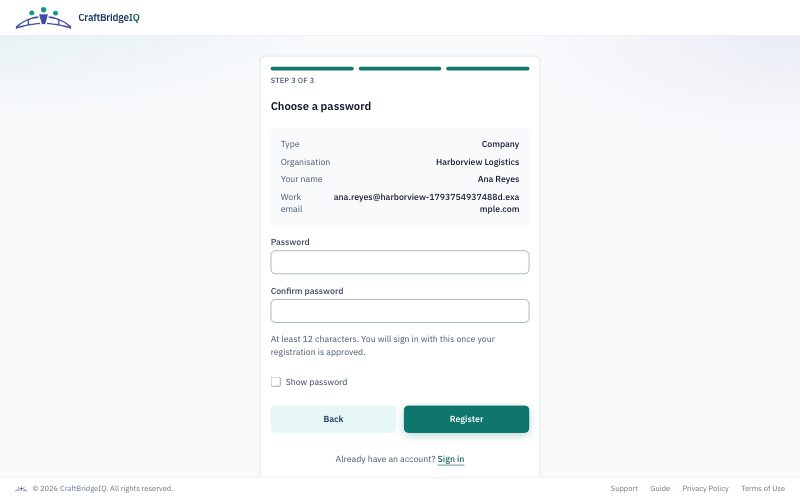
| No. | Control | What it does | What happens next |
|---|---|---|---|
| 1 | Password | The password you will use to sign in once approved. | Hidden unless you tick Show password. |
| 2 | Confirm password | The same password again. | Must match. |
| 3 | Show password | Shows or hides what you typed in both fields. | Nothing is sent. |
| 4 | Register | Sends the request and the confirmation email. The button reads Registering… while it works. | The page changes to Check your email. |
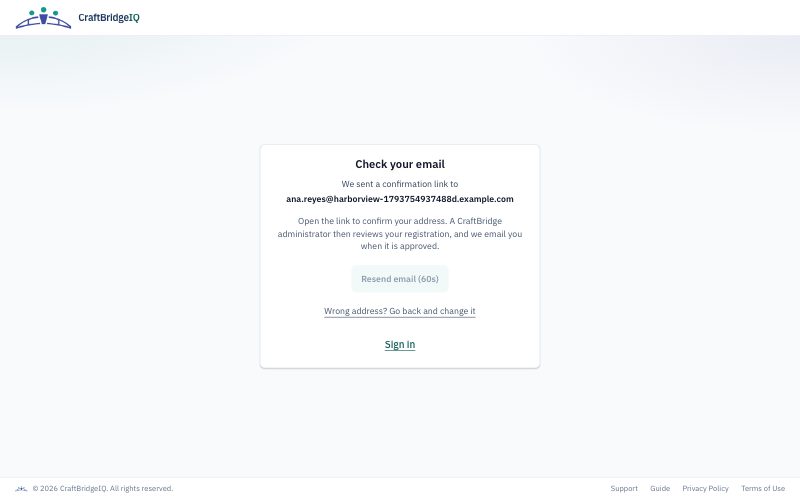
| No. | Control | What it does | What happens next |
|---|---|---|---|
| Check your email | Names the address the confirmation link went to and says what happens next. | Open the link in that email. | |
| Wrong address? Go back and change it | Returns to step 2 so you can correct the email. | Register again with the right address. |
Step by step
Register your organisation
- On the sign-in page, press Register your organisation.
- Choose Company or University, type the Organisation name, and press Next.
- Type Your full name and your Work email, and press Next.
- Choose a Password, repeat it in Confirm password, and press Register.
- Open the email and press the link. See Confirming your email.
The form
| Field | Required | Rules | Example |
|---|---|---|---|
| Organisation name | Yes | Up to 200 characters, on one line. | Harborview Logistics |
| Your full name | Yes | Up to 200 characters, on one line. | Ana Reyes |
| Work email | Yes | A work address at your organisation, not a personal one. | ana.reyes@harborview.example.com |
| Password | Yes | 12 to 128 characters. | (your own password) |
| Confirm password | Yes | The same as Password. | (the same password) |
Messages you can see
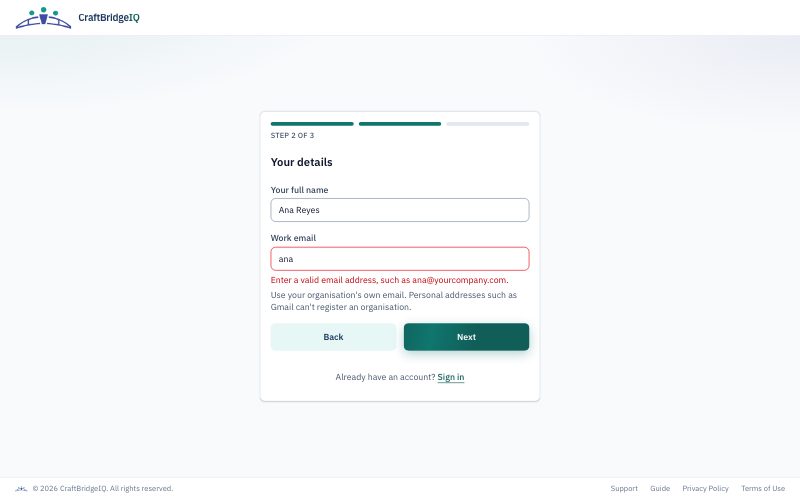
| Message | When you see it | What to do |
|---|---|---|
| Enter your work email. | Work email is empty when you press Next. | Type your address. |
| Enter a valid email address, such as ana@yourcompany.com. | The address has no @, no dot in the domain or has spaces. | Correct it. |
| Choose a password of at least 12 characters. | The password is too short. | Use a longer password. |
| An account already exists for this email address. | Someone already has a login with this address. | Press the Sign in link shown with it. |
| A registration for this address is already in progress. Check your inbox for the confirmation email, or resend it. | You registered this address already and have not confirmed it. | Open the email, or press Resend the confirmation email. |
| An organisation with this email domain is already registered or awaiting approval. | Another request or organisation already uses your domain. | Ask a colleague to add you, or contact Support. |
| Something went wrong. Please try again. | The request failed in a way the page could not explain. | Try again. |
Limits and other roles
- The confirmation link works for 48 hours.
- One organisation per email domain: a domain can have only one registration or organisation at a time.
Common questions
How long does approval take?
A CraftBridge administrator reviews each request by hand, and you are emailed when it is decided. The guide cannot promise a time.
Can I use my own email address?
No. The address must belong to the organisation. Personal addresses such as Gmail can’t register an organisation.
When do I use the password?
Once the registration is approved, sign in with this email and password. See Signing in.
Last checked 2026-11-03 against the product.