
Editing a version
Add weeks and activities to a draft version.
What this page is for
The version editor is where you build the plan interns will follow: the weeks, the activities in each week, the competencies each activity teaches and the milestones along the way. It has three panes: the weeks on the left, the open week in the middle and the competency coverage on the right.
You can only edit a Draft. A published version opens read-only. To change it, create a new version from it. See Template versions.
- Where
- Open a template, then press a version's card (address /templates, then the template, then the version)
- Who can open it
- Administrators edit drafts. Support logins see every version read-only.
- App
- Program Studio
How you build a version
The same steps as a list
- Press + Add week and name the week
- Press + Add activity and fill it in
- Tag the competencies each activity teaches
- Competency coverage counts the tags
- Is every week built? (Yes: Press Publish…; No: add the next week: Press + Add week and name the week)
- Press Publish…
The screen
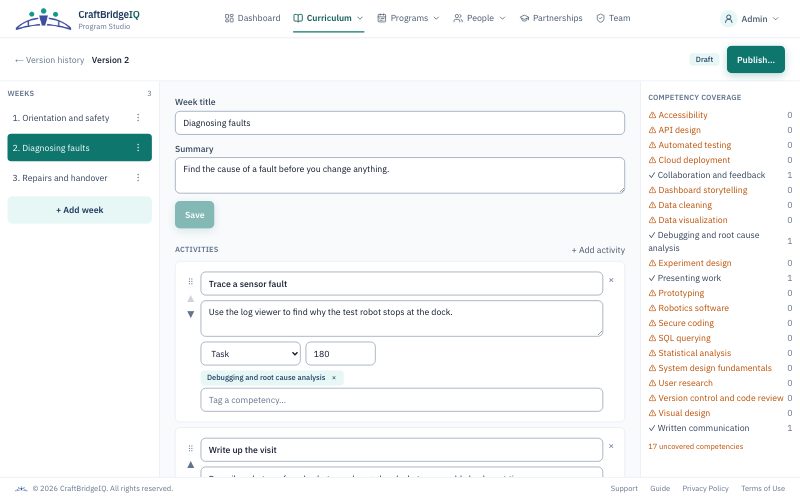
| No. | Control | What it does | What happens next |
|---|---|---|---|
| 1 | ← Version history | A link back to the template's list of versions. | Opens the version list. If the open week has unsaved edits you are asked first. |
| 2 | Version 2 | The number of the version you are editing. | Nothing; it is a label. |
| 3 | Draft | The version's status: Draft, Published or Archived. | Nothing; it is a label. |
| 4 | Publish… | Opens the publish check. Shown on drafts to administrators. | The Publish this version? box opens. See the publishing page. |
| 5 | 2. Diagnosing faults | One row per week, numbered by its position. The open week is filled in. | Opens that week in the middle pane. |
| 6 | Actions for "Diagnosing faults" | The three-dot menu on a week. Not shown on a published version. | Opens Move up, Move down, Duplicate week and Delete week. |
| 7 | + Add week | Adds a week at the end, named Week followed by its number. | The new week opens so you can rename it. |
| 8 | Week title | The name of the open week. | Press Save to keep a change. |
| 9 | Summary | A short description of the week. | Press Save to keep a change. |
| 10 | Save | Saves the week's title and summary. It reads Saving… while it works and is greyed out until you change something. | A confirmation appears. |
| 11 | + Add activity | Adds an activity to the open week. It starts as Activity followed by its number, type Task, with placeholder instructions. | A new activity block appears for you to fill in. |
| 12 | Activity title | Each activity is a block with its own title, instructions, type, minutes and competency tags. | Changes save by themselves a moment after you stop typing. |
| 13 | Competency coverage | Lists every competency in your company with how many activities in this whole version are tagged with it. A tick means at least one, a warning sign means none. | Nothing; it is a display. Under the list it says how many are uncovered. |
| Weeks | The heading of the left pane, with the number of weeks beside it. | Nothing; it is a label. |
One activity in detail:
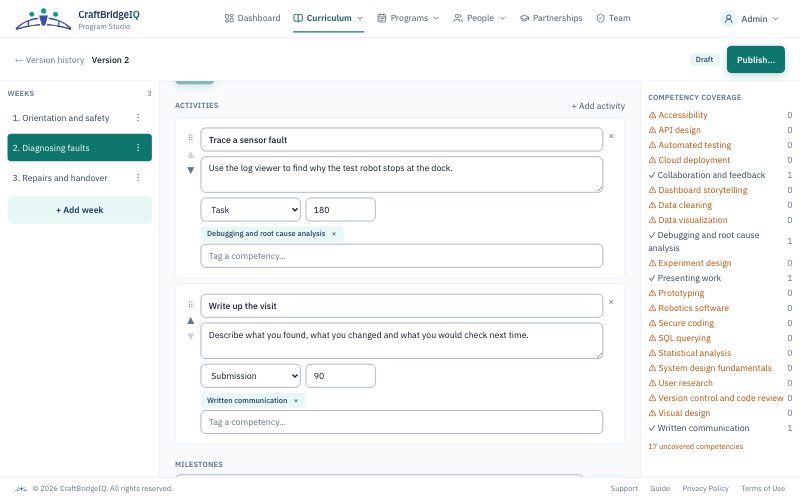
| No. | Control | What it does | What happens next |
|---|---|---|---|
| 1 | Drag to reorder | The handle at the left of an activity. Drag it onto another activity to change the order. | The activities are reordered. |
| 2 | Activity title | What the intern sees as the name of the task. | Saves by itself after you stop typing. |
| 3 | Instructions | What the intern must do. | Saves by itself after you stop typing. |
| 4 | Task | The activity type: Task, Reading, Pairing, Review or Submission. | Saves by itself. |
| 5 | Estimated minutes | How long the activity should take. Optional. | Saves by itself. The publish check adds these up as the estimated time. |
| 6 | Tag a competency… | Type part of a competency name, then pick it from the list or press Enter. | The competency appears as a chip under the instructions and the coverage panel counts it. |
| 7 | Delete "Trace a sensor fault" | The cross at the top right of an activity. | A box asks you to confirm. Then the activity is removed. |
| Move up | The up arrow under the drag handle. Moves the activity one place up. Greyed out on the first activity. | The activities are reordered. | |
| Move down | The down arrow under the up arrow. Moves the activity one place down. Greyed out on the last activity. | The activities are reordered. |
The menu on a week:
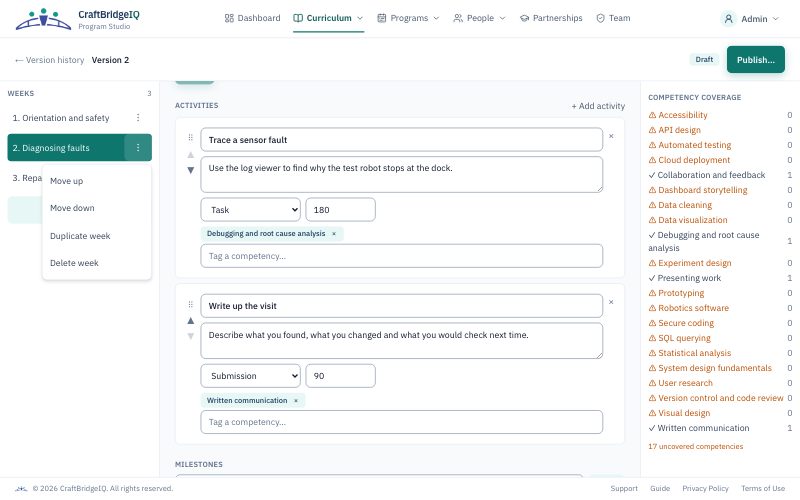
| No. | Control | What it does | What happens next |
|---|---|---|---|
| 1 | Move up | Moves the week one place up. Not shown on the first week. | The weeks are renumbered. |
| 2 | Move down | Moves the week one place down. Not shown on the last week. | The weeks are renumbered. |
| 3 | Duplicate week | Adds a copy of the week at the end, named with (copy) after the title. The copy includes the summary, every activity and their competency tags. Milestones are not copied. | A confirmation appears and the copy opens. |
| 4 | Delete week | Removes the week. A week that still has activities or milestones is refused: delete those first. | A box asks you to confirm. Then the week is removed and its neighbour opens. |
Milestones sit at the bottom of the open week:
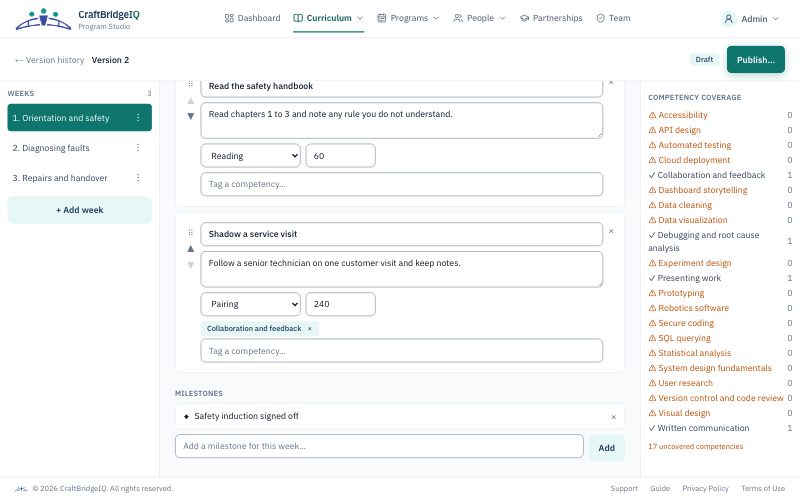
| No. | Control | What it does | What happens next |
|---|---|---|---|
| 1 | Milestones | The heading. Milestones belong to the week number, not to one activity. | Nothing; it is a label. |
| 2 | ◆ | A milestone already set for this week, shown with its name. | Nothing; it is a display. |
| 3 | Delete "Safety induction signed off" | The cross at the right of a milestone. | The milestone is removed at once, without a confirmation. |
| 4 | New milestone name | The name of a new milestone. Its hint reads Add a milestone for this week… | Press Add or Enter to save it. |
| 5 | Add | Adds the milestone to the open week. | It appears in the list above and the box clears. |
A published version has the same panes, but nothing can be changed:
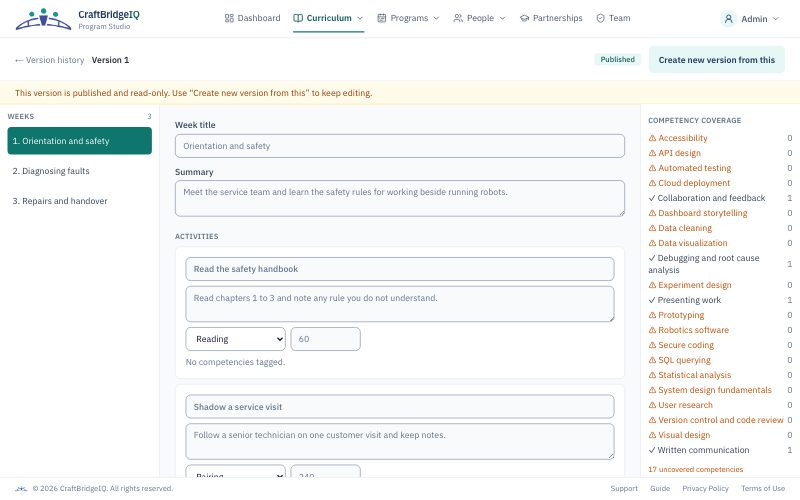
| No. | Control | What it does | What happens next |
|---|---|---|---|
| 1 | Published | The status badge of a version that is frozen. | Nothing; it is a label. |
| 2 | Create new version from this | Copies this version into a new draft with the next number. Shown instead of Publish…. | A confirmation appears and the new draft opens. The published version is untouched. |
| 3 | This version is published and read-only. Use “Create new version from this” to keep editing. | A note across the top of a published version. | Nothing; it is a notice. |
| 4 | Week title | Fields are greyed out. The week menu, + Add week, + Add activity, Save and the delete controls are gone. | You can still open each week and read it. |
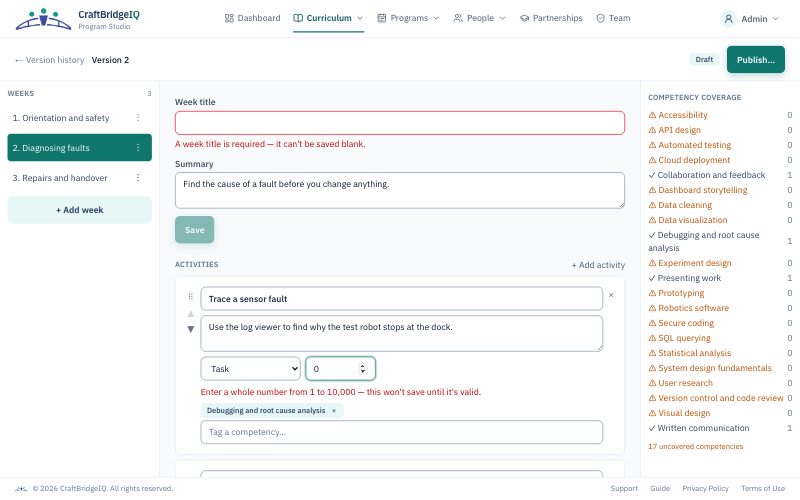
What an unsaved or invalid edit looks like (a blank week title and 0 minutes):
Step by step
Add a week
- Press + Add week under the list of weeks.
- Change the name in Week title and add a Summary if you want one.
- Press Save.
Add an activity to a week
- Press the week in the left pane.
- Press + Add activity.
- Replace the title and the placeholder instructions.
- Pick the type and, if you know it, the estimated minutes.
Each change saves by itself a moment after you stop typing. There is no Save button for activities.
Tag a competency on an activity
- Click Tag a competency… in the activity.
- Type part of the competency name.
- Pick it from the list, or press Enter.
The tag is saved at once and the count beside the competency in Competency coverage goes up. To remove a tag, press the cross on its chip. Competencies are managed on Competencies.
Change the order of weeks or activities
- For a week: open its three-dot menu and choose Move up or Move down, or drag the week onto another.
- For an activity: press the up or down arrow beside it, or drag its handle onto another activity.
Copy a week
- Open the week’s three-dot menu.
- Choose Duplicate week.
The copy is added at the end with (copy) after its title, together with its activities and their tags.
Delete a week or an activity
- For a week, first delete its activities and its milestones. Then choose Delete week in its menu.
- For an activity, press the cross at its top right.
- Confirm in the box that opens.
The server refuses to delete a week that still has activities or milestones and says so. See the messages below.
Add a milestone to a week
- Open the week.
- Scroll to Milestones.
- Type a name in the box and press Add.
Check which competencies are covered
- Look at Competency coverage on the right.
- Find the competencies marked with a warning sign and a count of 0.
- Tag one of them on a suitable activity.
A competency that nothing teaches is allowed. The publish check lists them so you decide.
Keep editing after publishing
- Open the published version.
- Press Create new version from this.
The fields you can edit
| Field | Required | Rules | Example |
|---|---|---|---|
| Week title | Yes | Up to 200 characters. It cannot be saved blank. | Diagnosing faults |
| Summary | No | Up to 2,000 characters. | Find the cause of a fault before you change anything. |
| Activity title | Yes | Up to 200 characters. A blank title is not saved. | Trace a sensor fault |
| Instructions | Yes | Up to 10,000 characters. Blank instructions are not saved. | Use the log viewer to find why the test robot stops at the dock. |
| Estimated minutes | No | A whole number from 1 to 10,000, or empty. | 180 |
| New milestone name | Yes | Up to 200 characters. Add does nothing while it is blank. | First supervised repair |
Messages you can see
| Message | When you see it | What to do |
|---|---|---|
| Week saved | After Save works. | Nothing. |
| Week duplicated | After Duplicate week works. | Nothing. The copy opens. |
| A week title is required, it can't be saved blank. | Under Week title when you have cleared it. | Type a title. Save stays greyed out until you do. |
| A title is required, this won't save until you add one. | Under an activity's title when it is blank. | Type a title. |
| Instructions are required, this won't save until you add some. | Under an activity's instructions when they are blank. | Type the instructions. |
| Enter a whole number from 1 to 10,000, this won't save until it's valid. | Under Estimated minutes when the number is not a whole number from 1 to 10,000. | Enter a valid number or clear the box. |
| Delete "Trace a sensor fault"? | A confirmation box after pressing the cross on an activity. | Choose OK to delete or Cancel to keep it. |
| Delete "Diagnosing faults"? | A confirmation box after choosing Delete week. | Choose OK to delete or Cancel to keep it. |
| This week has unsaved changes to its title or summary. Switch weeks and discard them? | You open another week while the open one has an unsaved title or summary. | Choose Cancel and press Save, or OK to discard. |
| This week has unsaved changes to its title or summary. Leave this page and discard them? | You press a link, such as ← Version history, with an unsaved title or summary. | Choose Cancel and press Save, or OK to discard. |
| This week has unsaved changes to its title or summary. Log out and discard them? | You choose Log out with an unsaved title or summary. | Choose Cancel and press Save, or OK to discard. |
| This version is published and read-only. Use “Create new version from this” to keep editing. | You open a published version as an administrator. | Press Create new version from this. |
| You can look at this version but not change it. | A support login opens any version. | Ask your administrator. |
| Select a week, or add one to get started. | No week is open, for example in a version with no weeks. | Press + Add week. |
| No activities yet | The open week has no activities. | Press + Add activity. On a published version the note says This week has no activities. |
| No milestones for this week. | A read-only week has no milestones. | Nothing. |
| No competencies tagged. | A read-only activity has no tags. | Nothing. |
| No competencies defined yet, set some up on the Competencies page. | The coverage panel has no competencies to list. | Add competencies first. See the Competencies page. |
| 17 uncovered competencies | Under the coverage list when some competencies have no activity tagged. | Nothing is forced. Tag them if you want them covered. |
| Couldn't add a week. | + Add week failed and the server gave no more specific reason. A more specific server message is shown in its place when there is one. | Try again. |
| Couldn't delete that week. | Delete week failed and the server gave no more specific reason. | Try again. |
| Week template (id) still has activities and cannot be deleted | Delete week on a week that still has activities. The server's message starts with the week's id. | Delete the activities first, then the week. |
| Week template (id) still has 1 milestone(s); remove them first | Delete week on a week that still has milestones. | Delete the milestones in that week first. |
| Couldn't reorder weeks. | Moving a week failed. | Try again. |
| Couldn't duplicate that week. | Duplicate week failed. | Try again. |
| Couldn't save this week. | Save failed. | Try again. |
| Couldn't add an activity. | + Add activity failed. | Try again. |
| Couldn't reorder activities. | Moving an activity failed. | Try again. |
| Couldn't save that activity edit. | An activity's autosave failed. | Make the edit again. |
| Couldn't delete that activity. | Deleting an activity failed. | Try again. |
| Couldn't tag that competency. | Tagging failed. | Try again. |
| Couldn't remove that tag. | Removing a tag failed. | Try again. |
| Couldn't add that milestone. | Add failed. | Try again. |
| Couldn't delete that milestone. | Deleting a milestone failed. | Try again. |
| Couldn't load this version. | The version could not load. It replaces the editor. | Press Try again. |
| Couldn't load weeks. | The list of weeks could not load. | Press Try again. |
| Couldn't load this week. | The open week could not load. | Press Try again. |
| Couldn't load competency coverage. | The coverage panel could not load. | Press Try again. |
Limits and other roles
- Titles and milestone names can be up to 200 characters; a week summary up to 2,000; instructions up to 10,000.
- Estimated minutes is a whole number from 1 to 10,000.
- Only a draft can be edited. Once published, nothing in the version can change.
- You cannot rename or retime a version here. Its number of weeks was set when it was created.
Common questions
Do I need to save my work?
Activities, tags and milestones save as you go. Only a week’s title and summary need Save. If you leave with those unsaved, the product asks first.
Why can't I change anything in this version?
It is published, or you are a support login. A published version is frozen. Press Create new version from this to get an editable draft.
Do I have to build as many weeks as the version's planned length?
The editor does not force it. The publish check shows how many weeks you built against the planned number, so you can see a difference before you publish. See Publishing a version.
Can I undo a delete?
No. Deleting a week, an activity or a milestone cannot be undone from the editor. A week or an activity asks you to confirm first. A week must be empty before it can be deleted.
Last checked 2026-11-03 against the product.