
Partnerships
Partner with universities and manage placements.
What this page is for
Partnerships connects your company with universities. You invite a university with a one-time token. Once the university has used it, the two of you are partners: the university can ask you to take its students as interns, and it can follow the progress of students who agree, within the things you chose to share.
This page has two tabs. Placement requests is the queue of students a university has asked you to take. Universities holds your partners and the invites you have sent. The university uses the University Portal; see Partnerships and Placements for its side.
- Where
- Partnerships in the top menu (address /partnerships)
- Who can open it
- Administrators. A support login can read both tabs but cannot change anything.
- App
- Program Studio
How a partnership and a placement work
The same steps as a list
- Press Invite a university and create an invite
- Give the token to the university's administrator
- The university pastes the token and becomes a partner
- The university asks to place a student with you
- Press Accept, choose the program and a mentor
- Shows a one-time student link
- Send the link to the student
- The student opens the link and joins the program
The screen
The page opens on Placement requests:
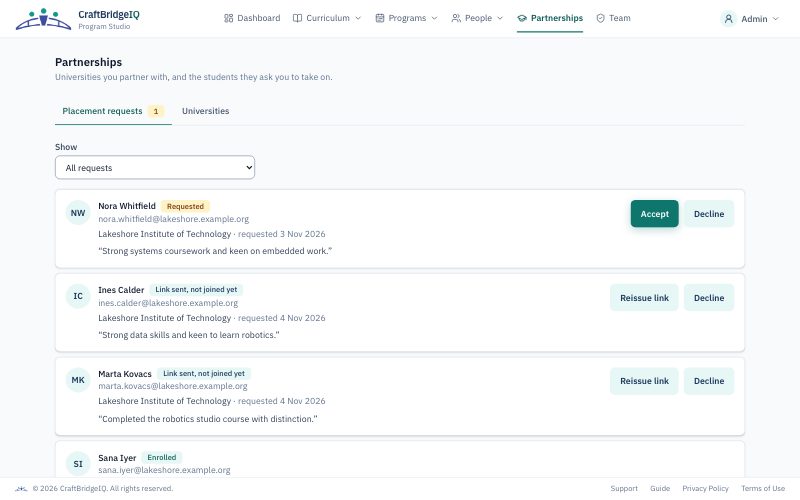
| No. | Control | What it does | What happens next |
|---|---|---|---|
| 1 | Partnerships | The page heading. | Nothing; it is a label. |
| 2 | Placement requests | The first tab. A yellow number beside it counts requests waiting for a decision. | Shows the queue of requests. |
| 3 | Universities | The second tab. | Shows your partner universities and your invites. |
| 4 | Show | Filters the queue. The choices are All requests, Waiting for a decision, Link sent, not joined yet, Enrolled, Declined and Withdrawn by university. | The list shows only that group. |
| 5 | Student name | One card per request, with the student's initials, name and email address. | Nothing; it is a label. |
| 6 | Requested | The status of the request. See the table of statuses below. | Nothing; it is a label. |
| 7 | Lakeshore Institute of Technology · requested 3 Nov 2026 | The university that asked and the date it asked. | Nothing; it is a label. |
| 8 | The university's message | The note the university wrote about the student, in quotation marks. A line Preferred mentor: and a name appears above it when the university named a mentor. | Nothing; it is a label. |
| 9 | Accept | Shown on a Requested card. Opens the Accept placement request box. | You choose a program and a mentor. |
| 10 | Decline | Shown on a Requested card and on a card whose link was sent. Opens the Decline placement request box. | You can give a reason. |
| 11 | Reissue link | Shown on a card whose link was sent and not yet used. Opens a box that makes a new link. | The old link stops working. |
| Reason: | On a declined request, the reason you gave. | Nothing; it is a label. |
A request goes through these statuses:
- Requested: the university asked and nobody has decided.
- Link sent, not joined yet: you accepted and the student has not opened the link.
- Enrolled: the student joined the program.
- Declined: you declined.
- Withdrawn by university: the university took its request back.
| No. | Control | What it does | What happens next |
|---|---|---|---|
| Requested | Status label. | Accept or Decline. | |
| Link sent, not joined yet | Status label. | Reissue link or Decline. | |
| Enrolled | Status label. No buttons. | Nothing; it is a label. | |
| Declined | Status label. No buttons. | Nothing; it is a label. | |
| Withdrawn by university | Status label. No buttons. | Nothing; it is a label. |
Press Accept to open the Accept placement request box:
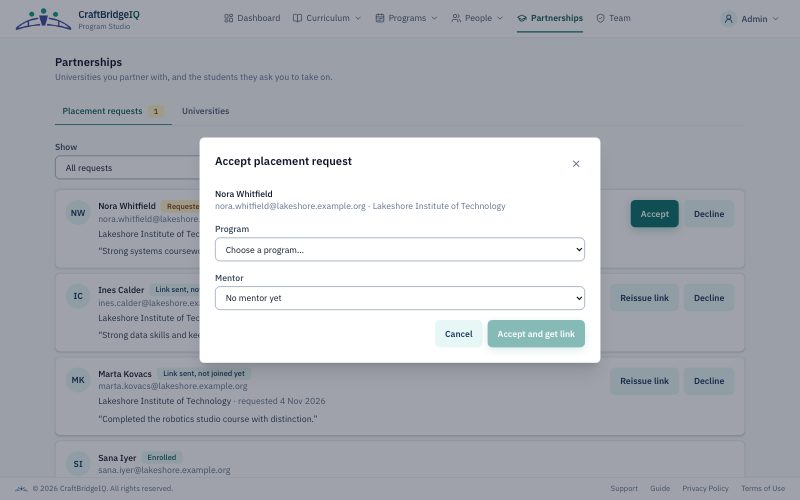
| No. | Control | What it does | What happens next |
|---|---|---|---|
| 1 | Accept placement request | The title. Under it you see the student's name, email and university. | Nothing; it is a label. |
| 2 | Program | The program the student will join. Only draft and active programs are offered. If you have exactly one, it is chosen for you. The first choice reads Choose a program…, or No draft or active programs when there is none. | Needed before Accept and get link works. |
| 3 | Mentor | A mentor for the student, or No mentor yet. If the university asked for a mentor and that person is on your list, they are already chosen and a line says The university asked for them. A mentor who is not taking new interns is marked (not accepting new). | Optional. |
| 4 | Cancel | Closes the box and changes nothing. | You are back on the queue. |
| 5 | Accept and get link | Accepts the request. It reads Accepting… while it works. Disabled until a program is chosen. | The box shows the one-time student link. |
After you accept, the box shows the link to send to the student. The link itself is hidden in this picture:
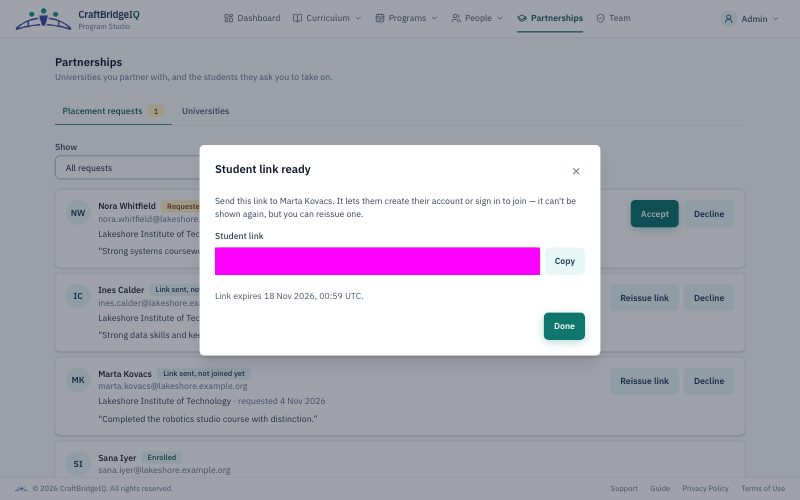
| No. | Control | What it does | What happens next |
|---|---|---|---|
| 1 | Send this link to Marta Kovacs. It lets them create their account or sign in to join | Tells you to send the link to the student. The sentence goes on to say it cannot be shown again but you can reissue one. | Nothing; it is a label. |
| 2 | Student link | The link, in a box you cannot edit, with a Copy button beside it that then reads Copied. | Copy it and send it to the student. |
| 3 | Link expires 18 Nov 2026, 00:50 UTC. | The day, time and time zone after which the link stops working. | Send it before then. |
| No. | Control | What it does | What happens next |
|---|---|---|---|
| Student link ready | The title of this box. Done closes it; the link is then gone. | Press Reissue link on the card for a new one. | |
| Done | Closes the box. | You are back on the queue. | |
| Close | The X in the corner of every box. It is switched off while a link is being created. | Closes the box. |
The Decline box asks for an optional reason:
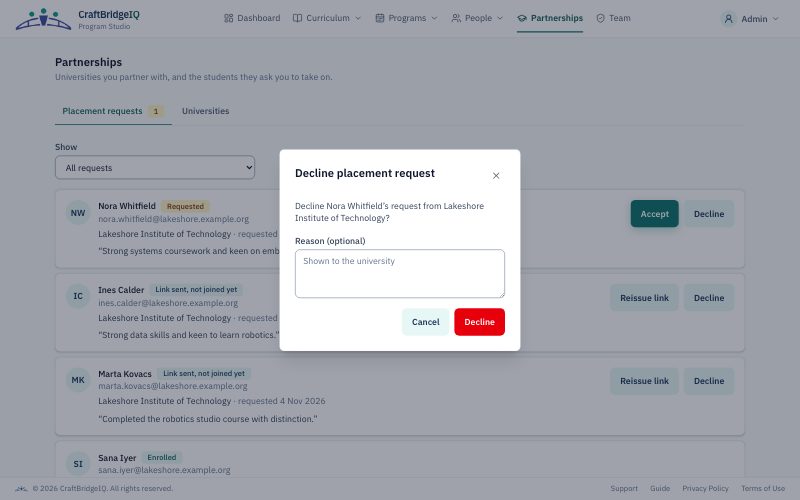
| No. | Control | What it does | What happens next |
|---|---|---|---|
| 1 | Decline placement request | The title. The text under it names the student and the university, and for a request whose link was sent it adds that the link you sent will stop working. | Nothing; it is a label. |
| 2 | Reason (optional) | A reason the university sees. The field says Shown to the university. | Optional. |
| 3 | Cancel | Closes the box and changes nothing. | You are back on the queue. |
| 4 | Decline | Declines the request. It reads Declining… while it works. | A confirmation appears and the card shows Declined. |
Press Reissue link on a card whose link was sent to make a new link:
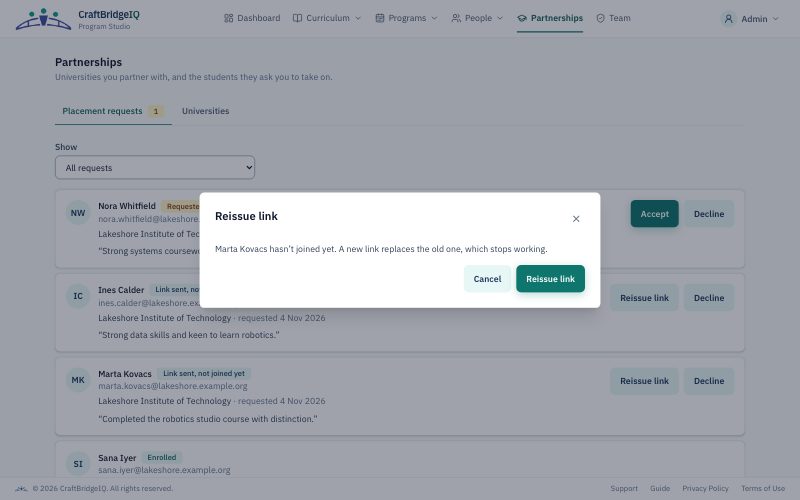
| No. | Control | What it does | What happens next |
|---|---|---|---|
| Reissue link | The title of the box and the button that confirms. The box says the student has not joined yet and that a new link replaces the old one, which stops working. | The Student link ready box shows the new link. | |
| Cancel | Closes the box and changes nothing. | The old link keeps working. |
The second tab, Universities, shows your partners and your invites:
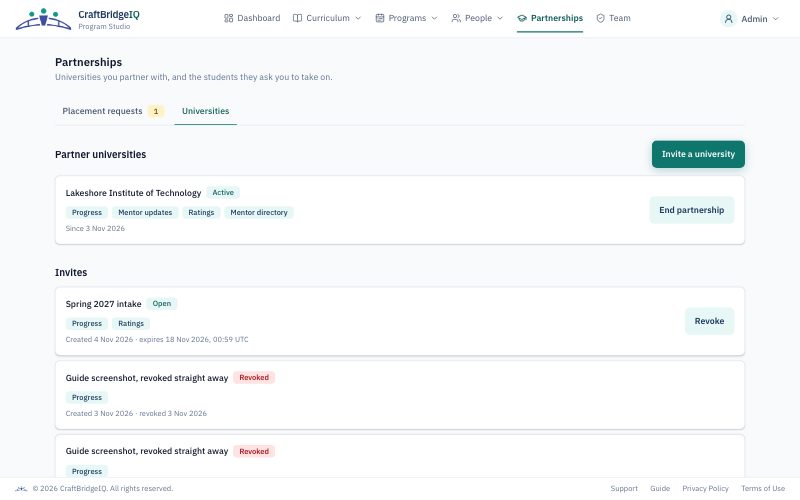
| No. | Control | What it does | What happens next |
|---|---|---|---|
| 1 | Partner universities | The heading of the partner list. Active partners are listed first. | Nothing; it is a label. |
| 2 | Invite a university | Opens the Invite a university box. | You choose what the university can see. |
| 3 | University name | The partner's name. | Nothing; it is a label. |
| 4 | Active | Whether the partnership is Active or Ended. | Nothing; it is a label. |
| 5 | Shared with the university | Labels for what this university can see: Progress, Mentor updates, Ratings and Mentor directory. It reads Nothing shared when none is switched on. | Nothing; it is a label. |
| 6 | Since 3 Nov 2026 | The date the partnership started. An ended partnership adds who ended it, Ended by you or Ended by the university, and when. | Nothing; it is a label. |
| 7 | End partnership | Shown on an active partner. Opens the End partnership box. | You confirm. |
| 8 | Invites | The heading of the list of invites you have made. | Nothing; it is a label. |
| 9 | Open | The status of an invite: Open, Redeemed, Revoked or Expired. | Nothing; it is a label. |
| 10 | Created 4 Nov 2026 · expires 18 Nov 2026, 00:50 UTC | When the invite was made. An open invite shows when it expires, an expired one when it expired, a redeemed one when it was used and a revoked one when it was revoked. | Nothing; it is a label. |
| 11 | Revoke | Shown on an open invite. Opens the Revoke invite box. | You confirm. |
Press Invite a university:
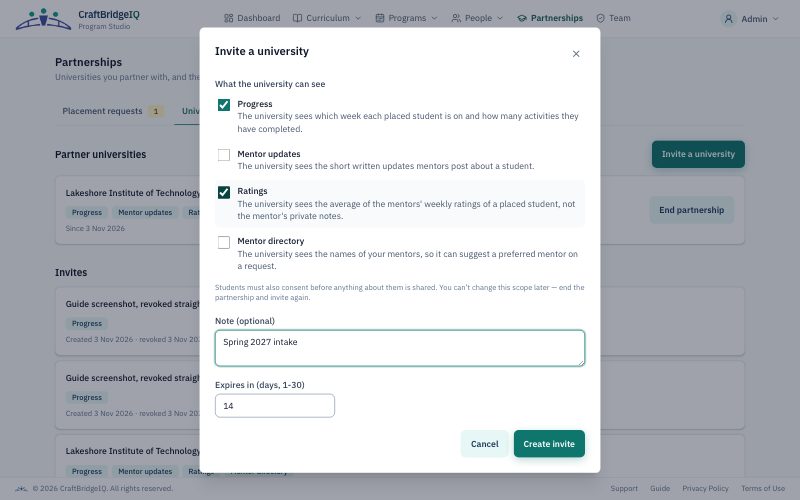
| No. | Control | What it does | What happens next |
|---|---|---|---|
| 1 | Invite a university | The title of the box. | Nothing; it is a label. |
| 2 | What the university can see | The heading of four checkboxes. Progress is on to begin with; the other three are off. | Choose what to share. |
| 3 | Progress | The university sees which week each placed student is on and how many activities they have completed. | Tick or untick. |
| 4 | Ratings | The university sees the average of the mentors' weekly ratings of a placed student, not the mentor's private notes. | Tick or untick. |
| 5 | Note (optional) | A name so you can recognise the invite later. | Optional. |
| 6 | Expires in (days, 1-30) | How long the token works. It starts at 14. | Choose a number from 1 to 30. |
| 7 | Create invite | Creates the invite. It reads Creating… while it works. | The box shows the token once. |
| No. | Control | What it does | What happens next |
|---|---|---|---|
| Mentor updates | The university sees the short written updates mentors post about a student. Off to begin with. | Tick or untick. | |
| Mentor directory | The university can see the names of your mentors for context. Off to begin with. The company still assigns mentors when accepting a placement. | Tick or untick. | |
| Cancel | Closes the box without creating an invite. | Nothing is created. |
After you press Create invite the token is shown once, hidden here:
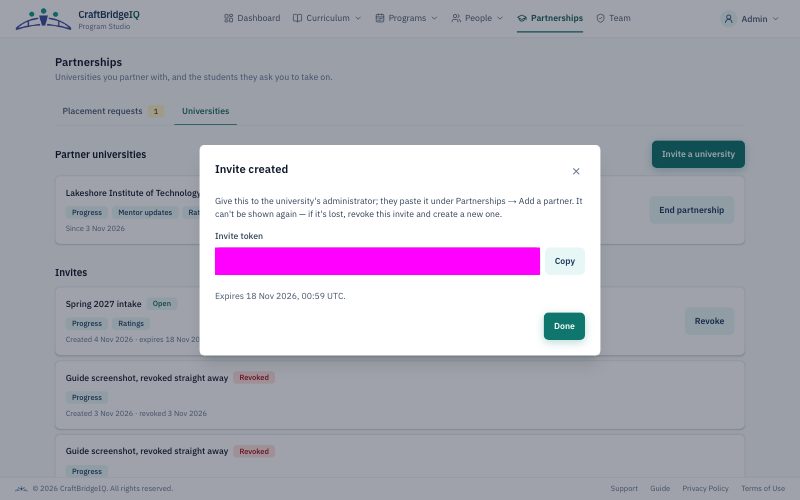
| No. | Control | What it does | What happens next |
|---|---|---|---|
| 1 | Give this to the university's administrator; they paste it under Partnerships → Add a partner. | Says what to do with the token. The sentence goes on to say it cannot be shown again, and that if it is lost you revoke the invite and create a new one. | Nothing; it is a label. |
| 2 | Invite token | The token, in a box you cannot edit, with a Copy button. | Copy it and give it to the university's administrator. |
| 3 | Expires 18 Nov 2026, 00:50 UTC. | The day, time and time zone after which the token stops working. | Send it before then. |
| No. | Control | What it does | What happens next |
|---|---|---|---|
| Invite created | The title of this box. Done closes it; the token is then gone. | Make a new invite if you lose it. | |
| Done | Closes the box. | You are back on the Universities tab. |
Press End partnership on a partner:
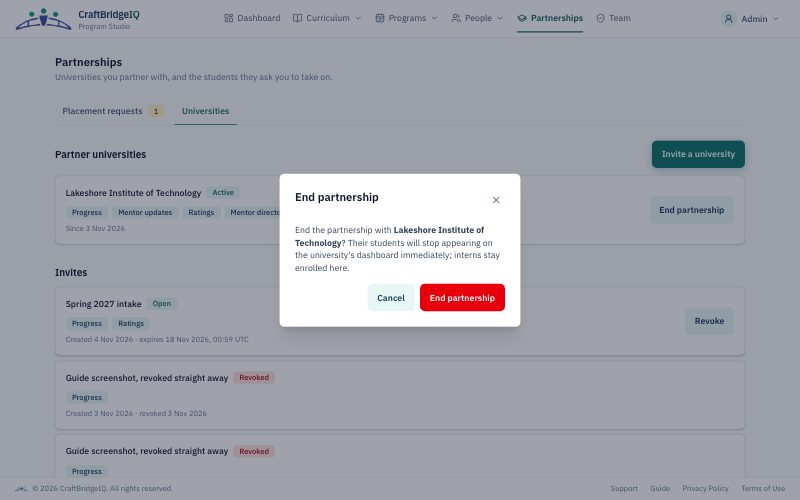
| No. | Control | What it does | What happens next |
|---|---|---|---|
| 1 | End partnership | The title of the box, and the red button that confirms. The button reads Ending… while it works. | The partnership ends and a confirmation appears. |
| 2 | Their students will stop appearing on the university's dashboard immediately; interns stay enrolled here. | Says what ending does. | Nothing; it is a label. |
| 3 | Cancel | Closes the box and changes nothing. | The partnership stays active. |
Press Revoke on an open invite:
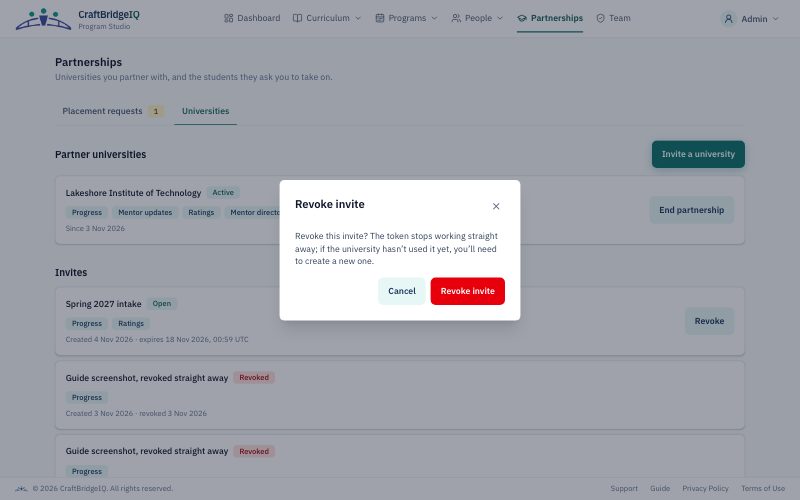
| No. | Control | What it does | What happens next |
|---|---|---|---|
| Revoke invite | The title of the box and the red button that confirms. The box says the token stops working straight away and that you will need a new one if the university has not used it. The button reads Revoking… while it works. | The invite shows Revoked and a confirmation appears. | |
| Cancel | Closes the box and changes nothing. | The invite stays open. |
Step by step
Invite a university
- Open Partnerships and the Universities tab.
- Press Invite a university.
- Tick what the university may see. Progress is already ticked.
- Type a note so you recognise the invite later, and choose how many days the token works.
- Press Create invite.
- Press Copy and give the token to the university’s administrator.
- Press Done.
Accept a placement request
- Open Partnerships. The Placement requests tab opens first.
- Find the request. Use Show and choose Waiting for a decision to see only new ones.
- Press Accept on the card.
- Choose the Program.
- Choose a Mentor, or leave No mentor yet.
- Press Accept and get link.
- Press Copy and send the link to the student.
- Press Done.
The card now reads Link sent, not joined yet. When the student opens the link and joins, it reads Enrolled. See Accepting a placement for what the student sees.
Decline a request
- Press Decline on the card.
- Type a reason if you want the university to see one.
- Press Decline.
You can also decline a request whose link was sent. The link then stops working.
Send the student a new link
- Find the card that reads Link sent, not joined yet.
- Press Reissue link, then press Reissue link in the box.
- Press Copy and send the new link.
The old link stops working.
Revoke an invite
- Open the Universities tab and find the invite in Invites.
- Press Revoke and confirm with Revoke invite.
Only an open invite can be revoked.
End a partnership
- Open the Universities tab and find the university in Partner universities.
- Press End partnership.
- Read the warning and press End partnership.
The university’s students stop appearing on its dashboard at once. Interns stay enrolled in your programs.
The forms
| Field | Required | Rules | Example |
|---|---|---|---|
| Progress | No | A checkbox, on to begin with. | On |
| Mentor updates | No | A checkbox, off to begin with. | Off |
| Ratings | No | A checkbox, off to begin with. | On |
| Mentor directory | No | A checkbox, off to begin with. | Off |
| Note (optional) | No | Up to 200 characters. | Spring 2027 intake |
| Expires in (days, 1-30) | Yes | A whole number from 1 to 30. Starts at 14. A number outside the range is moved to the nearest end. | 14 |
| Program | Yes | One of your draft or active programs. | Autumn 2026 Operations Cohort |
| Mentor | No | One of the mentors on the Mentors page, or No mentor yet. | No mentor yet |
| Reason (optional) | No | Up to 500 characters. The university sees it. | No capacity left in this cohort. |
Messages you can see
Confirmations and failures:
| Message | When you see it | What to do |
|---|---|---|
| Declined Theo Adebayo's request | After Decline works. | Nothing. |
| Ended the partnership with Lakeshore Institute of Technology | After End partnership works. | Nothing. |
| Invite revoked | After Revoke invite works. | Make a new invite if the university still needs one. |
| Couldn't accept this request. | Accept fails and the server gives no reason. | Try again. |
| Couldn't create a new link. | Reissue link fails and the server gives no reason. | Try again. |
| Couldn't decline this request. | Decline fails and the server gives no reason. | Try again. |
| Couldn't create the invite. | Create invite fails and the server gives no reason. | Try again. |
| Couldn't end the partnership. | End partnership fails and the server gives no reason. | Try again. |
| Couldn't revoke the invite. | Revoke invite fails and the server gives no reason. | Try again. |
| This placement is already declined | You act on a request that someone else already decided (the last word is its status). | Refresh the page. |
| The partnership behind this request has ended | You accept a request after the partnership ended. | Nothing can be done for this request. |
| That program is no longer taking interns | The program you chose is closed. | Choose another program. |
| Only an accepted placement that has not been redeemed has a link | You press Reissue link after the student already joined. | Nothing is needed; the student is in. |
| This partnership has already ended | You press End partnership for one that has ended. | Refresh the page. |
| This account can view but not change data. | A support login tries to change something. | Ask an administrator. |
Lists, empty states and loading:
| Message | When you see it | What to do |
|---|---|---|
| No placement requests yet | The queue is empty. The text under it says a request appears when a partner university asks to place a student with you. | Nothing to do. |
| Nothing matches that filter | Show is set to a group with no requests. The text under it says to try another filter. | Change Show. |
| No partner universities yet | The partner list is empty. The text under it says to invite a university to let it request internship placements. | Press Invite a university. |
| No invites yet | The invite list is empty. The text under it says an invite is a one-time token you give to a university's administrator. | Nothing to do. |
| No draft or active programs | In the Accept box, the Program menu has nothing to offer. | Create a program first. |
| Couldn't load placement requests. | The queue failed to load. | Press the retry button shown with it. |
| Couldn't load partnerships. | The partner list failed to load. | Press the retry button shown with it. |
| Couldn't load invites. | The invite list failed to load. | Press the retry button shown with it. |
| Couldn't load programs. | The Program menu in the Accept box failed to load. | Press the retry button shown with it. |
| Couldn't load mentors. | The Mentor menu in the Accept box failed to load. | Press the retry button shown with it. |
Limits and other roles
- An invite token works for 1 to 30 days, 14 unless you change it. It works once.
- A student link works for 14 days.
- A note on an invite is up to 200 characters. A decline reason is up to 500.
- Only draft and active programs can take a placed student.
- An invite cannot be edited. Revoke it and make another.
Common questions
I lost the invite token. What now?
It cannot be shown again. Revoke the invite and make a new one.
Can I change what a university can see?
No. The choice is fixed when you make the invite. End the partnership and invite again to change it.
Does the university see everything I tick?
Only for students who agree. The box says students must also consent before anything about them is shared.
What happens to placed students if I end a partnership?
They stop appearing on the university’s dashboard at once. They stay enrolled in your programs.
Does the university choose a mentor on the request?
No. The university does not pick a mentor when it asks for a placement. Mentor directory only lets the university see mentor names for context. You assign a mentor when you accept.
Last checked 2026-11-03 against the product.