
Program templates
Create and organise the templates your programs are built from.
What this page is for
A track template is the week-by-week plan for one kind of internship, for example Software Engineering or Data Analyst. A program is built from a template, so every intern in the program follows the same plan. This page lists your templates, lets you create a new one and shows where each one stands.
A template itself holds only a name and a role title. The weeks and activities live in its versions. See Template versions.
- Where
- Curriculum menu, then Track templates (address /templates)
- Who can open it
- Administrators can create and rename. View-only support logins can look but not change.
- App
- Program Studio
How a new template gets started
The same steps as a list
- Press New track template and fill in the form
- Creates the template and opens its version history
- Create the first draft version
- Add weeks and activities to the draft
- Publish the version so a program can use it
The screen
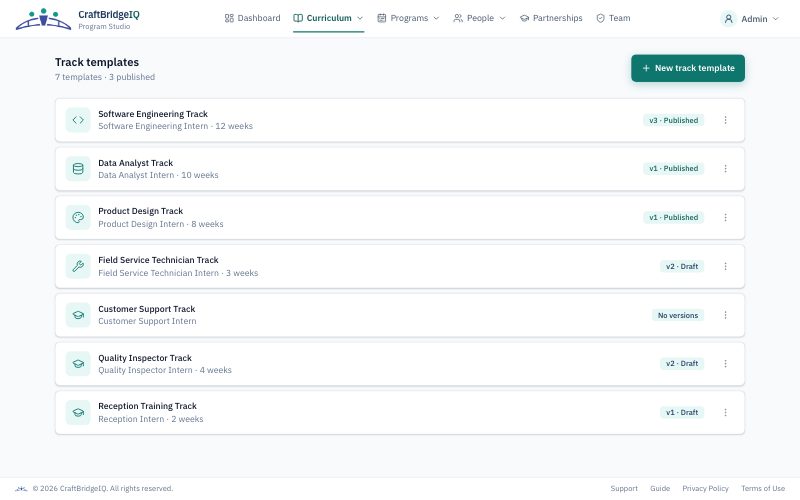
| No. | Control | What it does | What happens next |
|---|---|---|---|
| 1 | Track templates | The page heading. | Nothing; it is a label. |
| 2 | 5 templates · 3 published | How many templates you have, and how many of them have a published latest version. A plus sign after the count means more templates can be loaded. | Nothing; it is a label. It is hidden until you have at least one template. |
| 3 | New track template | Opens a form for a new template. | A box with Name and Role title opens. Support logins do not see this button. |
| 4 | Software Engineering Track | One card per template: the name, then the role title and the length in weeks of its newest version. | Opens the template's version history. |
| 5 | v1 · Published | The status of the newest version: Draft, Published or Archived, with its number. It reads No versions when the template has none, and Couldn't load if the versions could not be read. | Nothing; it is a label. |
| 6 | Actions for Software Engineering Track | The three-dot menu on a card. It is named after the template. | Opens View versions and, for administrators, Rename… |
The menu on a card:
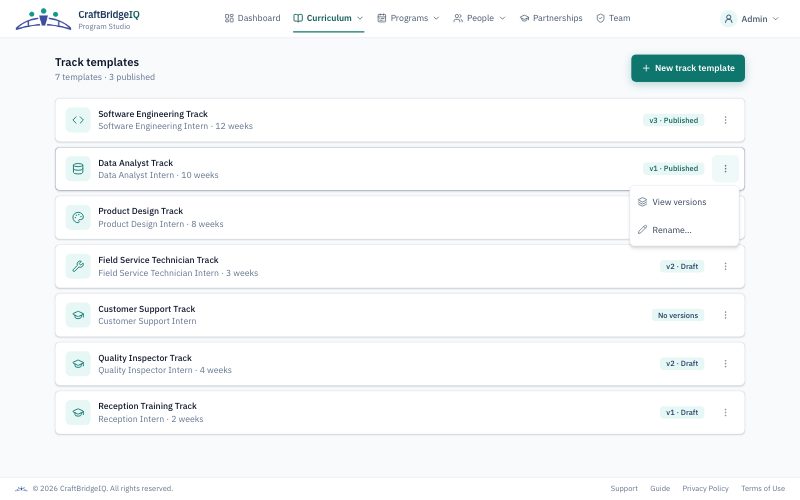
| No. | Control | What it does | What happens next |
|---|---|---|---|
| 1 | View versions | Opens the template's version history, the same as clicking the card. | The version history opens. |
| 2 | Rename… | Opens a box to change the name and role title. Not shown to support logins. | The Rename track template box opens. |
The box that opens when you press New track template:
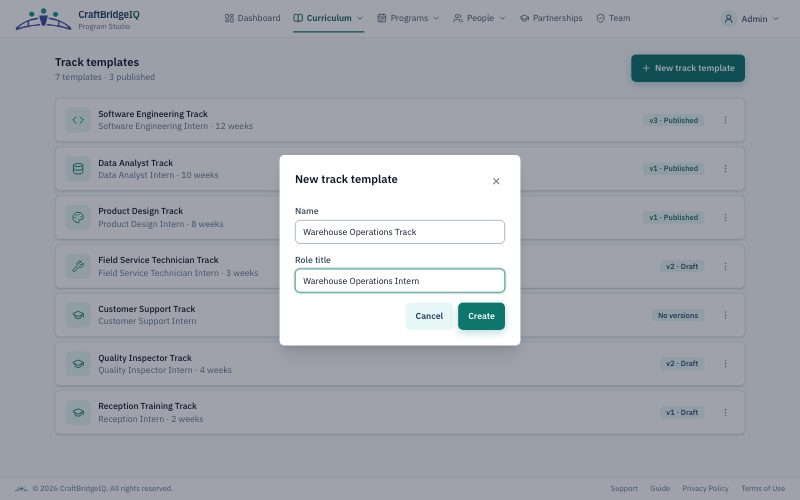
| No. | Control | What it does | What happens next |
|---|---|---|---|
| 1 | New track template | The title of the box. | Nothing; it is a label. |
| 2 | Name | What your team calls the template. | Shown on its card. |
| 3 | Role title | The job the intern is training for. | Shown under the name on the card. |
| 4 | Cancel | Closes the box and changes nothing. | You are back on the list. |
| 5 | Create | Creates the template. It stays greyed out until both fields have text. It reads Creating… while it works. | A confirmation appears and the new template's version history opens. |
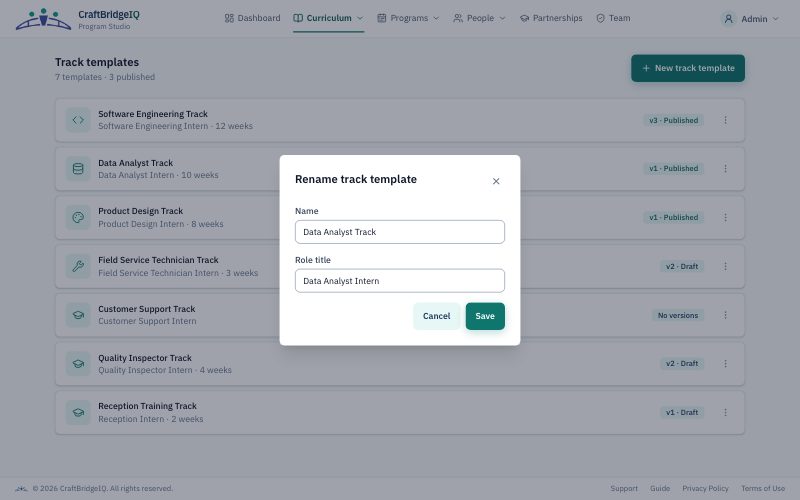
The Rename track template box has the same two fields with Cancel and Save:
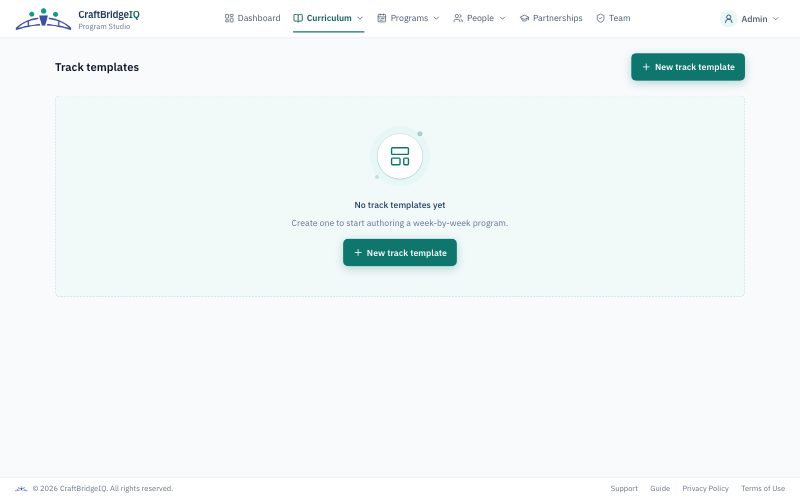
Before any template exists, the page shows this:
Step by step
Create a template
- Open the Curriculum menu and choose Track templates.
- Press New track template.
- Type the template name in Name.
- Type the job title in Role title.
- Press Create.
The new template opens on its version history, which is empty. Press New version to make the first draft. See Template versions.
Rename a template
- Press the three-dot menu on the template’s card.
- Choose Rename…
- Change the name or the role title.
- Press Save.
Renaming changes only the name and role title. Its versions are not touched.
Open a template
- Press the template’s card, or open its three-dot menu and choose View versions.
See more templates
- If your list is long, press Load more under the last card. It loads the next 20.
The New track template form
| Field | Required | Rules | Example |
|---|---|---|---|
| Name | Yes | Up to 200 characters. A blank or spaces-only name cannot be created. | Warehouse Operations Track |
| Role title | Yes | Up to 200 characters. A blank or spaces-only title cannot be created. | Warehouse Operations Intern |
Messages you can see
| Message | When you see it | What to do |
|---|---|---|
| Track template created | After Create works. | Nothing. The new template's version history opens. |
| Track template renamed | After Save works in the Rename box. | Nothing. |
| Couldn't create the track template. | Create failed and the server gave no more specific reason. A more specific message from the server is shown in its place when there is one. | Try again. |
| Couldn't rename the track template. | Save failed and the server gave no more specific reason. | Try again. |
| Couldn't load track templates. | The list could not load. | Press Try again beside it. |
| No track templates yet | You have no templates. | Press New track template. Support logins see None have been created yet. instead of a button. |
| Create one to start authoring a week-by-week program. | Under No track templates yet, for administrators. | Press New track template. |
| None have been created yet. | Under No track templates yet, for support logins. | Ask your administrator. |
| No versions | The badge on a template that has no versions. | Open the template and press New version. |
| Couldn't load | The badge could not read that template's versions. | Reload the page. |
| Loading… | On the Load more button while the next templates load. | Wait. |
| This account can view but not change data. | A support login's change was refused by the server. | Ask your administrator to make the change. |
Limits and other roles
- Name and Role title can each be up to 200 characters.
- The list shows 20 templates at a time; Load more shows the next 20.
- The page has no way to delete a template. You can rename it.
Common questions
What does the badge on a card mean?
It shows the newest version of the template. v2 · Draft means version 2 is still being built. v3 · Published means version 3 is finished and programs can use it. No versions means nothing has been made yet.
Where do I edit the weeks and activities?
Not on this page. Open the template, then open a draft version. See Editing a version.
Can I delete a template?
Not from this page. It has no delete control. You can rename a template or stop using it.
Where is Track templates in the menu?
It is under Curriculum in the top menu, together with Competencies.
Last checked 2026-11-03 against the product.