
Your week
See this week's assignments, other weeks and your progress.
What this page is for
Your week is the first page you see after you sign in. It shows how far you are through your program, the one thing to do next, the rest of this week’s assignments, and every other week of your program.
- Where
- Your week, the first link in the menu (address /). You land here after you sign in.
- Who can open it
- Interns.
- App
- Intern Portal
How your week works
The same steps as a list
- Open Your week
- Shows your progress, Up next and this week
- Press Submit work on Up next, or open any assignment
- Sends your work to your mentor
- Your mentor reviews it and signs it off
- Your progress moves and the next item is Up next
The screen
The picture shows the top of Your week on a phone. The header and the footer are the same on every Intern Portal page, so they are described here once.
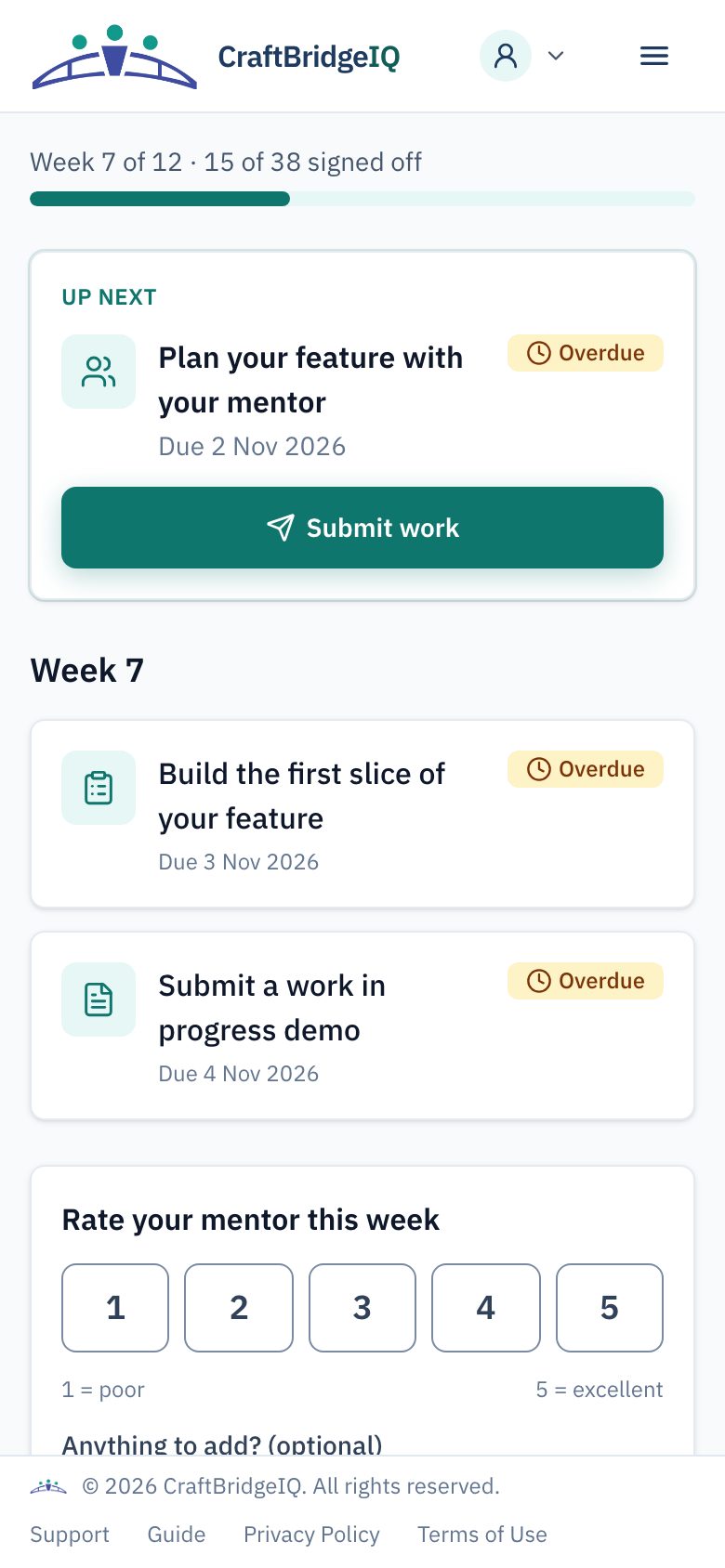
| No. | Control | What it does | What happens next |
|---|---|---|---|
| 1 | Menu | On a phone, opens the links to Your week and Your record. On a wider screen the links sit in the header and this button is not shown. | Tap a link to go to that page. |
| 2 | Account menu | Opens a small menu that shows your role and has three items: Profile, Help & guide and Log out. | Help & guide opens this guide in a new tab. Log out signs you out. |
| 3 | Week 7 of 12 · 15 of 38 submitted · 9 signed off | Shows the week you are in, how many weeks your program has, how many of all your assignments you have submitted, and how many of those your mentor has signed off. The bar under it fills as you submit. | Nothing; it is a label. |
| 4 | Up next | Marks the one assignment to do next: the earliest open assignment you have not submitted yet. | Press the button under it to work on it. |
| 5 | Overdue | A badge shown when the due date has passed and the work is not signed off. | Submit the work as soon as you can. |
| 6 | Submit work | Opens the assignment so you can write notes, add a link and attach documents. | The submission form opens. See Submitting your work. |
| 7 | Week 7 | The heading of the current week, above the rest of its assignments. | Nothing; it is a heading. |
| 8 | Due 3 Nov 2026 | One assignment row: its title, its due date and a badge when it has one. Tap the row to open the assignment. | The assignment opens in a sheet over the page. |
| 9 | Rate your mentor this week | A card where you rate your mentor once a week. It shows while your enrollment is active. | See Rating your mentor and check-ins. |
| Your week | The link back to this page. | Shows the page you are reading about. | |
| Your record | Opens your competency record. | See Your competency record. | |
| Settings | Only shown when your placement came through a university. Opens your sharing settings. | See Sharing with your university. | |
| Waiting for your mentor. | Replaces the Submit work button on Up next when you have already submitted that assignment. | Press View submission to read what you sent. | |
| View submission | Opens a submitted assignment so you can read it, or send a new version. | The assignment opens in a sheet. |
Below this week’s assignments you see the rating cards, then your earlier weeks, then the weeks that are still locked.
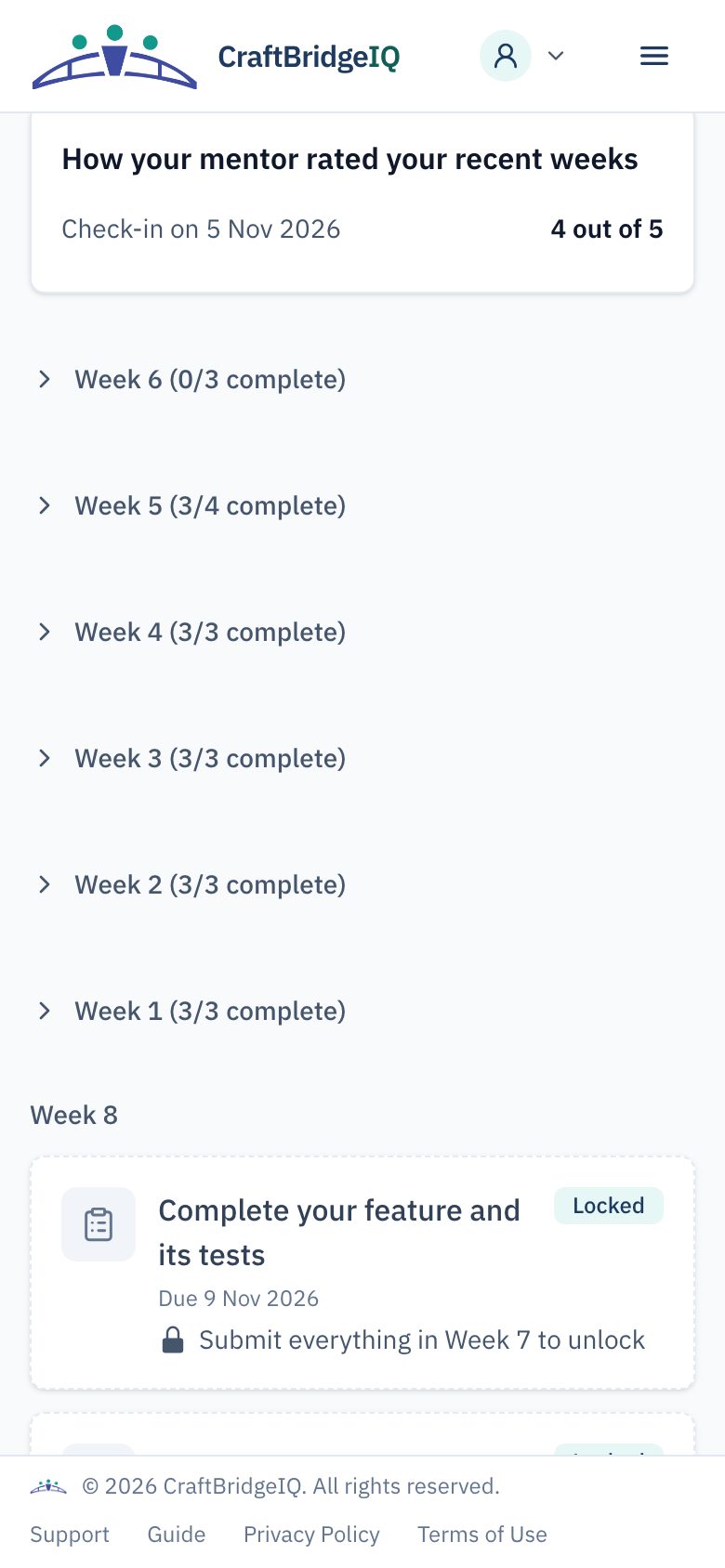
| No. | Control | What it does | What happens next |
|---|---|---|---|
| 10 | How your mentor rated your recent weeks | Appears once your mentor has rated a week of yours. It lists up to four of the latest, each with the check-in date and the rating out of 5. | Nothing; it is a list. |
| 11 | Week 6 (0/3 submitted) | One line for each earlier week that is open. It shows how many of that week's assignments you have submitted out of how many there are. The newest week is first. | Tap the line to open the week and see its assignments. |
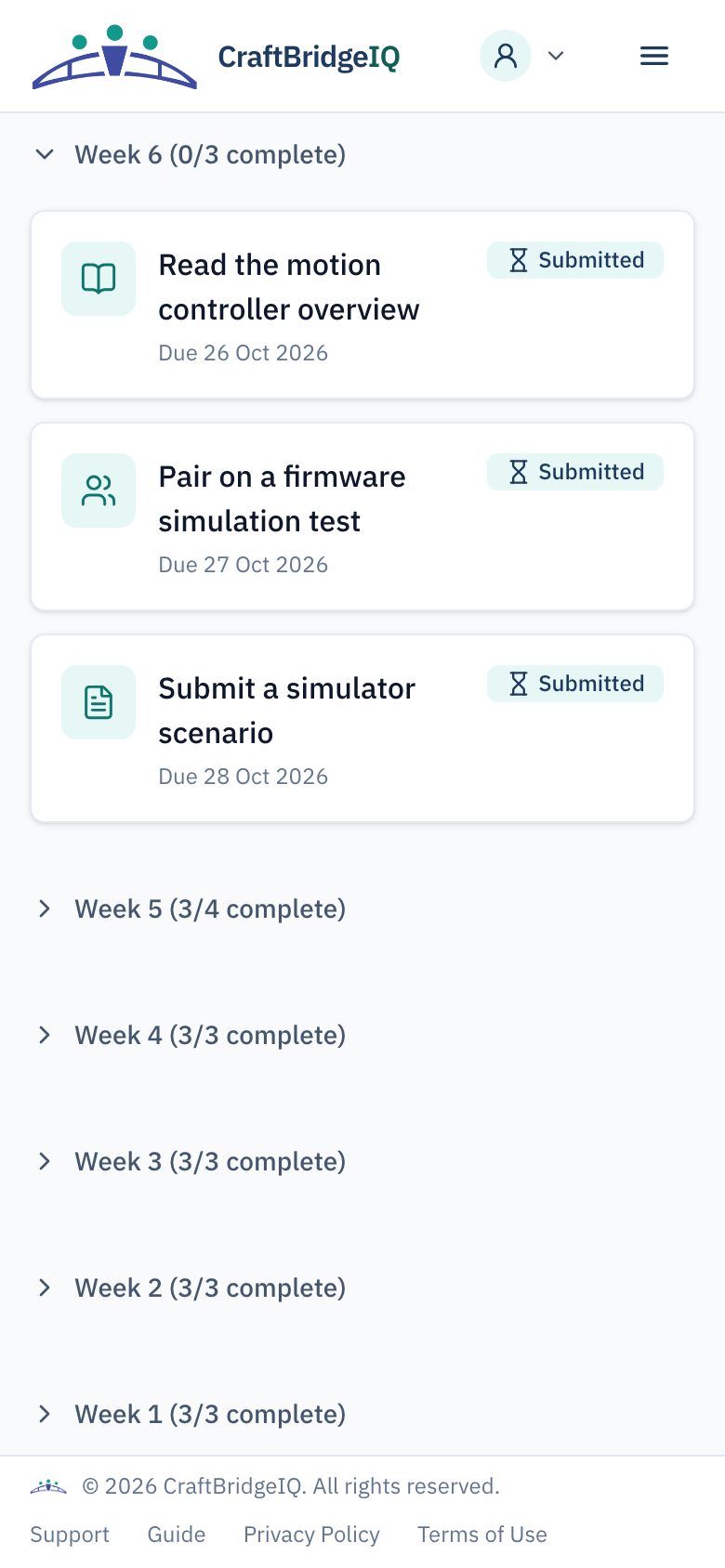
| No. | Control | What it does | What happens next |
|---|---|---|---|
| 12 | Submitted | A badge on an assignment you sent that your mentor has not signed off yet. Signed off assignments show a Signed off badge instead. | Tap the row to read what you sent. |
| Changes requested | A badge on an assignment your mentor sent back. The Up next card then says Your mentor asked for changes and offers Resubmit work. | Open it, read the reason and send a new version. See Submitting your work. |
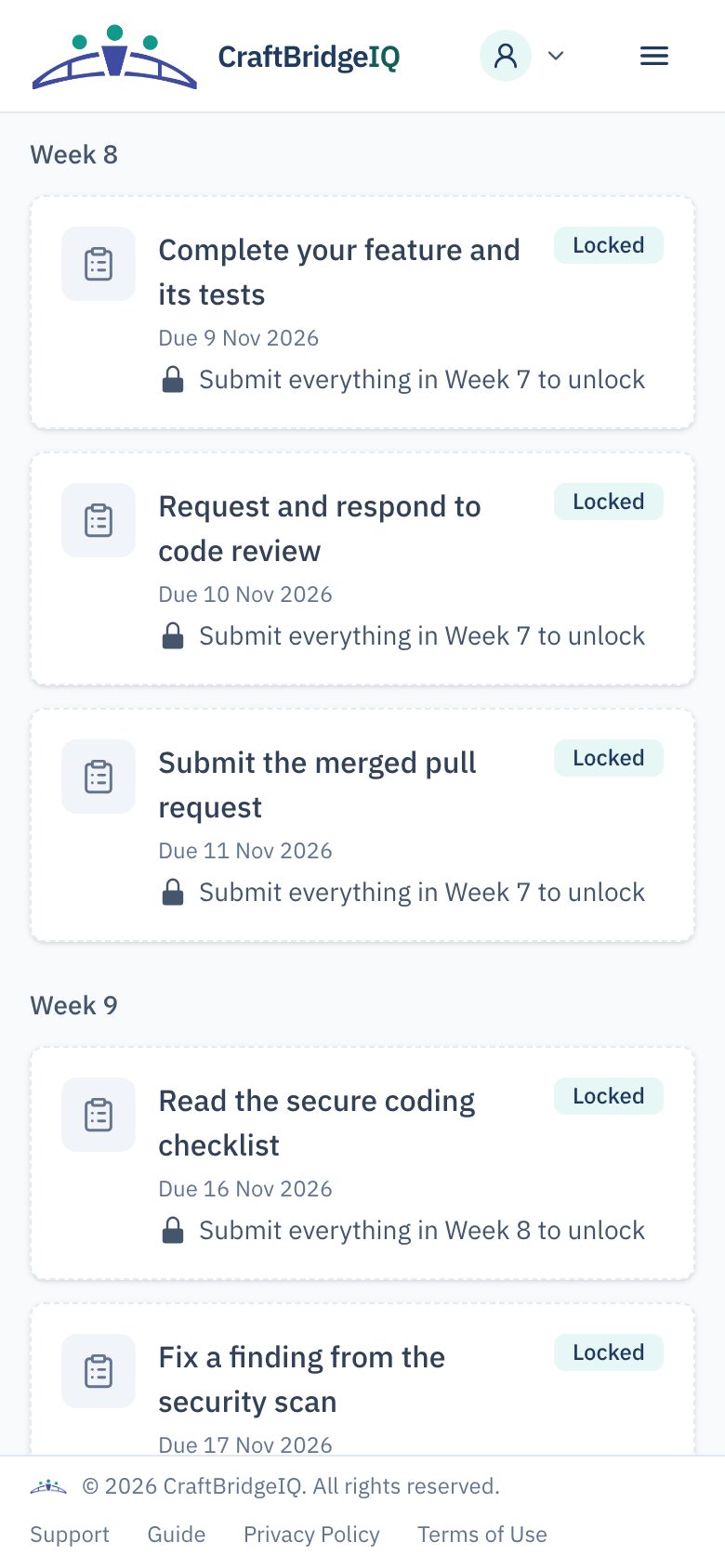
| No. | Control | What it does | What happens next |
|---|---|---|---|
| 13 | Week 8 | The heading of a week that is not open yet. | Nothing; it is a heading. |
| 14 | Locked | A badge on every assignment in a locked week. | Finish the week named in the line under the title. |
| 15 | Submit everything in Week 7 to unlock | Tells you which week to finish first. The number is always the week before. | The week opens after you finish that week, or sooner if your mentor opens it for you. |
Step by step
Read your progress
- Open Your week.
- Read the line at the top. It names your current week, the number of weeks in your program, how many assignments you have submitted and how many of those your mentor has signed off.
The bar fills as you submit work, so turning an assignment in moves it at once. A sign-off, which is your mentor accepting the work, is counted separately after the dot. Work your mentor sent back still counts as submitted until you resubmit it.
Find what to do next
- Look at the card marked Up next.
- Press Submit work to start it. If you already sent it, the card says Waiting for your mentor.
Up next is the earliest open assignment you have not submitted. An overdue assignment from an earlier week comes before this week’s work.
Open any assignment
- Tap the assignment’s row, in this week or in an earlier week.
- Read the instructions in the sheet that opens. To send work, follow Submitting your work.
Look at an earlier week
- Scroll down to the lines that start with Week and a number.
- Tap the line for the week you want. Tap it again to close it.
Understand a locked week
- Scroll to the end of the page. Locked weeks come last, the soonest one to open first.
- Read the line under an assignment. It names the week you have to finish first.
Messages you can see
| Message | When you see it | What to do |
|---|---|---|
| Nothing here yet | Instead of the list, when no assignments exist for you. | Wait for your program to start, or ask your program admin. |
| Your program hasn't started, or nothing's been assigned yet | Under Nothing here yet. | Check back soon. |
| Waiting for your mentor. | On Up next, when you have already submitted that assignment. | Nothing. Press View submission to read it again. |
| Submit everything in Week 7 to unlock | On every assignment of a locked week. | Finish the week it names. |
| Couldn't load your program. | Your program could not be loaded. A Try again button is shown with it. | Press Try again. If it keeps failing, check your connection. |
Limits and other roles
- The ratings card lists at most 4 of the latest rated weeks (from the Intern Portal source, not a setting).
- Weeks open one after another. Locked weeks list their assignments but accept no work.
Common questions
Why is Up next from an earlier week?
Up next follows the earliest open assignment you have not submitted, so overdue work from an earlier week comes first. Submit it, and the card moves on to the next one.
Why can't I submit work for a later week?
Later weeks open one at a time. The line under each locked assignment says which week to finish first. Your mentor can also open a week early for you.
Why did the bar not move when I submitted?
The bar counts signed-off assignments. It moves when your mentor signs your work off.
Where did the Rate your mentor card go?
After you save a rating, the card changes to Mentor rating submitted and comes back the next week. See Rating your mentor and check-ins.
Last checked 2026-11-03 against the product.